What is the Text Box Component and How Can It Be Utilized Effectively?
Words have the ability to inspire, inform, and persuade—and when added within your mobile app, can enhance user experience and drive conversions.
By integrating dynamic text using Text Box Component by MageNative, you can effectively communicate important information, engage users, and drive conversions through your mobile app.
What is the Text Box Component?
The Text Box Component is MageNative’s feature that allows you to add any type of text-based content directly on your mobile app. These texts can be a customer testimonial, product review or personalized messages to highlight key information and enhance user engagement.
How to Set Up the Text Box Component on Your Mobile App?
1. Drag and drop the Text Box Component into the desired destination on your app’s screen.
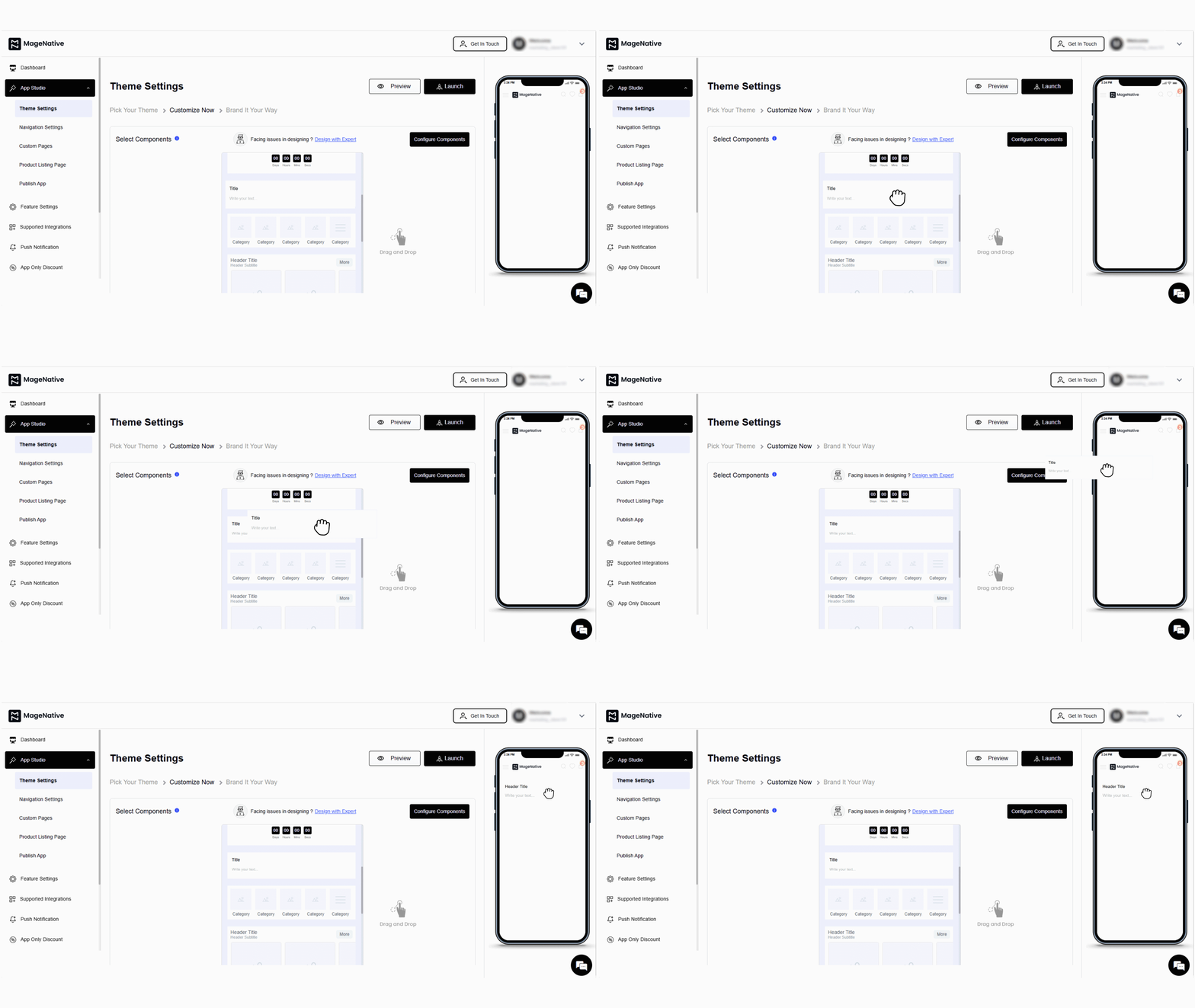
2. Next, click on the edit icon. It will open a customization window at the center of the dashboard.
3. These are the options available to customize your text content:
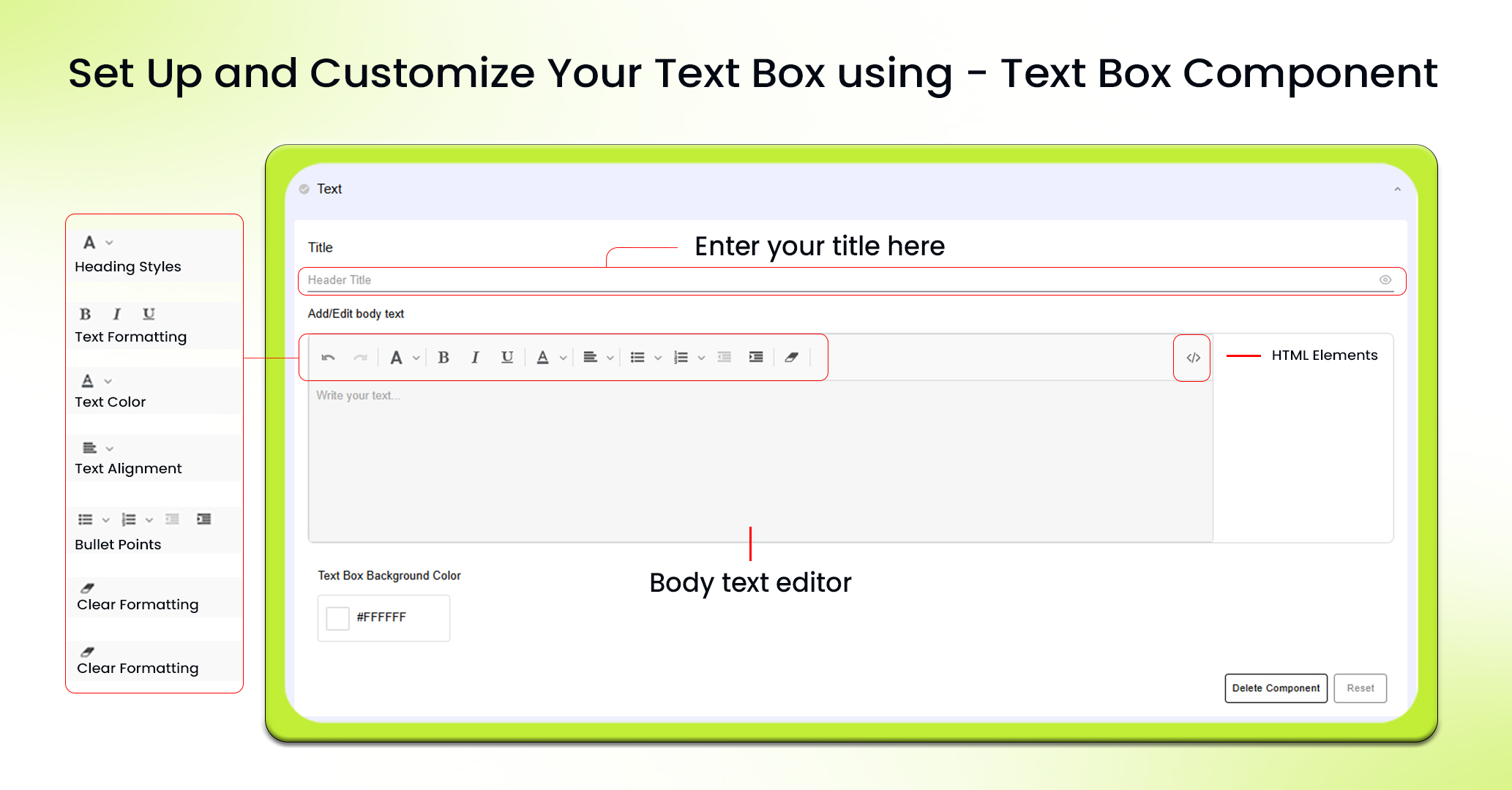
Title: You can add a title to the text for highlighting what the content is about. You can choose to display or hide the title based on your preference.
Body Text: This is where you will type your actual content you want to appear in the text box.
The text editor allows you to perform these customizations:
- Heading Styles: You can choose different heading levels (H1 to H4), normal text, or specialized formats such as quotes or code to organize your content and create a visually pleasing structure.
- Text Formatting: You can apply bold, italic, or underline formats in your text.
- Text Color: You can customize the color of your text to match your app’s theme and enhance visual coherence.
- Align Text: You can left, center, or right-justify your text to improve your overall layout and readability.
- Bullet Points: You can use several bullet point types-circular, dot, or square- to organize and improve readability of lists.
- Clear Formatting: With this, you can quickly remove any formatting to revert back to a plain-text format for easy content updates.
- HTML Elements: Insert HTML elements at a more advanced level to customize what you want, allowing you to build a unique and interactive user experience.
4. Next, select a background color that complements your app’s design and improves text visibility, making your content more engaging.
5. After all settings are configured, click on the Save button to apply the changes.
Best Practices for Using the Text Box Component
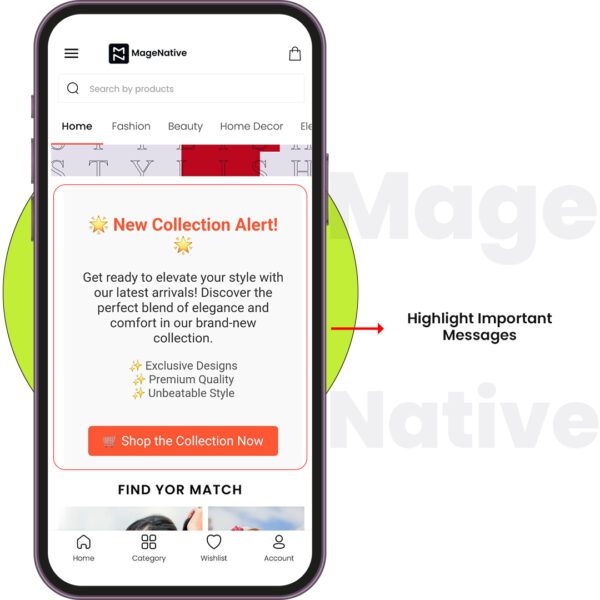
Highlight Important Messages
Use the Text Box to highlight important messages within your app, like announcements, special offers, or new product information.
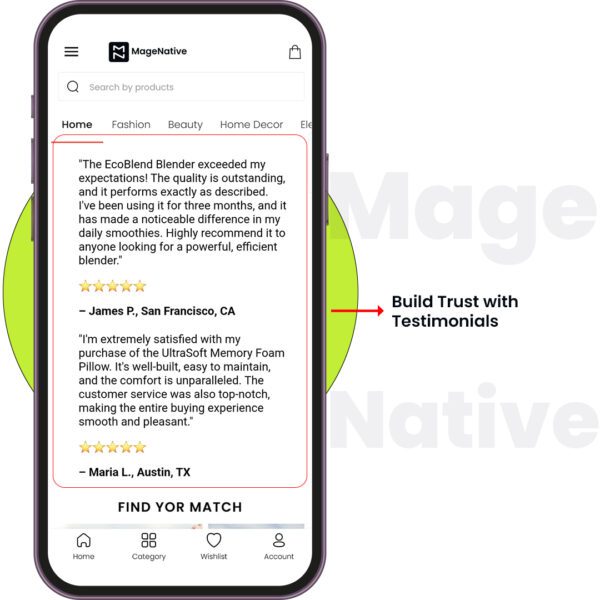
Feature Customer Testimonials
Write actual customer testimonials to build trust and credibility with your new app users.
PRO TIP 1: Choose fonts and colors that are easy to read and match your brand’s aesthetic.
PRO TIP 2: Regularly update your Text Box content to reflect the latest information and maintain user interest.
Feel free to reach out to our support team if you have questions or need support. We are here to help and address any issues you may have!


