What is the Product Slider component and How Can It Be Utilized Effectively?
Capturing attention and driving sales requires more than just a static display—it’s about creating an interactive experience that makes your customer feel connected and excited about your product. The Product Slider component by MageNative is meant for this – It displays products in a dynamic sliding display. Using the Product Slider, you can not only construct such an engaging interface but can attract the user’s attention towards the products.
How to Set Up the Product Slider on Your Mobile App?
1. Drag and drop the Product Slider Component to your desired location on the app’s screen.
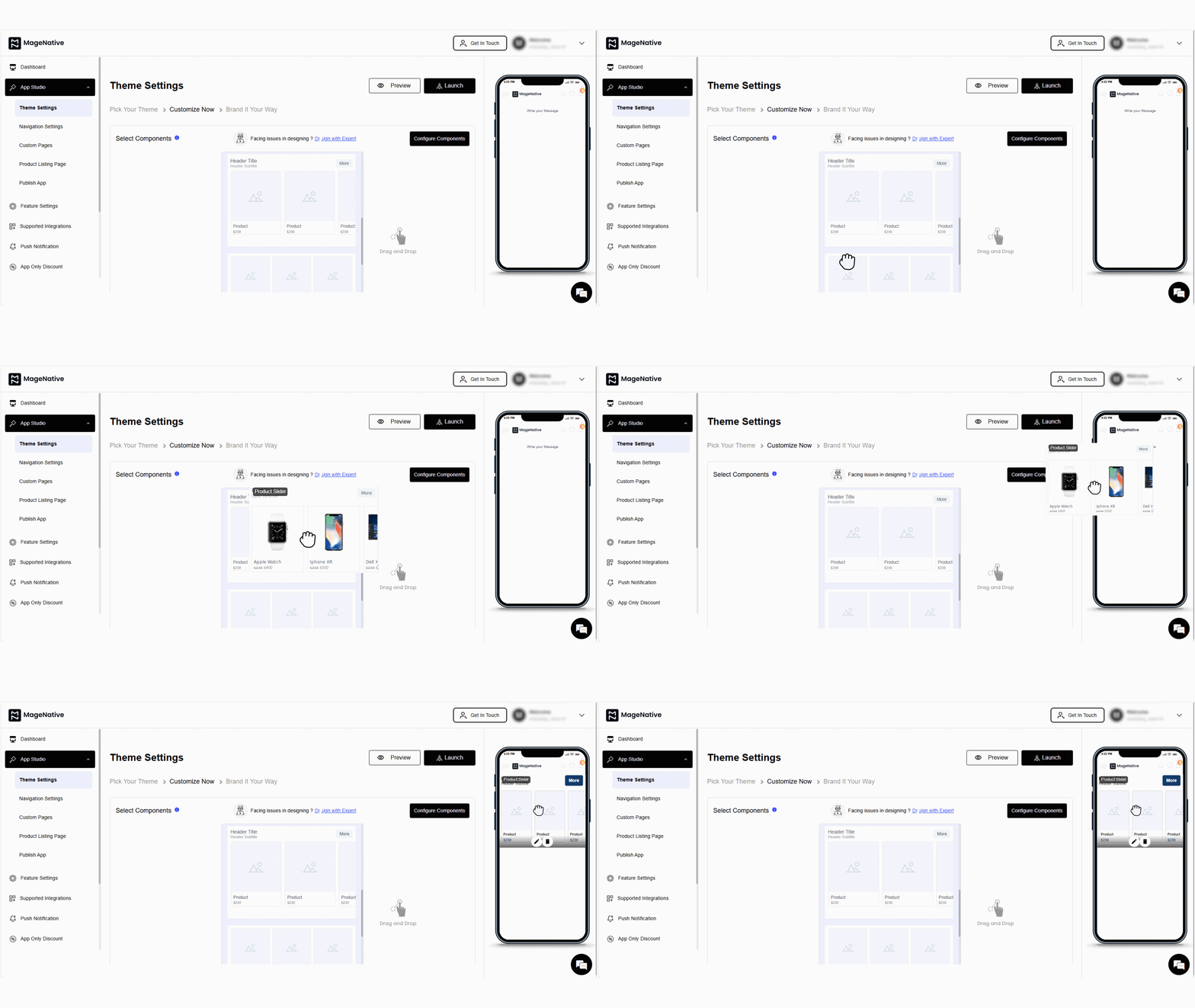
2. Open the settings by clicking on the edit icon. This will open the customization options in the center of the dashboard.
3. In the layout section, you can adjust the following:
4. In the “Set Display Layout” part – Select your preferred product shape – (rounded or square).
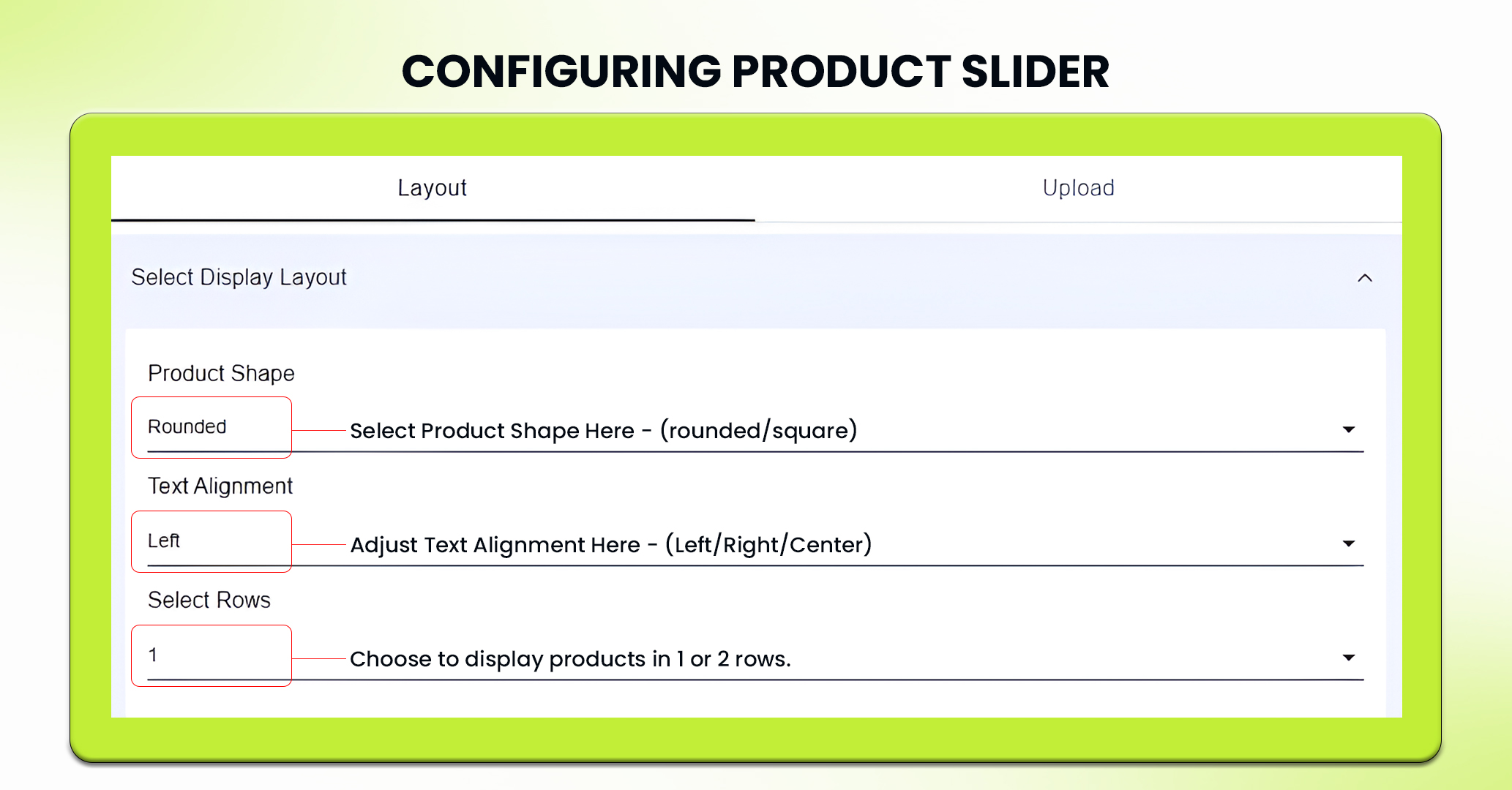
5. Now, Adjust the text alignment for the product— left, right, or center.
6. Then set rows, whether you would like to display 1 or 2 rows of products.
7. Moving on to “Product Slider Setting”. Here, you can enable or disable –
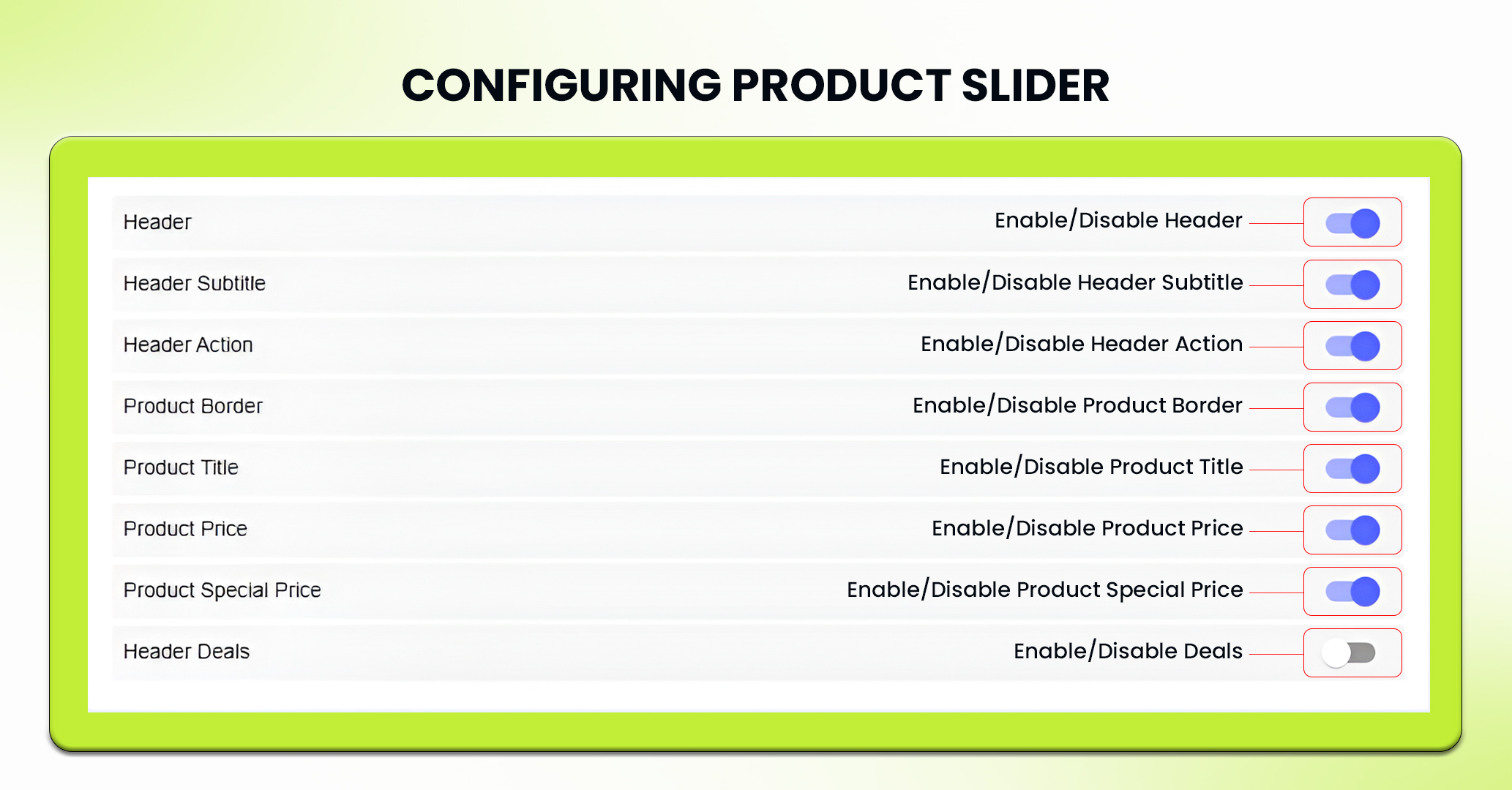
- Header
- Header Subtitle
- Header Action
- Product Border
- Product Title
- Product Price
- Product Special Price
- Deals
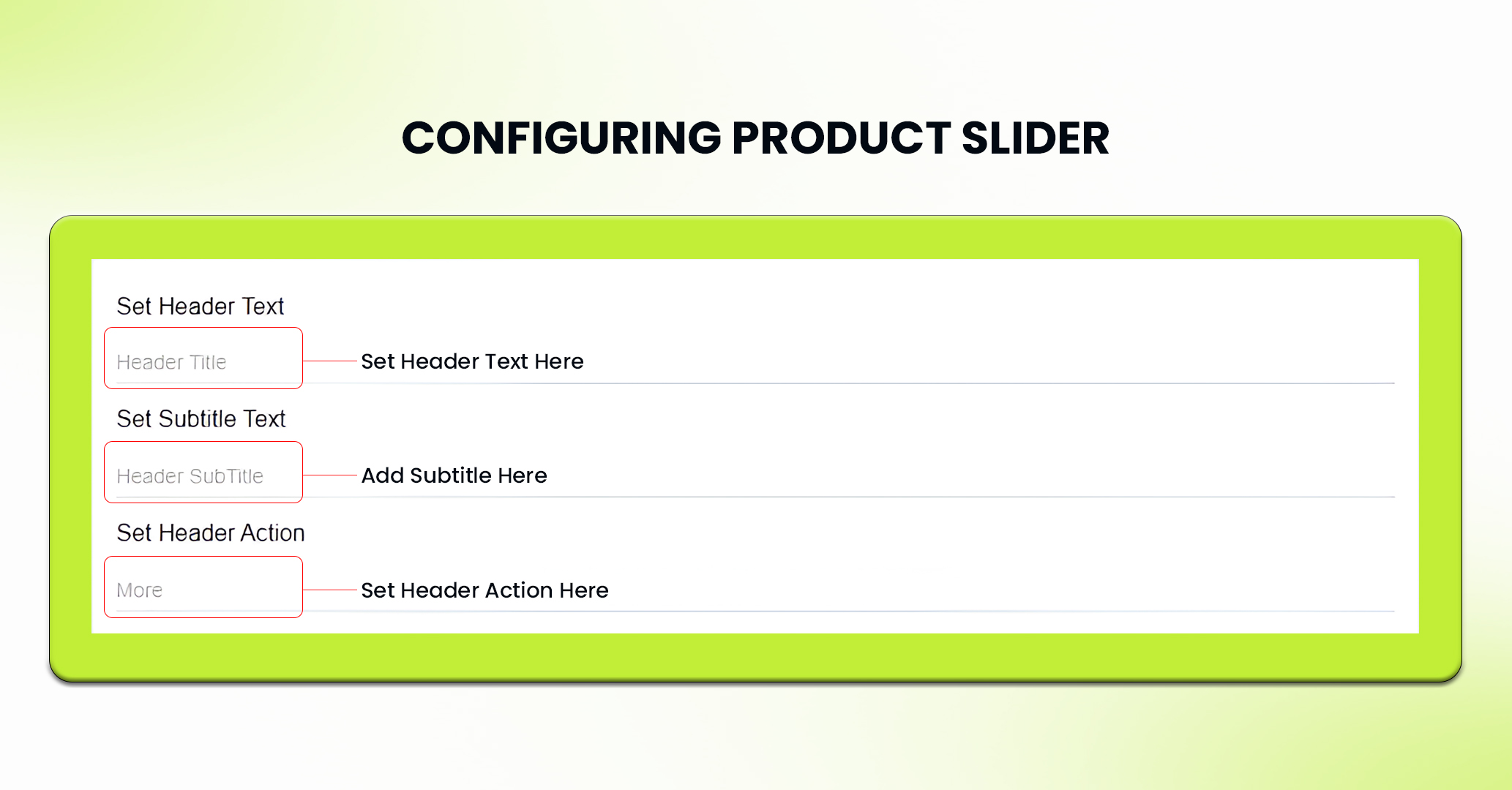
8. Furthermore, in the “Header Title” section – you can set the header text to grab attention, add subtitles for additional context and set header action.
9. In the “Upload” section – you can define the number of products you want to display, ranging from 3-10.
10. Now, Select particular products or collections and link them to the section on the slider you wanted to display your product or collections.
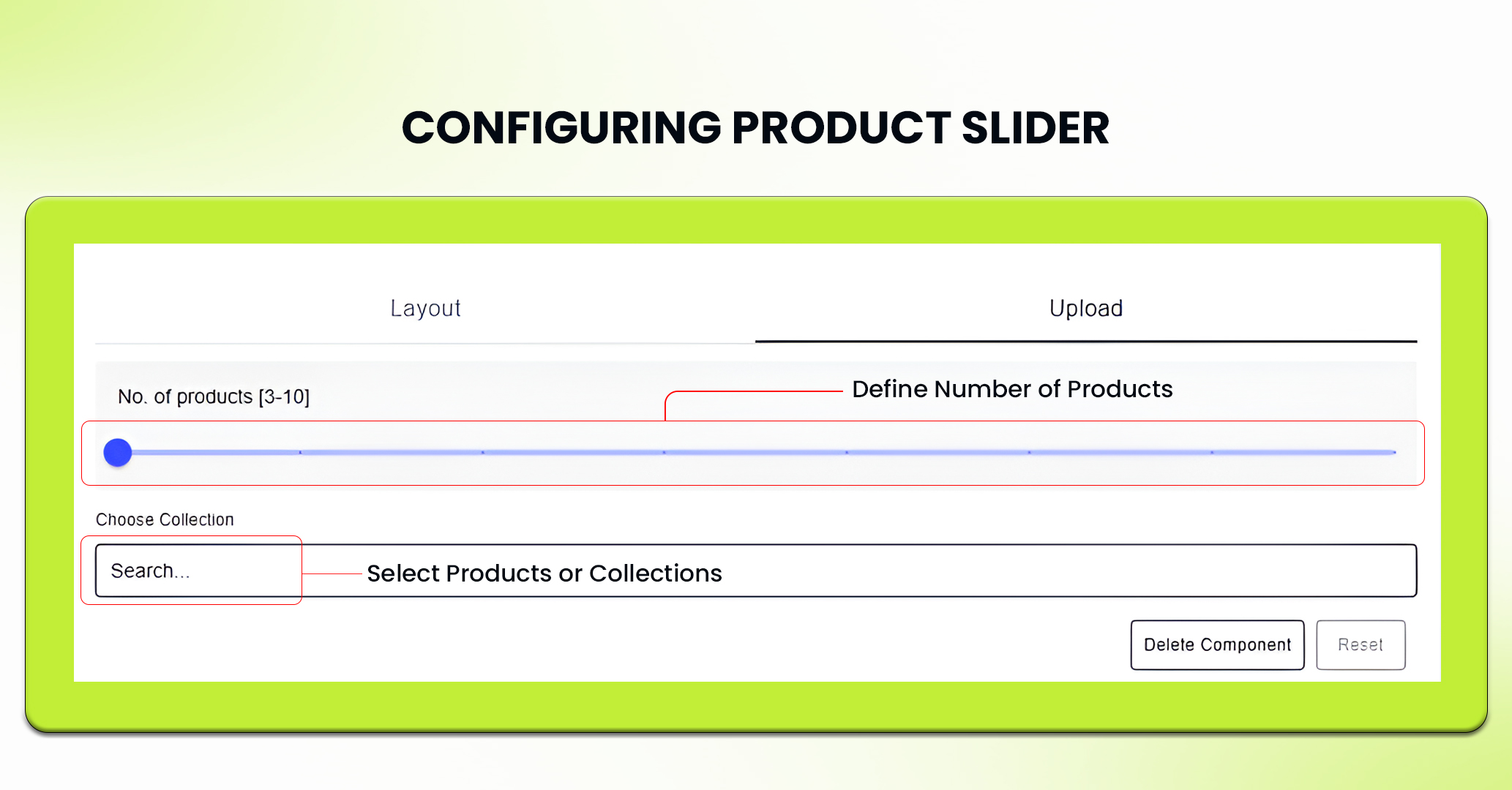
11. Click the Save button to see your customizations on the app’s screen.
12. If needed, you can delete the product slider by clicking Delete Component or press Reset to undo any changes made to the spacer.
Best Use Case for MageNative’s Product Slider
Combine Product Slider with Announcement Bar for Promotions
You can empower your promotional campaigns by integrating the Product Slider with an Announcement Bar. Suppose you are running some limited-time offers or a seasonal sale, you can announce that with an Announcement Bar and use the Product Slider for products on sale.
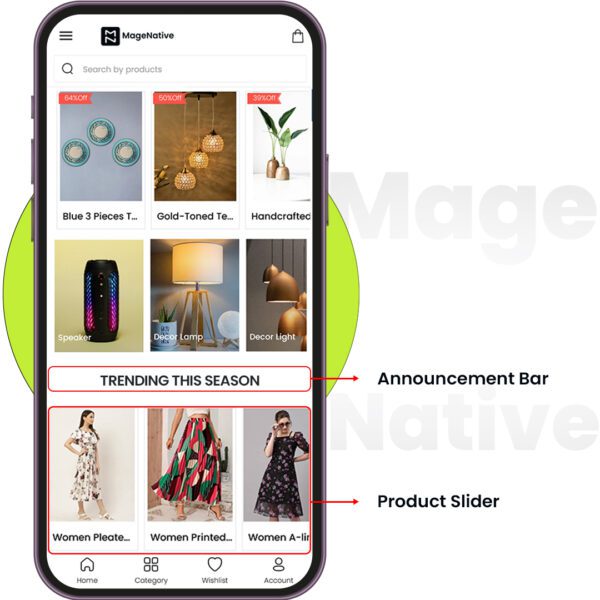
PRO TIP: Tip 1: Your announcement bar should have a clear call-to-action, For ex- “Shop Now,” that links directly to the Product Slider.
Feel free to reach out to our support team if you have questions or need support. We are here to help and address any issues you may have!


