What is the Collection Slider Component and How Can It Be Utilized Effectively?
Showcase your top collections in a sleek and interactive way with MageNative’s Collection Slider. This component is designed to draw users attention to your products, promote exploring the app, and increase user purchases.
Whether you want to promote new arrivals, seasonal specials, or anything in between, a Collection Slider is a great way to call attention and engagement to your mobile app. It allows enhanced browsing experience and easier navigation by highlighting product collections that are beneficial.
How to Set Up the Collection Slider on Your Mobile App
1. Drag and drop the Collection Slider Component into the desired destination on your app’s screen.
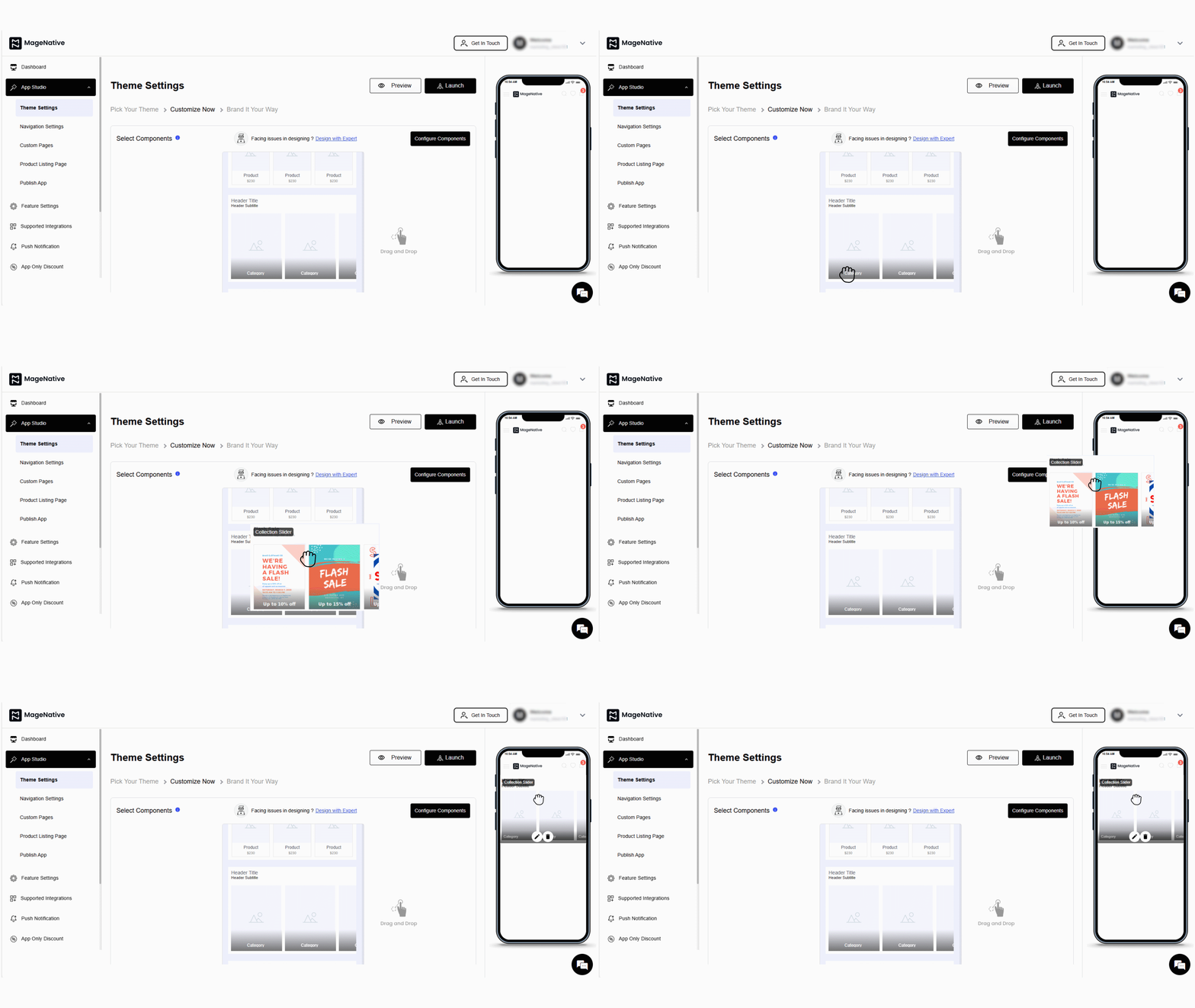
2. Next, click on the edit icon. It will open a customization window at the center of the dashboard.
3. In the layout customization, you will see following options:
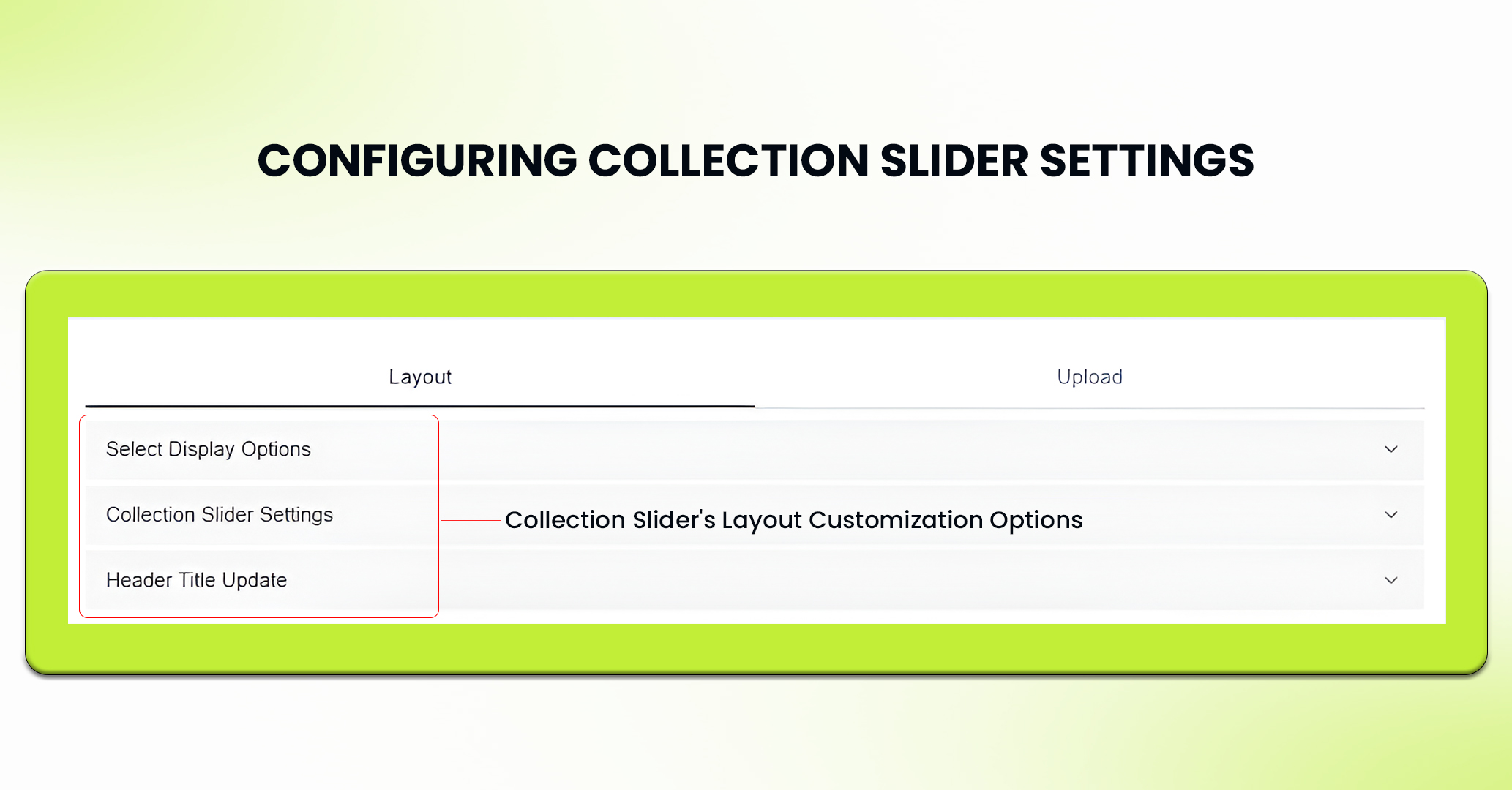
- Select Display Options
- Collection Slider Settings
- Header Title Update
4. In “Select Display Options” – select collection shape (square/ rounded).
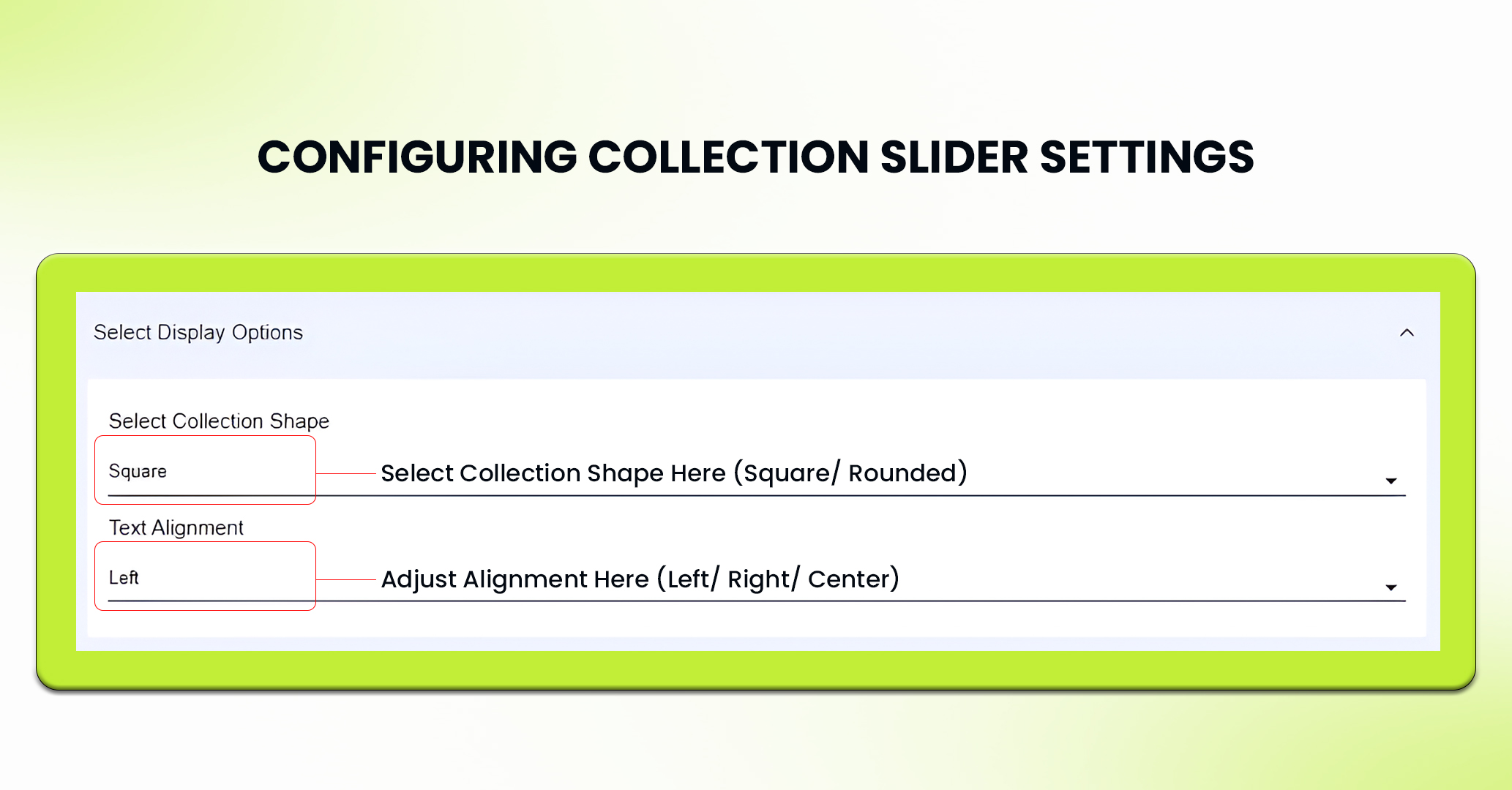
5. Next, Adjust text alignment i.e (left, center, right).
6. In “Collection Slider Settings“, you can enable or disable the following:
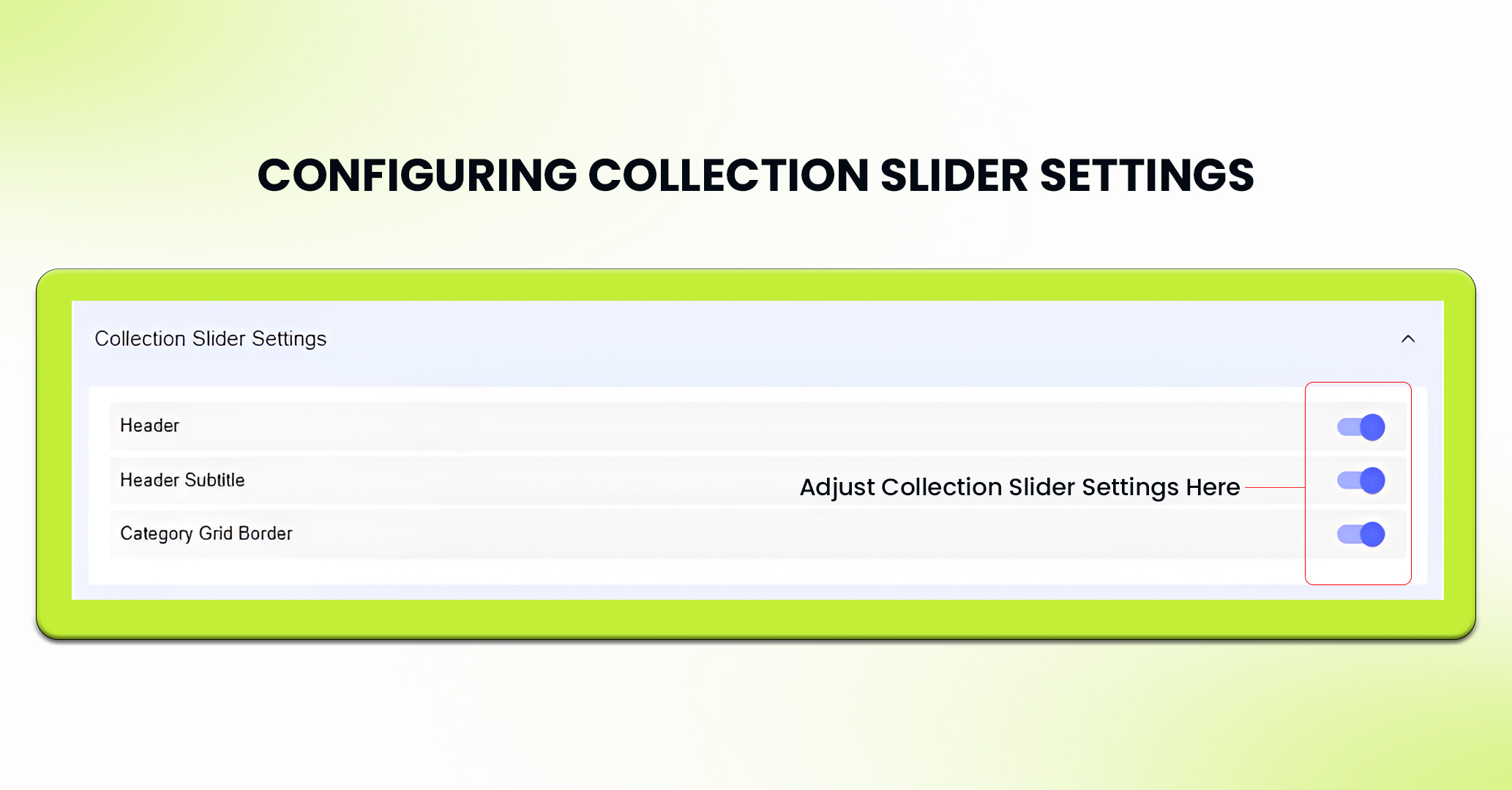
- Header
- Header Subtitle
- Category Grid Border
7. In “Header Title Update“, set “Header text”.
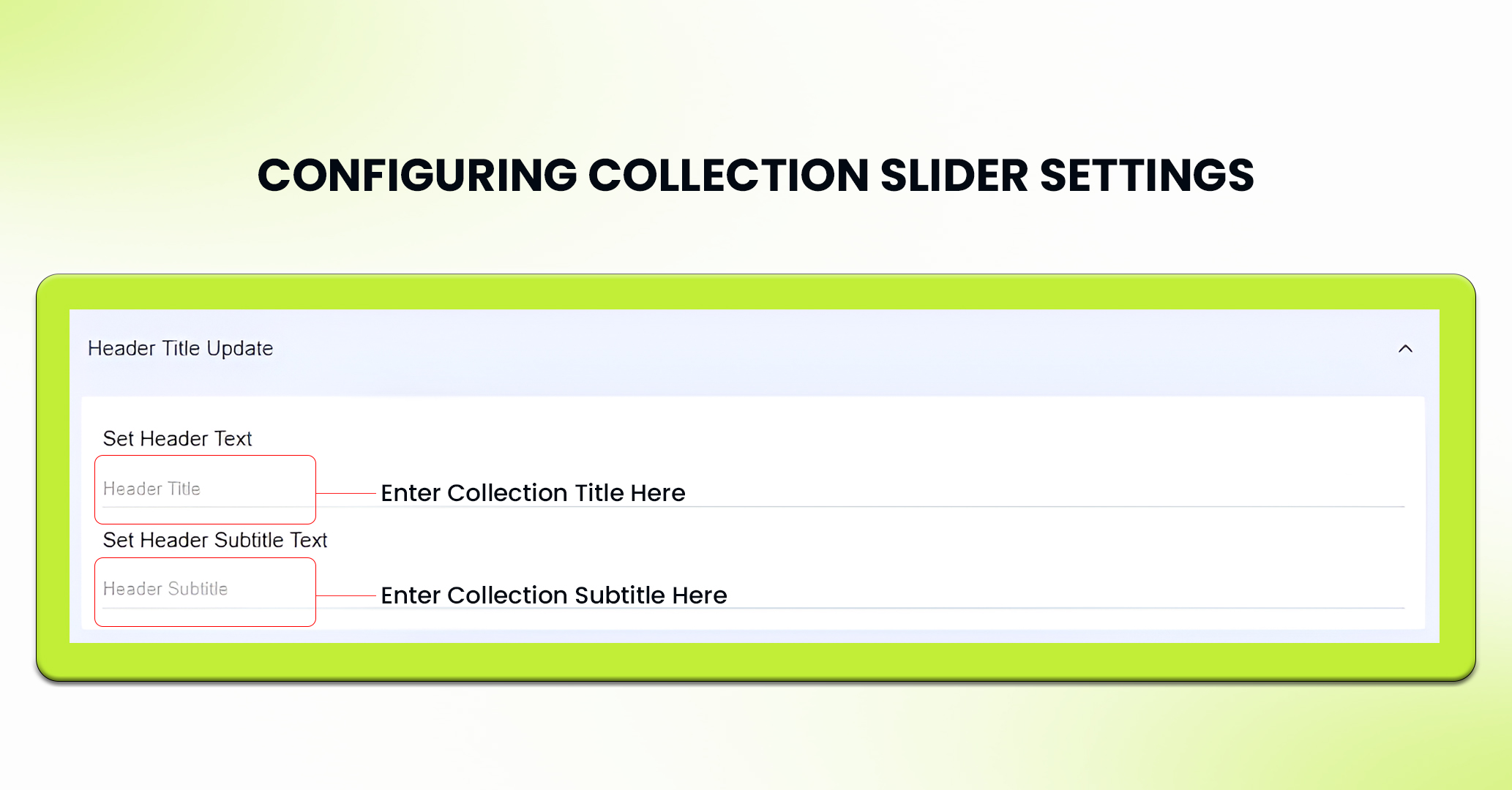
8. Next, set the “Header Subtitle Text“.
9. In the upload section, decide the no. of collections to be displayed in a slider by selecting the range between 3-10.
10. Now, upload images for each collection in the slider in png, jpeg, jpg, or gif format. The recommended size for each image is 250x250px.
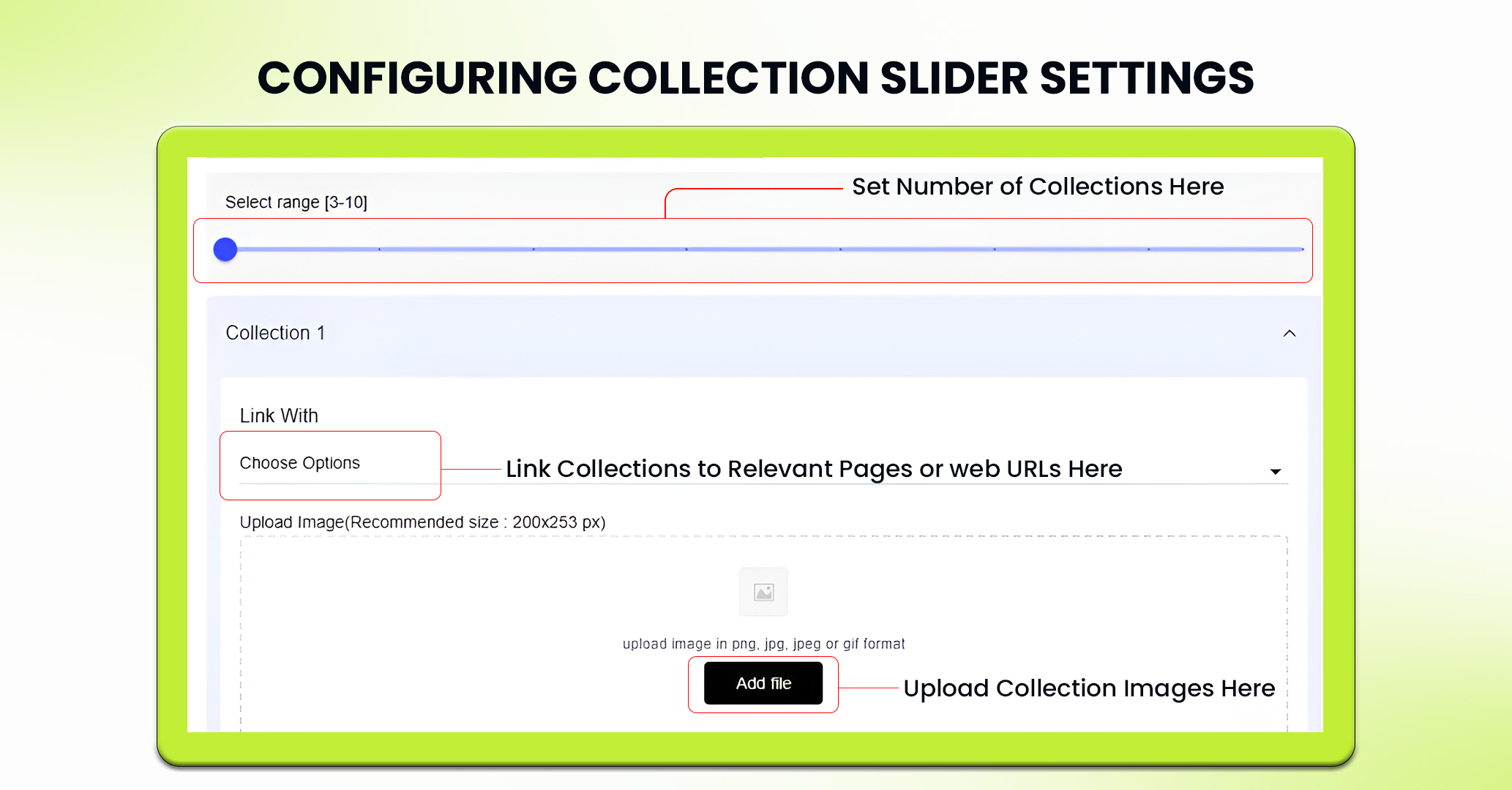
11. Furthermore, you can link each collection with corresponding custom page, collection or web url.
12. Click Save to apply and view your changes.
13. If needed, you can delete the component by clicking Delete or pressing Reset to undo any changes made.
PRO TIP: Write custom titles and subtitles that grab attention and add context, such as, “Best Sellers This Month,” or “New Arrivals Just For You,” to increase user interaction and boost sales.
Feel free to reach out to our support team if you have questions or need support. We are here to help and address any issues you may have!


