What Is a Product Grid Layout and How Can You Use It Effectively?
Revolutionize the way that your products are displayed using MageNative’s Product Grid Layout component. This component lets you display your products in a structured, appealing grid format that provides a seamless shopping experience. This proves to be a great way to optimize user engagement and streamline navigation.
How to Set Up the Product Grid Layout on Your Mobile App
1. Start by dragging and dropping the Product Grid Layout component to your desired location on the app screen.
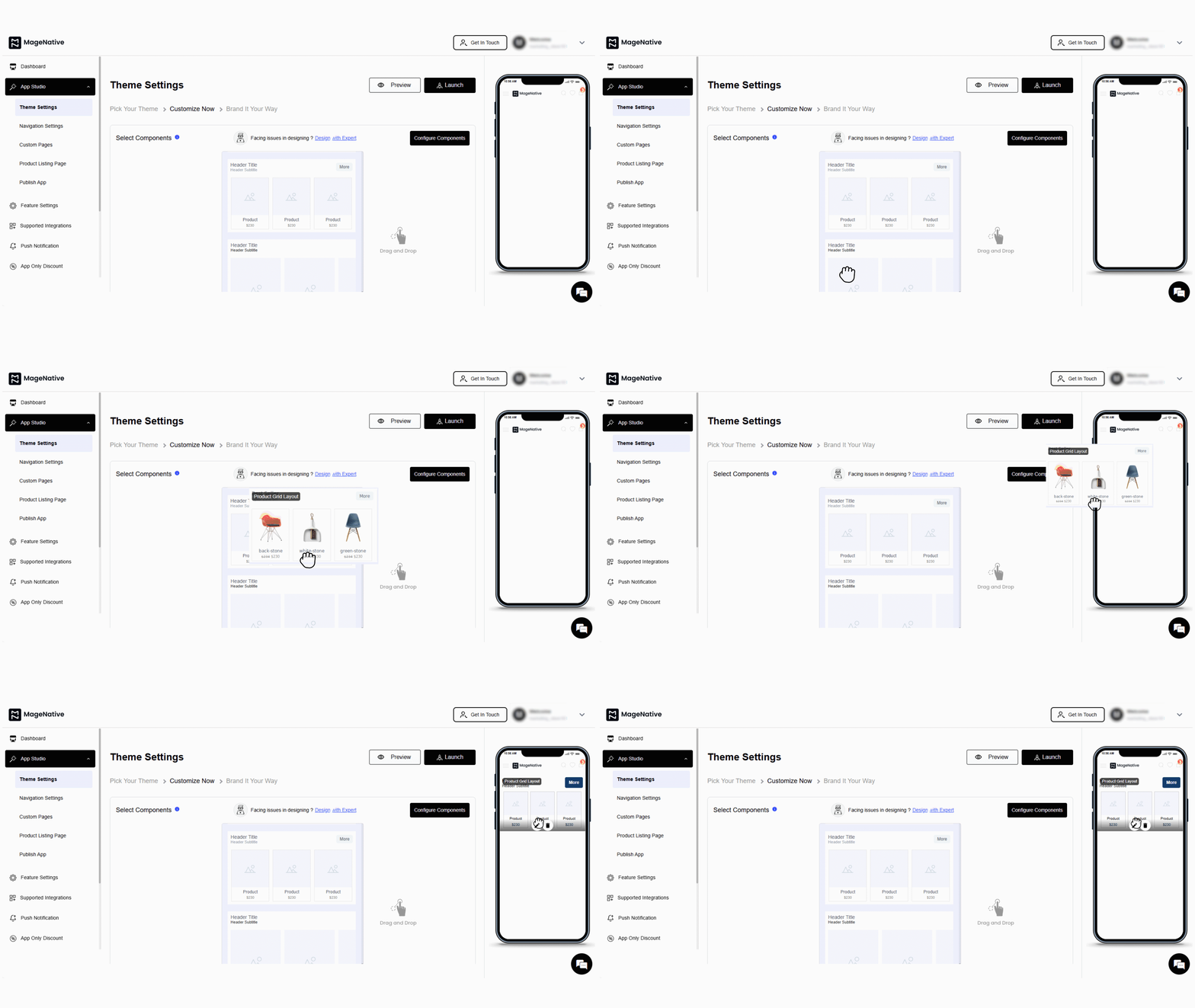
2. Open the settings by clicking on the edit icon. This will open the customization options in the center of the dashboard.
3. In the layout section you have the following options to configure and customize:
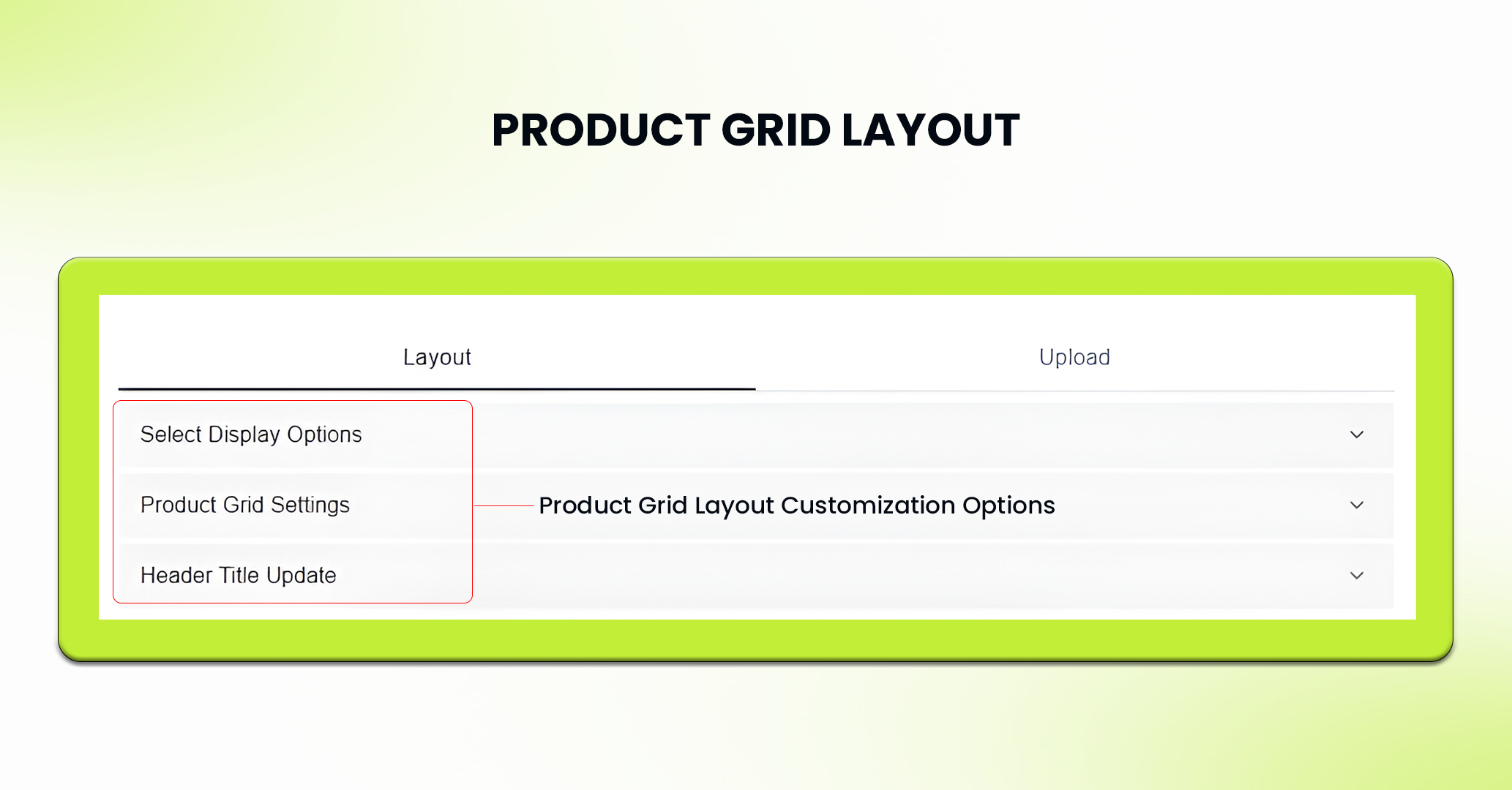
- Select Display Options
- Product Grid Settings
- Header Title Update
4. In the display options, select the layout (grid or list) in which format you want products to be displayed in your app.
5. Now, select the number of rows as well as the total number of products you want to be displayed in each row.
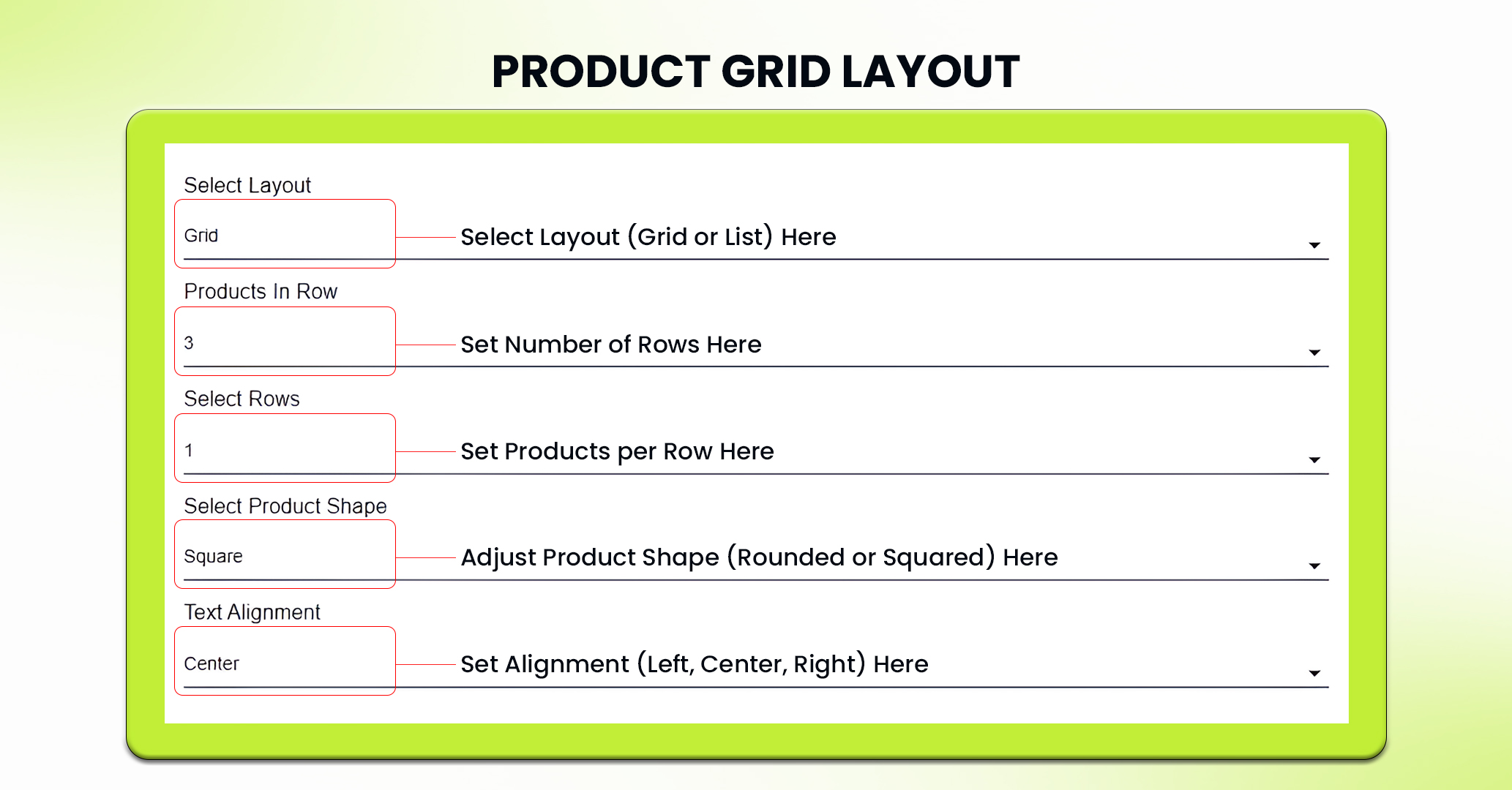
6. Moreover, you can adjust the product shape to be displayed in rounded or squared form.
7. Adjust the alignment as left, center or right, based on how you want your products to be displayed.
8. Next, you can customize your view by enabling or disabling various elements based on how you want your products to be displayed. These elements are:
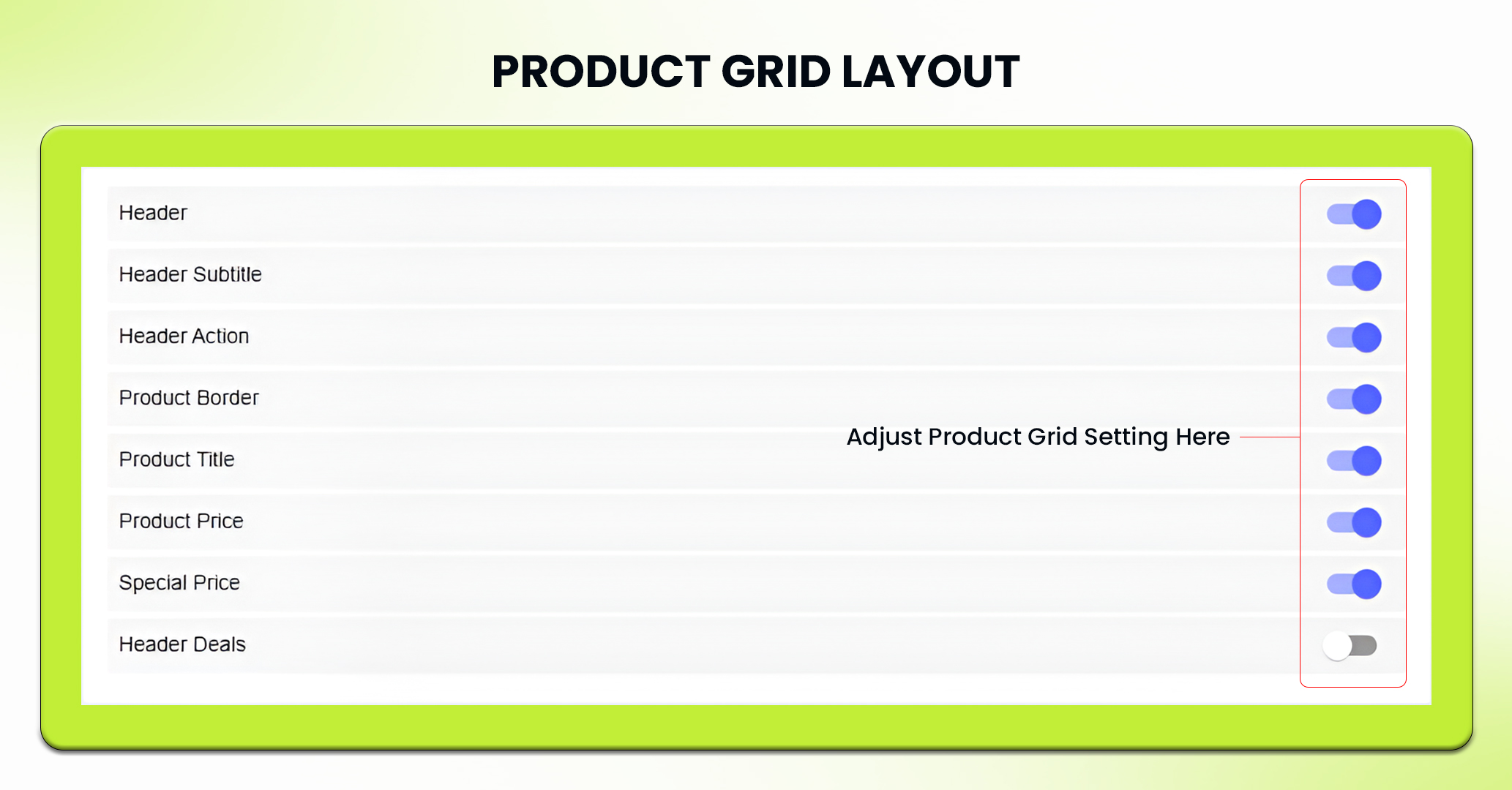
- Header
- Header Subtitle
- Header Action
- Product Border
- Product Title
- Product Price
- Special Price
- Header Deals
9. Furthermore, In the “Header Title Update” section, you can set the following:
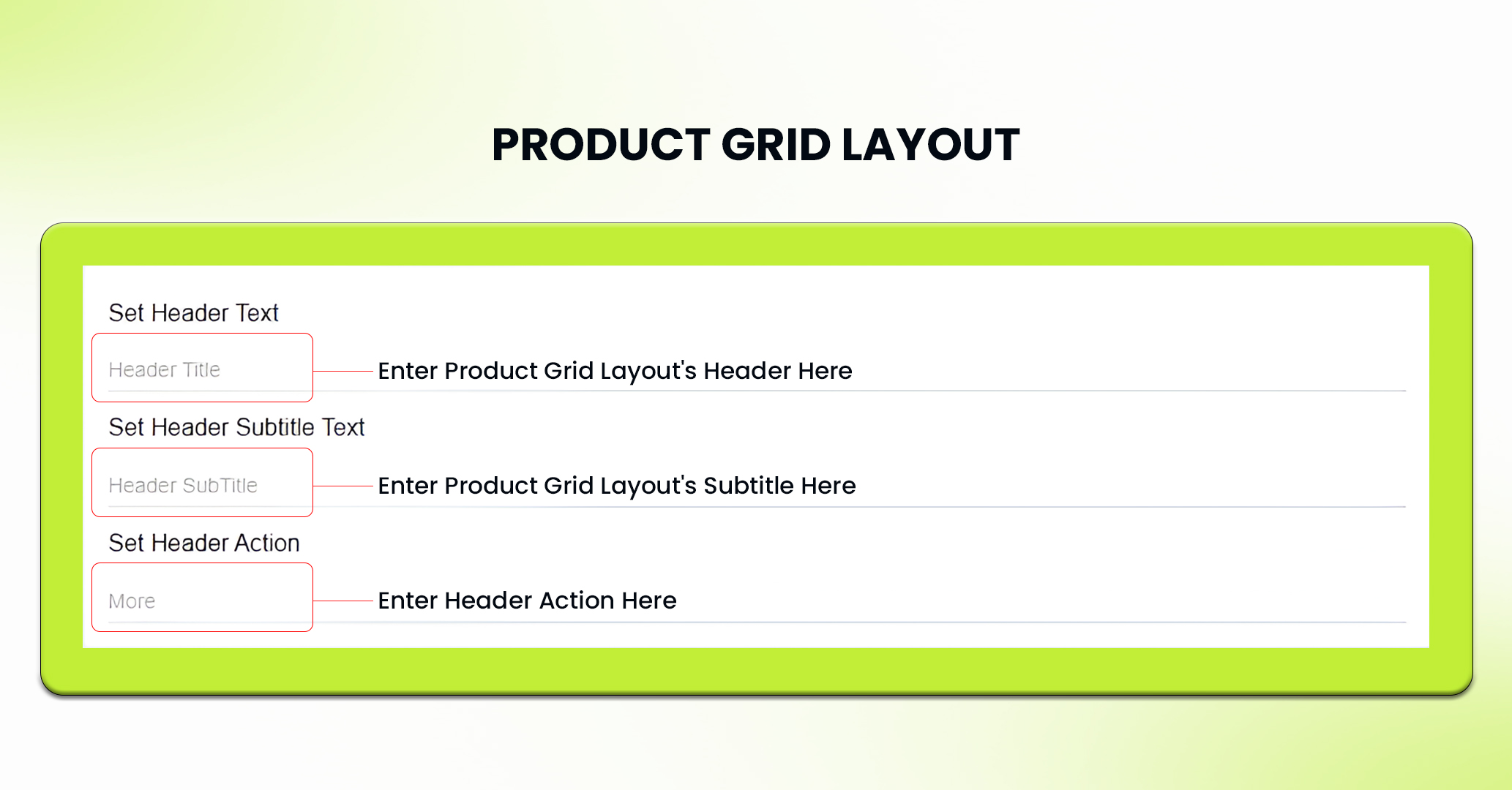
- Set Header Text
- Set Header Subtitle Text
- Set Header Action
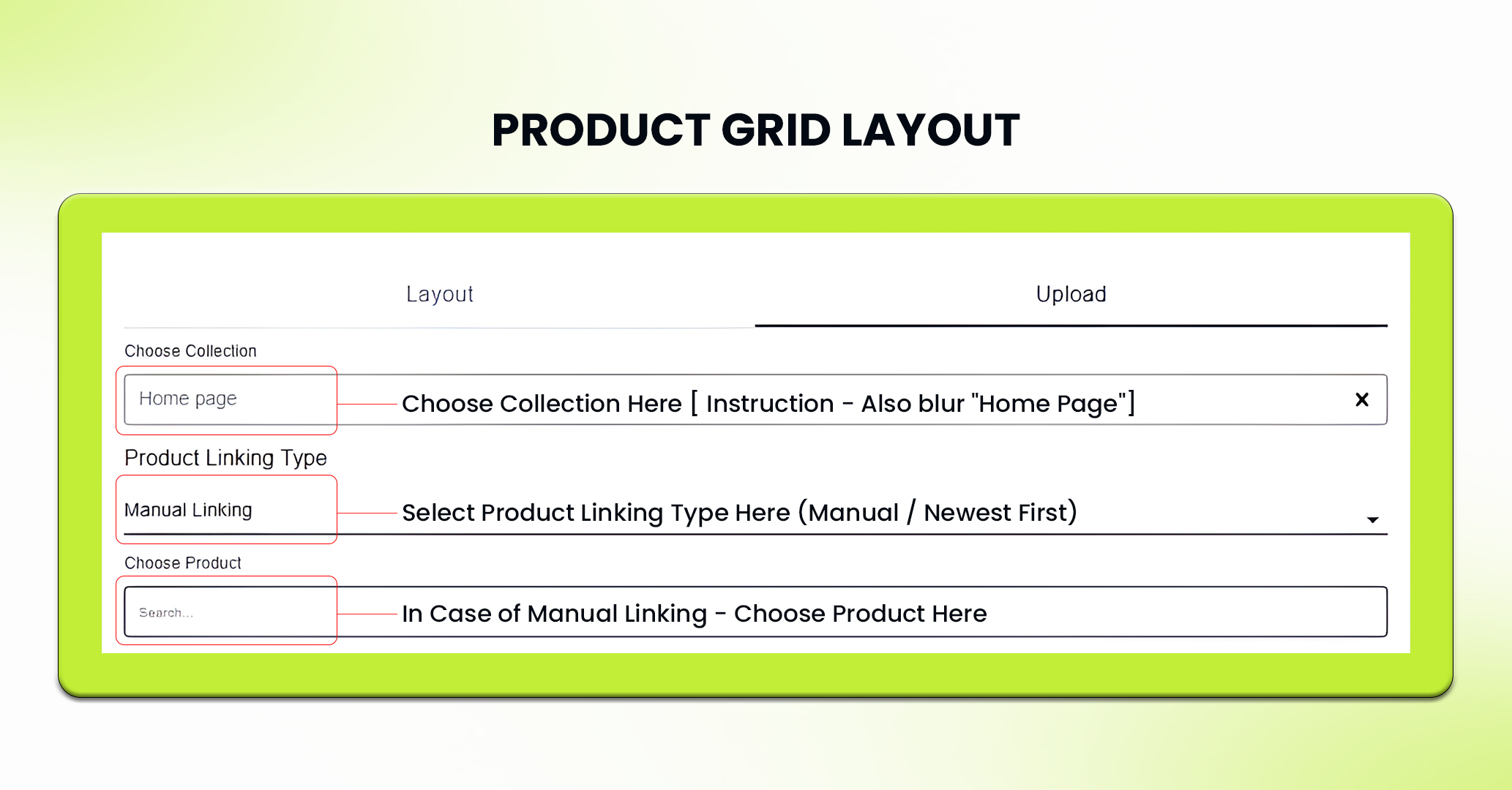
10. In the upload section, select the collection you want to display, link the product grid with appropriate collection or home page as suitable.
11. Click on the Save button to save the setting.
12. If needed, you can delete the component by clicking Delete Component or pressing Reset to undo any changes made to it.
PRO TIPS
- PRO TIP 1: Pair a Countdown Timer with the grid to create urgency around limited time offers. Link related products to drive more conversions.
- PRO TIP 2: Ensure buttons in the grid link to relevant pages like collections, custom pages, or product details. This helps guide users through their shopping journey.
Feel free to reach out to our support team if you have questions or need support. We are here to help and address any issues you may have!


