How to Provide Google Analytics Access to MageNative?
In order to provide you with the best support for app tracking performance, you must also grant access of your Google Analytics account to MageNative.
Here’s a step by step guide for providing MageNative access to your Google Analytics account:
- First, Login into your Firebase account. A dashboard like this will open up:
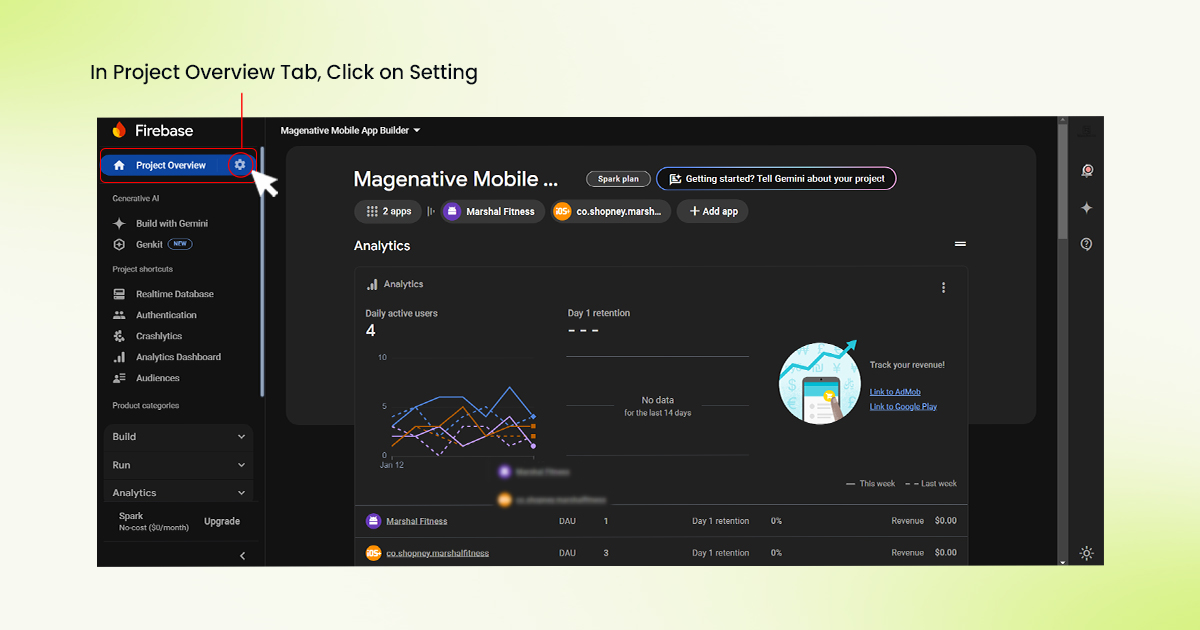
- In the left-hand navigation sidebar, click on the setting icon (⚙️) next to Project Overview.

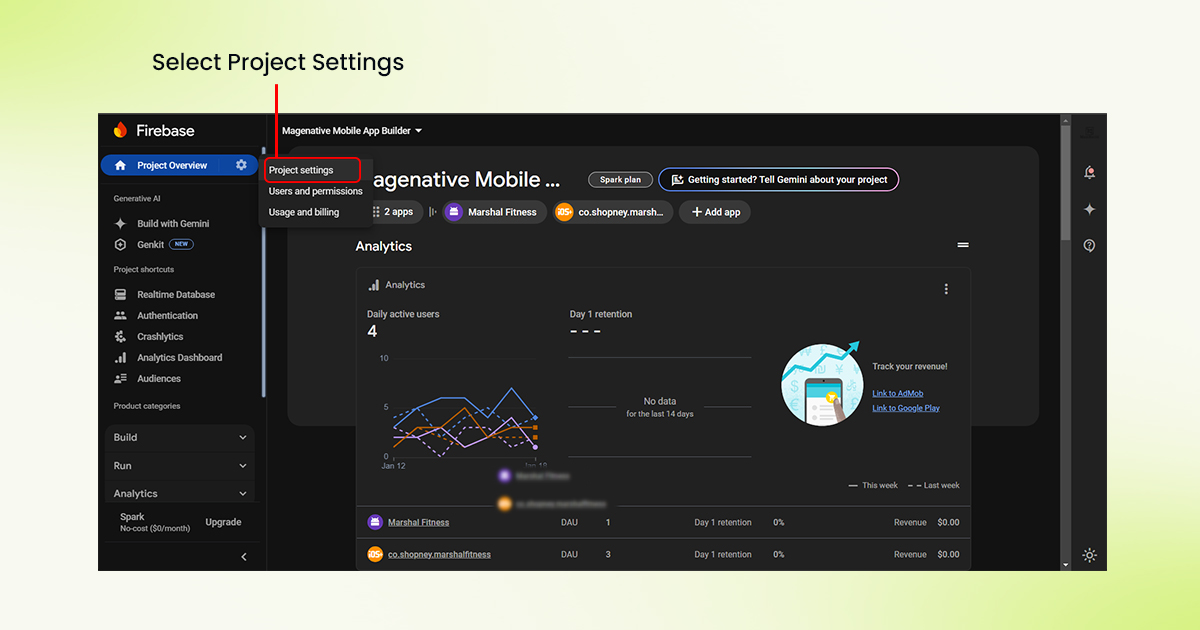
- Then, click on project settings, you will be redirected to a page like this:
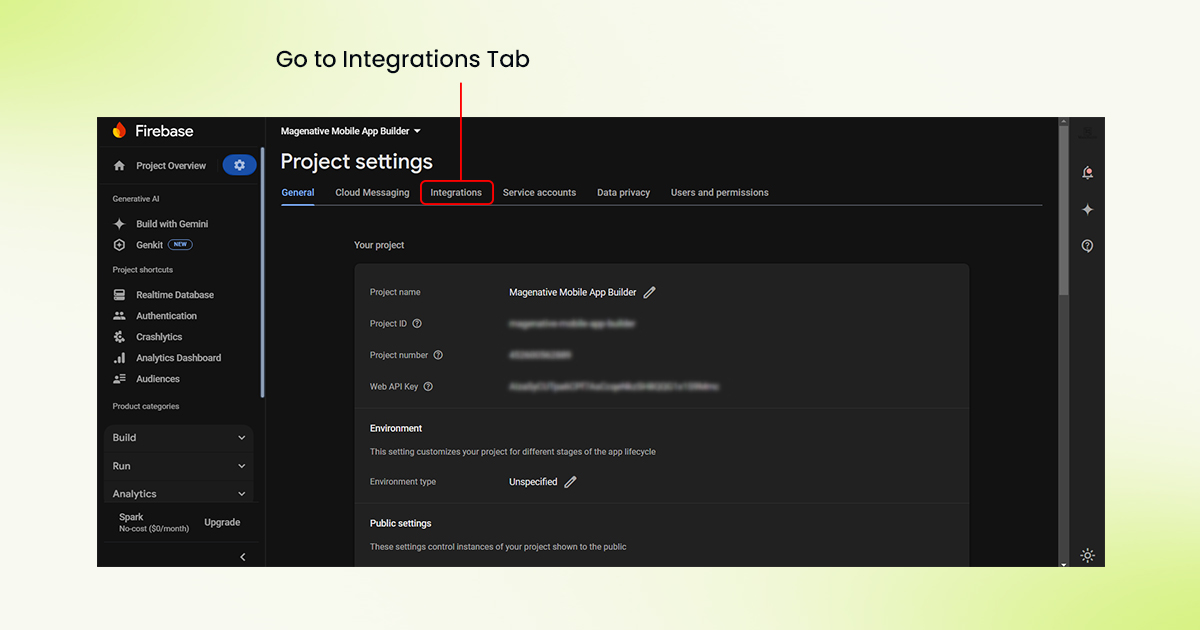
- In the Project Settings page, navigate to the Integrations tab.
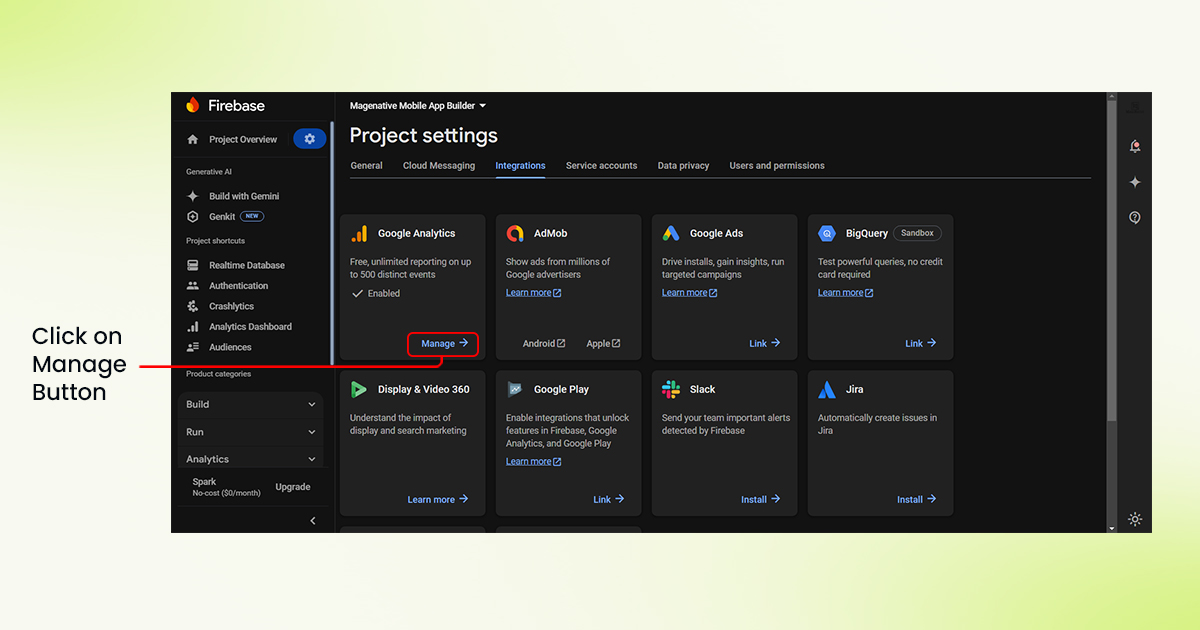
- In the integration tab, click the Manage button corresponding to Google Analytics.
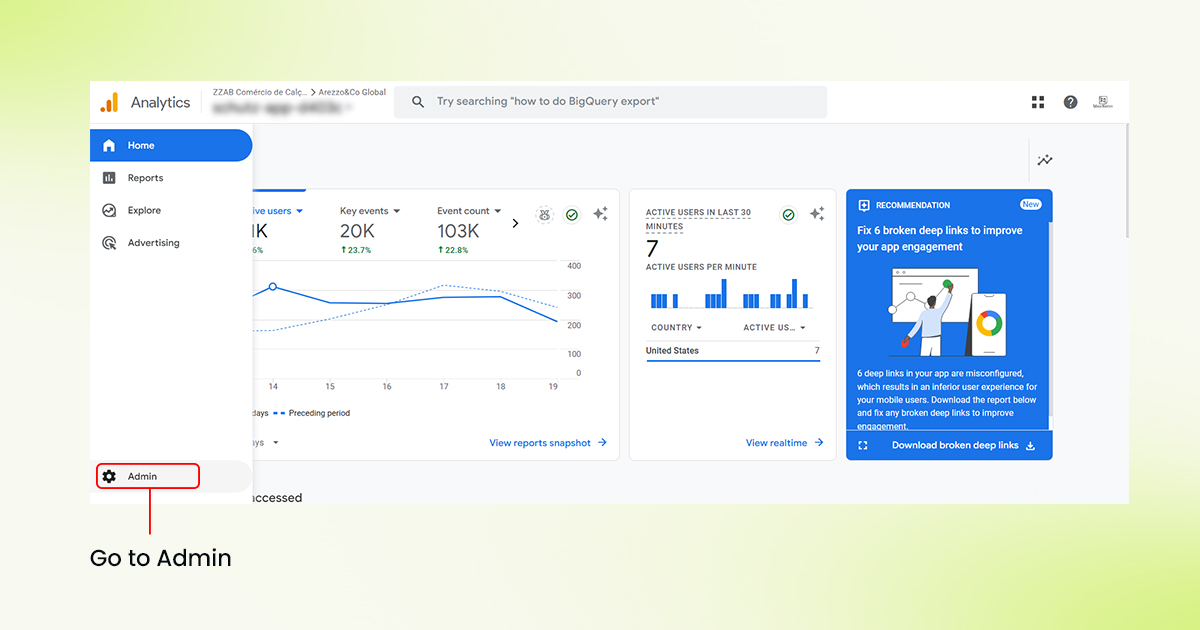
- You will be redirected to Google Analytics. On the Google Analytics dashboard, click on Admin in the left-hand navigation.
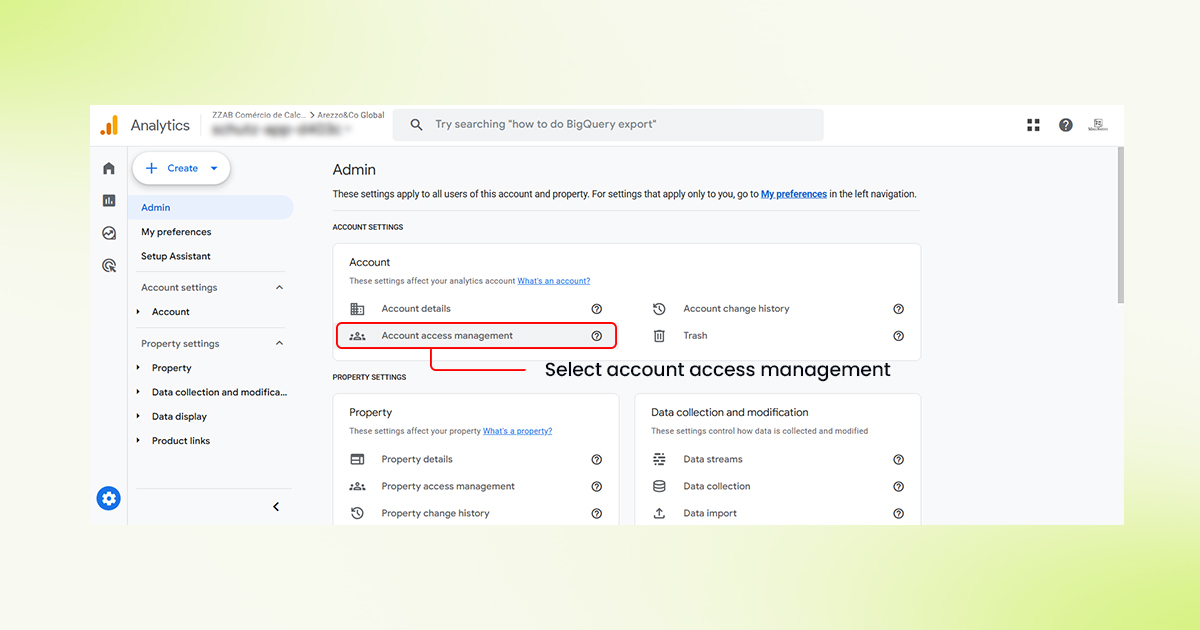
- Now, Click on “Account Access Management” under Account.
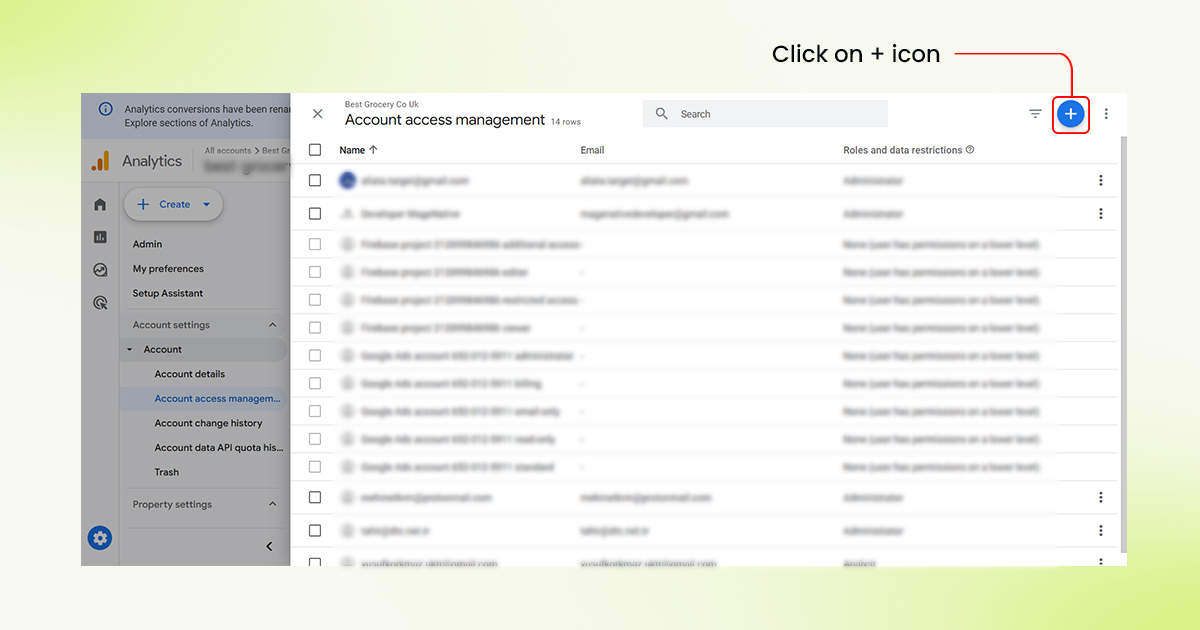
- Find the Add user (+) icon at the top right corner and click on it.
- Add magenativedeveloper@gmail.com and assign admin permission.
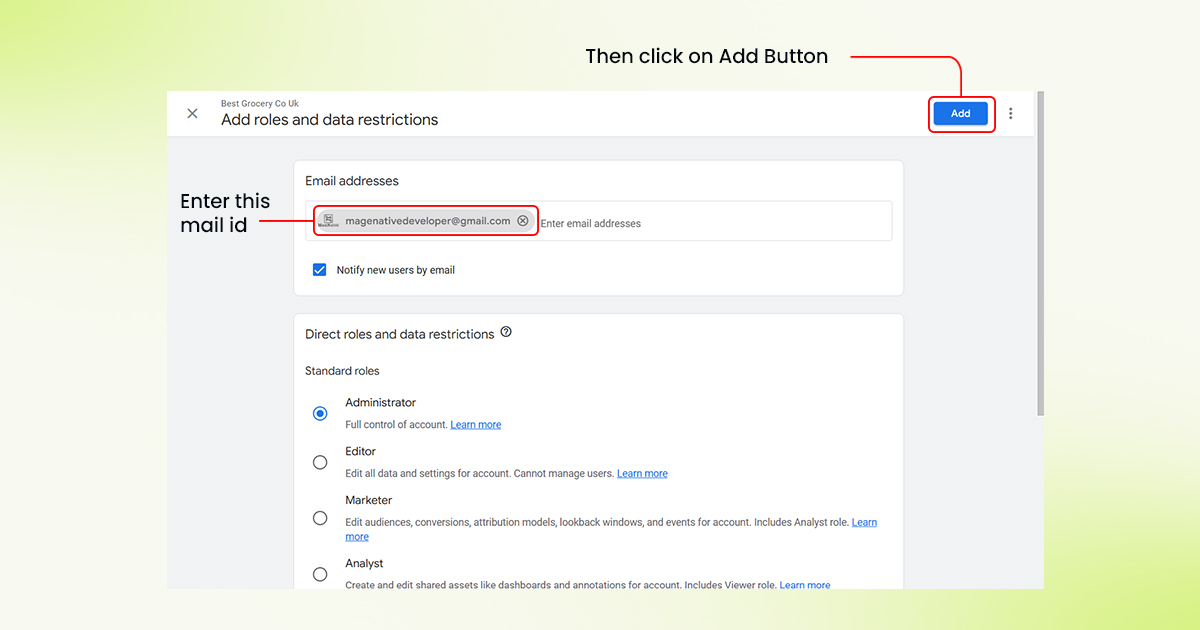
- Lastly, make sure to click the Add button to save the changes.
Congratulations! You have successfully given MageNative access to your Google Analytics account.
Feel free to reach out to our support team if you have questions or need support. We are here to help and address any issues you may have!


