How To Import Menu Items From Shopify Store?
How to Add Navigation Handle Name on Shopify?
To import menu items from Shopify Store, follow these steps:
- Log in to your Shopify admin dashboard. From the left panel, navigate to the Sales Channels section.
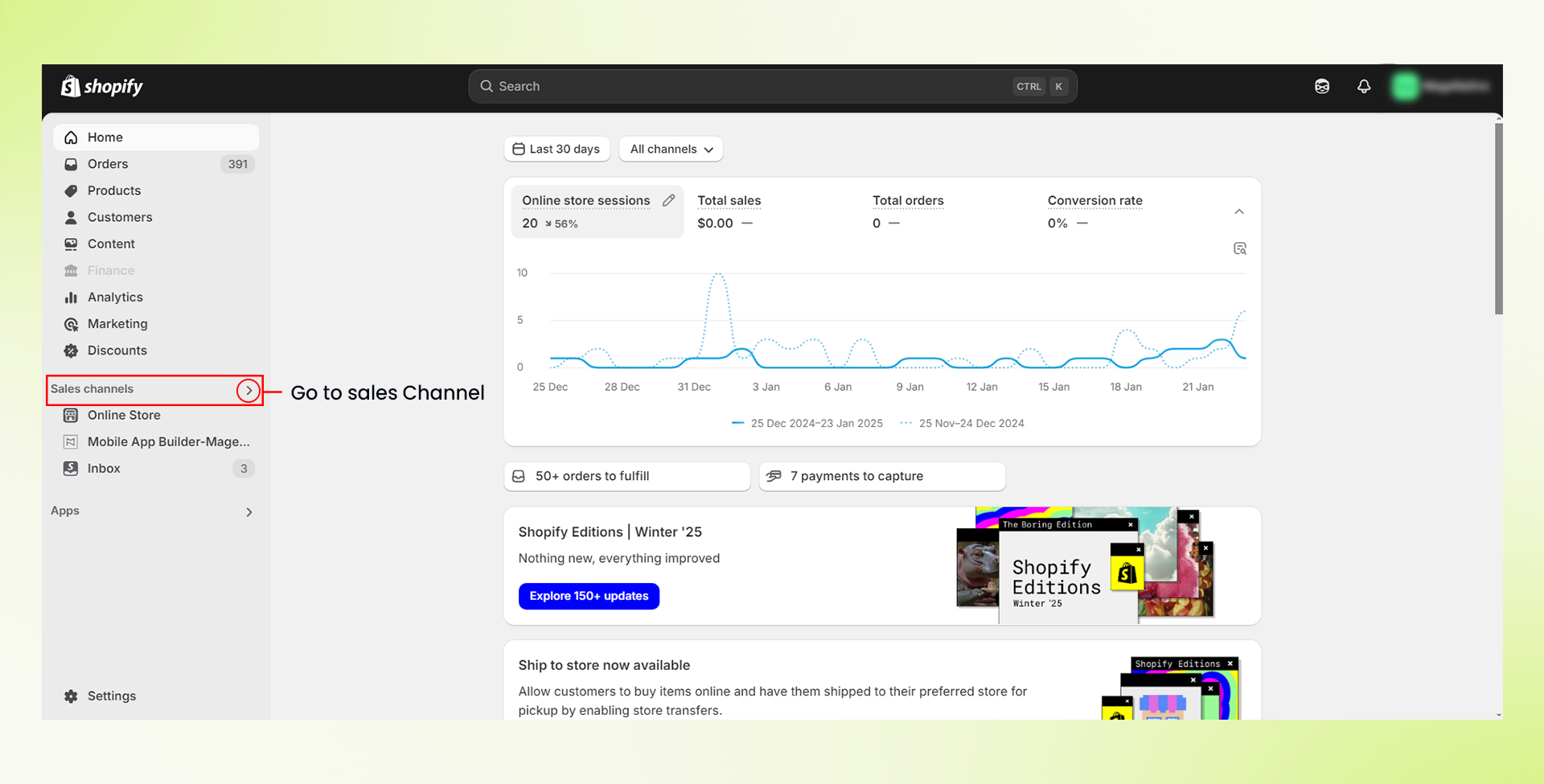

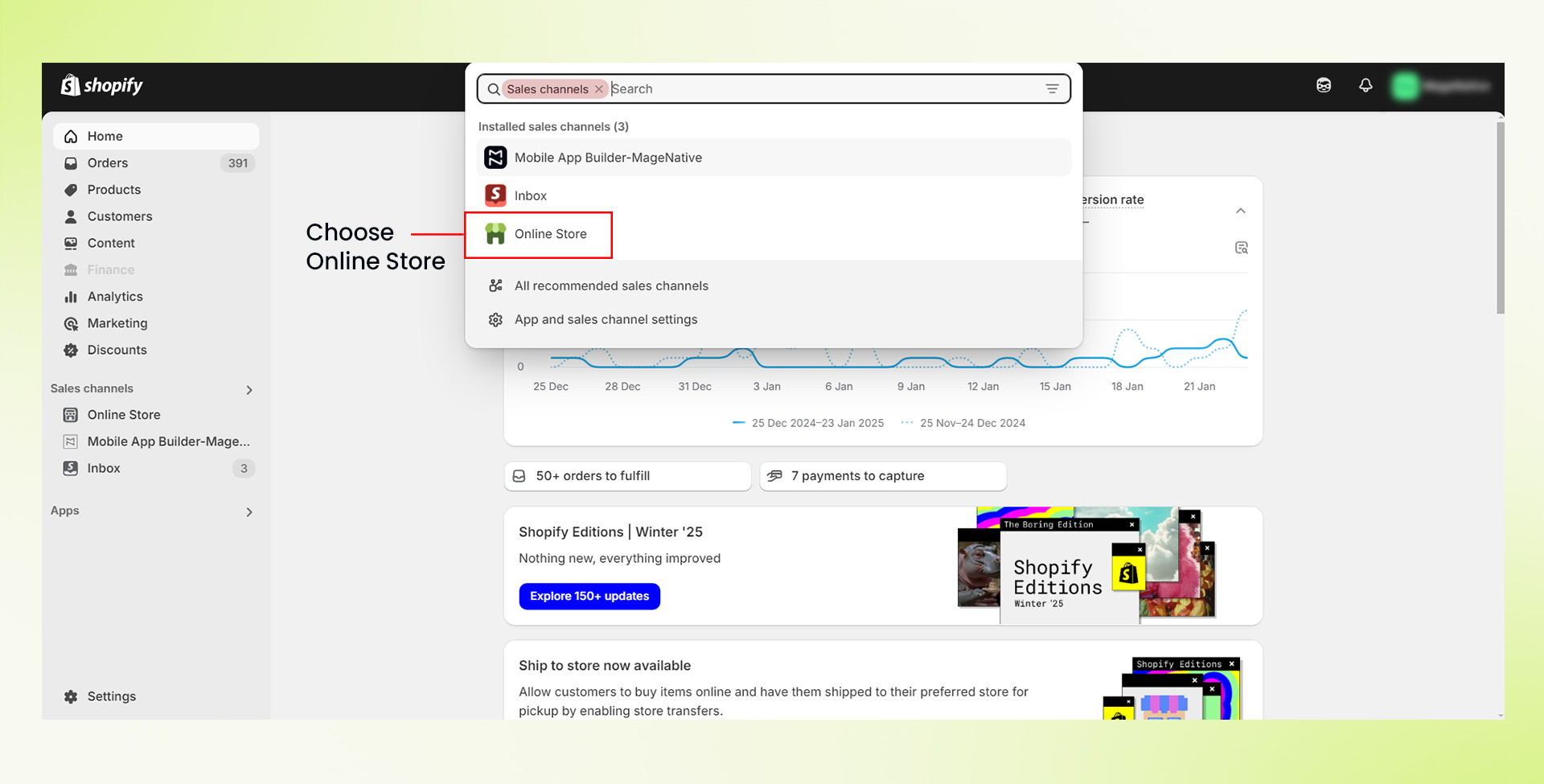
- Click on the Online Store from the available options.
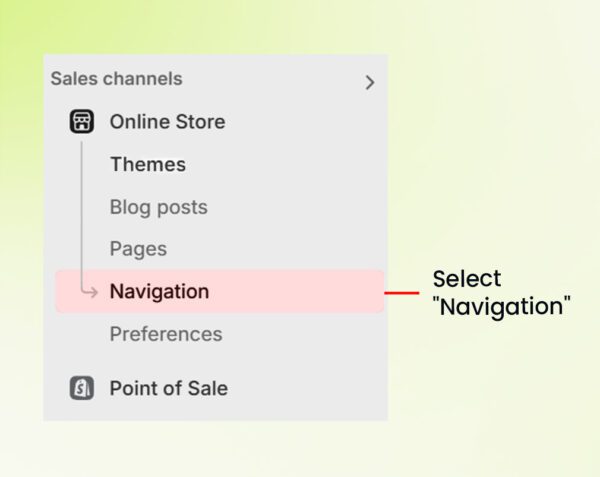
- Select the Navigation option from the menu.

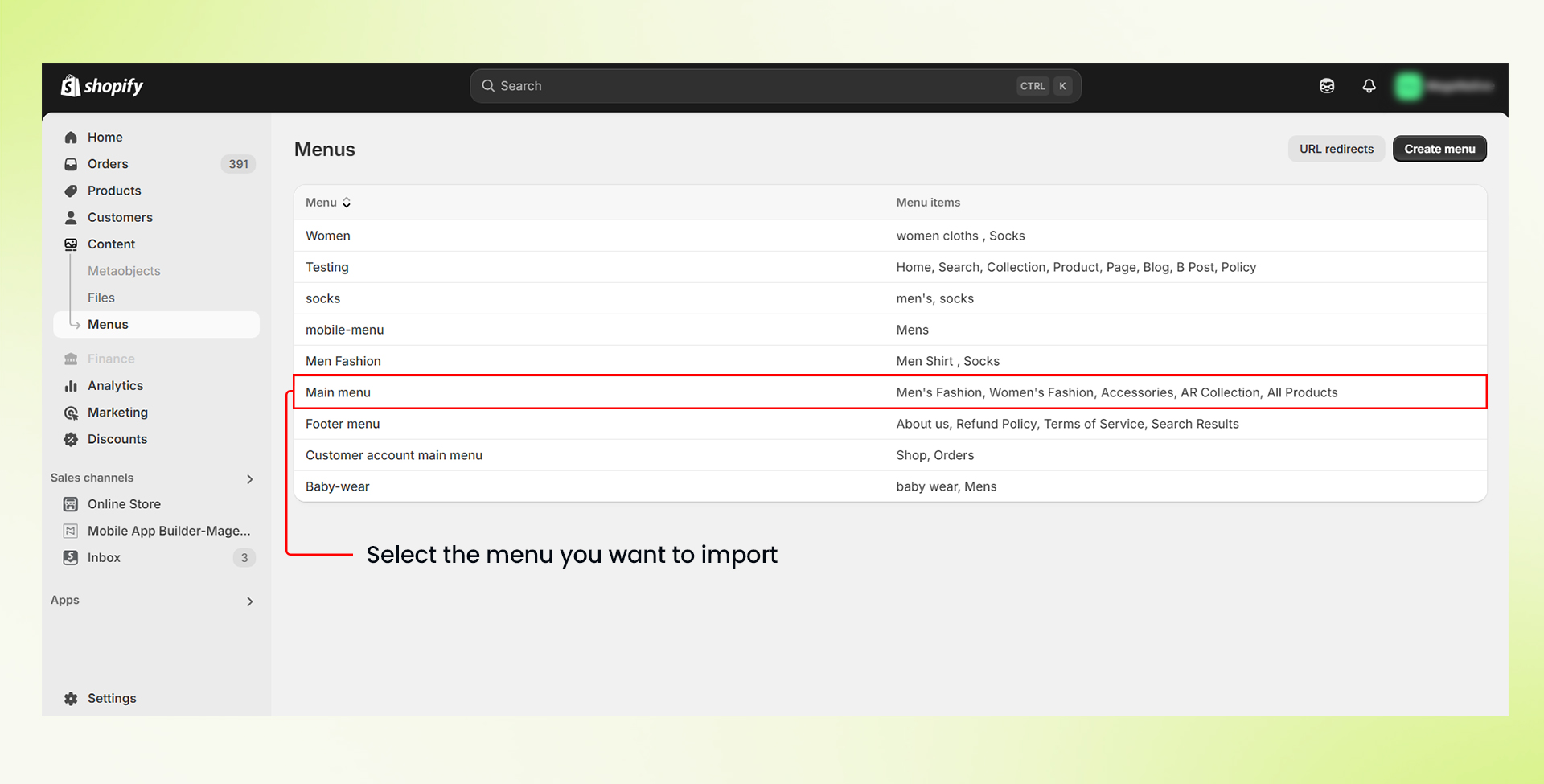
- Here you get the option to add a new menu or add an existing menu. Let’s discuss each of them:
Adding An Existing Menu Item
- Identify the menu you want to display in the mobile app from the list under the Menus section and click on it.
Enter the menu name in the designated field.
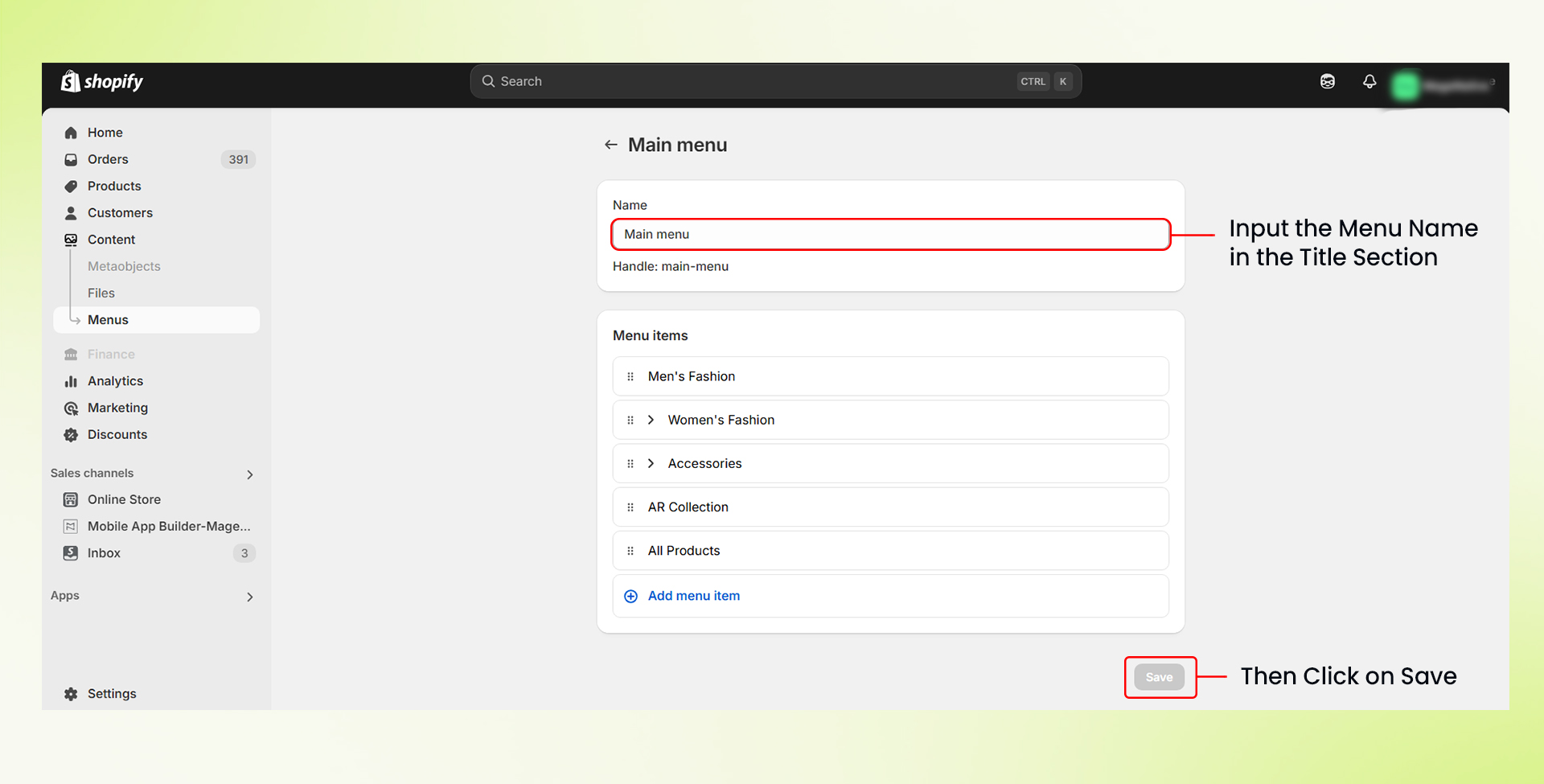
- Finally, click on the Save menu button.
Creating A New Menu Item
- Click on the Add Menu button in the Menus section.
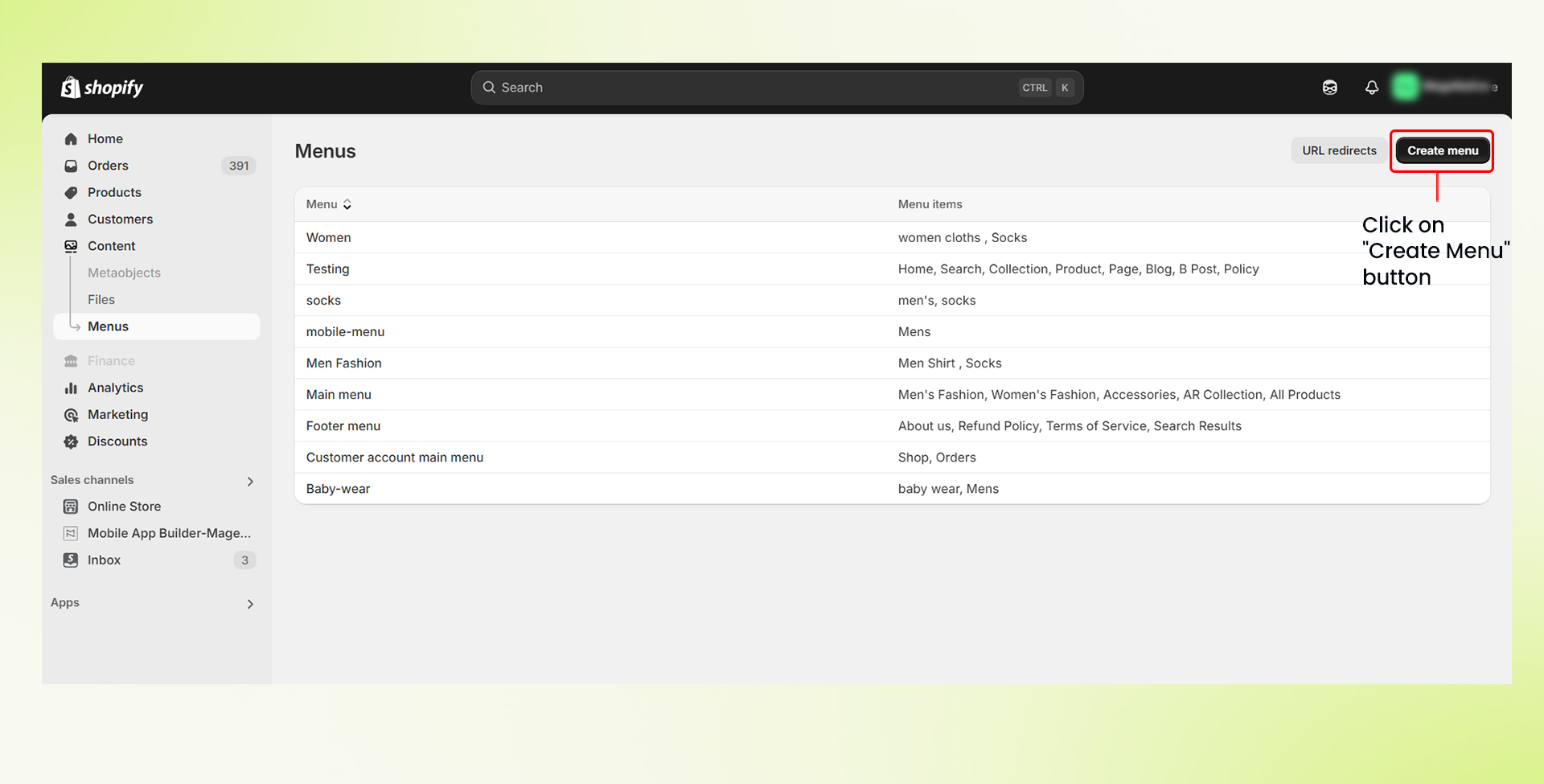
- A new page will open. Enter the menu name and add the required menu items.
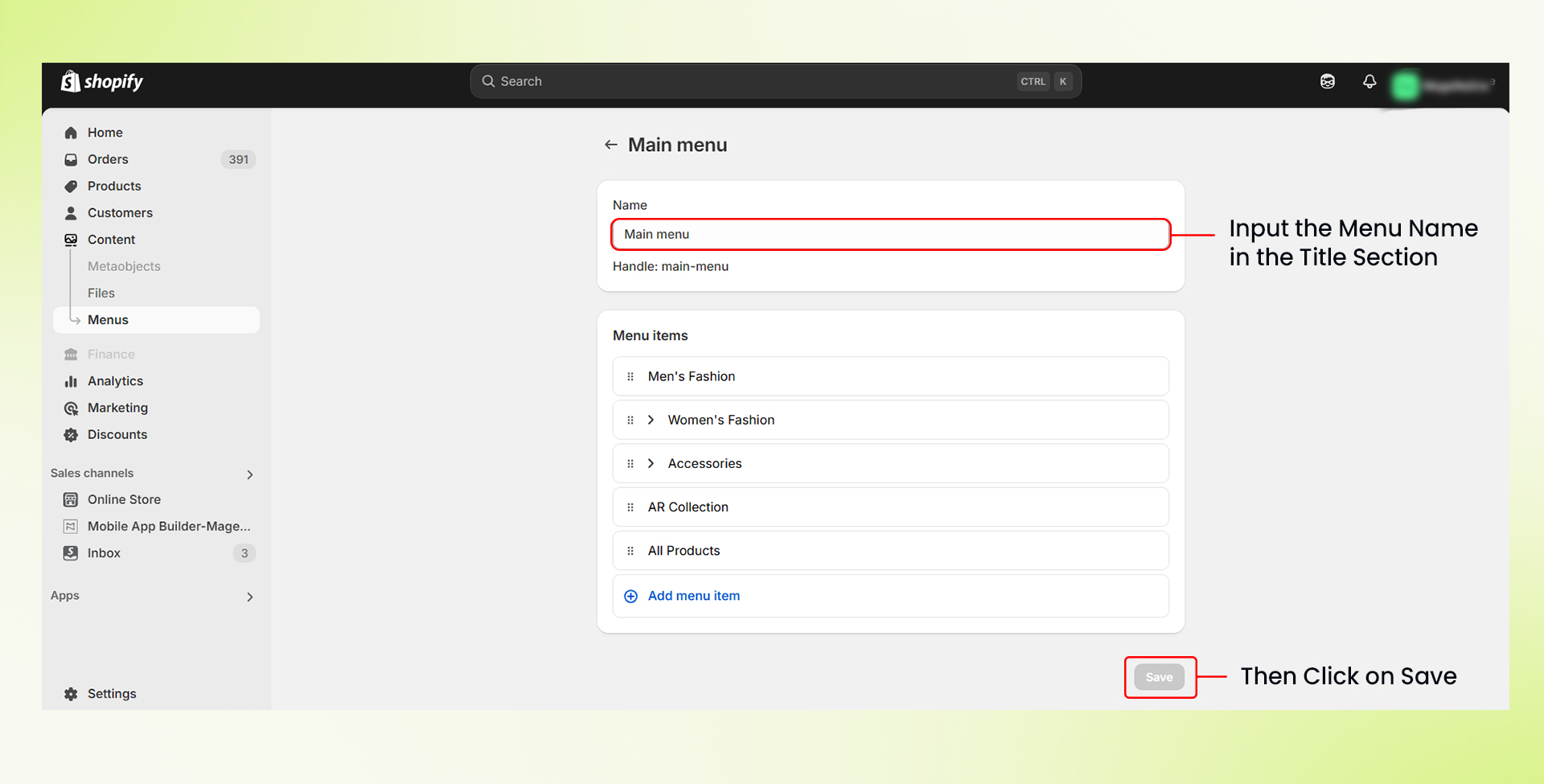
- Finally, click on the Save menu button.
FAQ:
What happens if I don’t assign a Navigation Handle Name?
Ans: If you do not assign a navigation handle name, Shopify will automatically generate one based on the menu title. However, it is recommended to assign a custom handle, as it makes menu organization and management easier—especially when dealing with multiple menus.
Congratulations! You have successfully imported menu items from your Shopify store.
Feel free to reach out our support team if you have questions or need support. We are here to help and address any issues you may have!


