How to Fill Out Your App Details Form Effectively?
Once you have finalized the design for your app, you are good to go to fill out your App Details Form. To access the App Details Form, you will first need to navigate your MageNative dashboard, go to the “Publish your App” section in the left panel inside the App Studio, and open the page to start filling in the form.
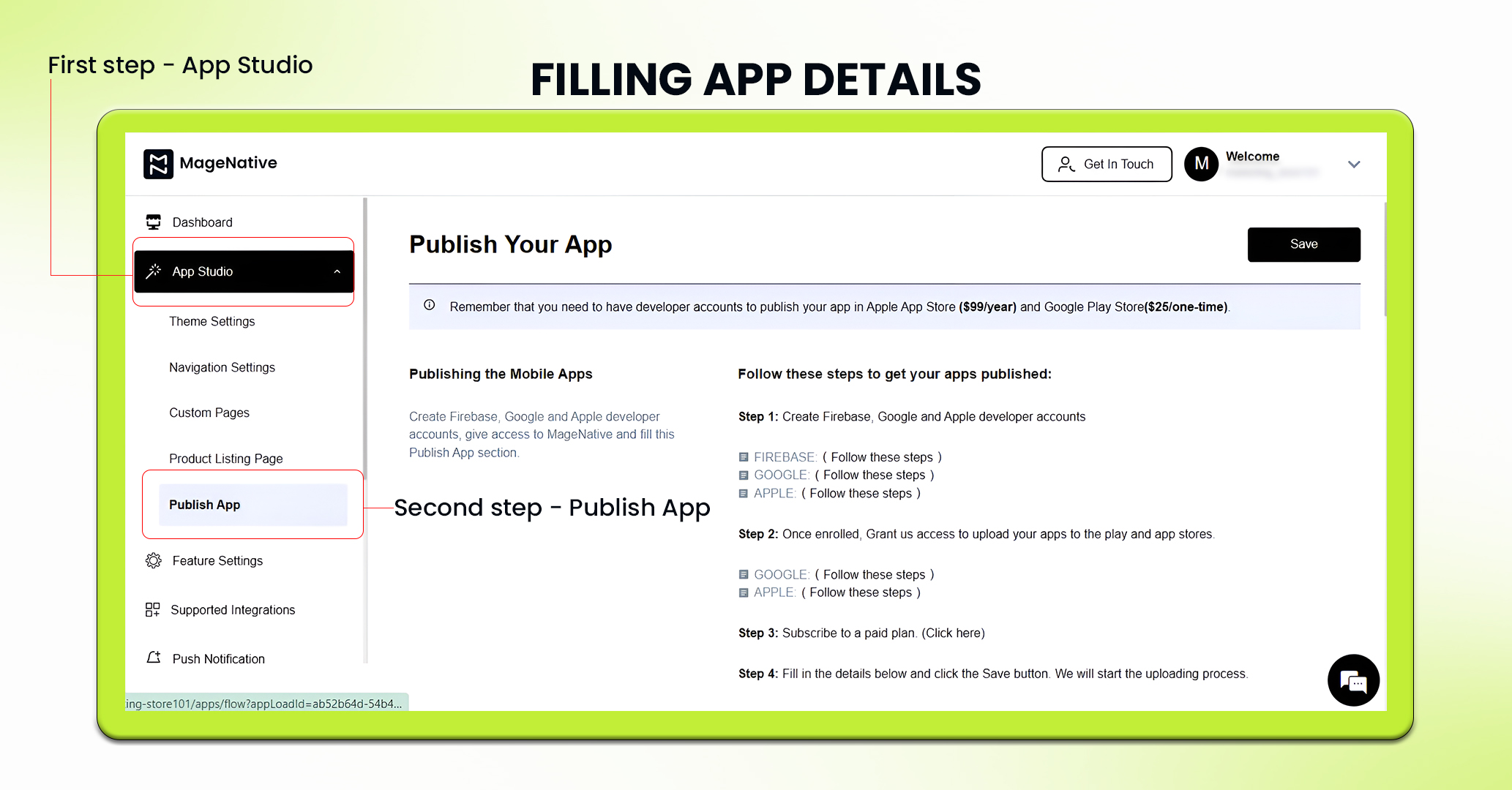
Detailed Steps to Complete the Form
1. App Details
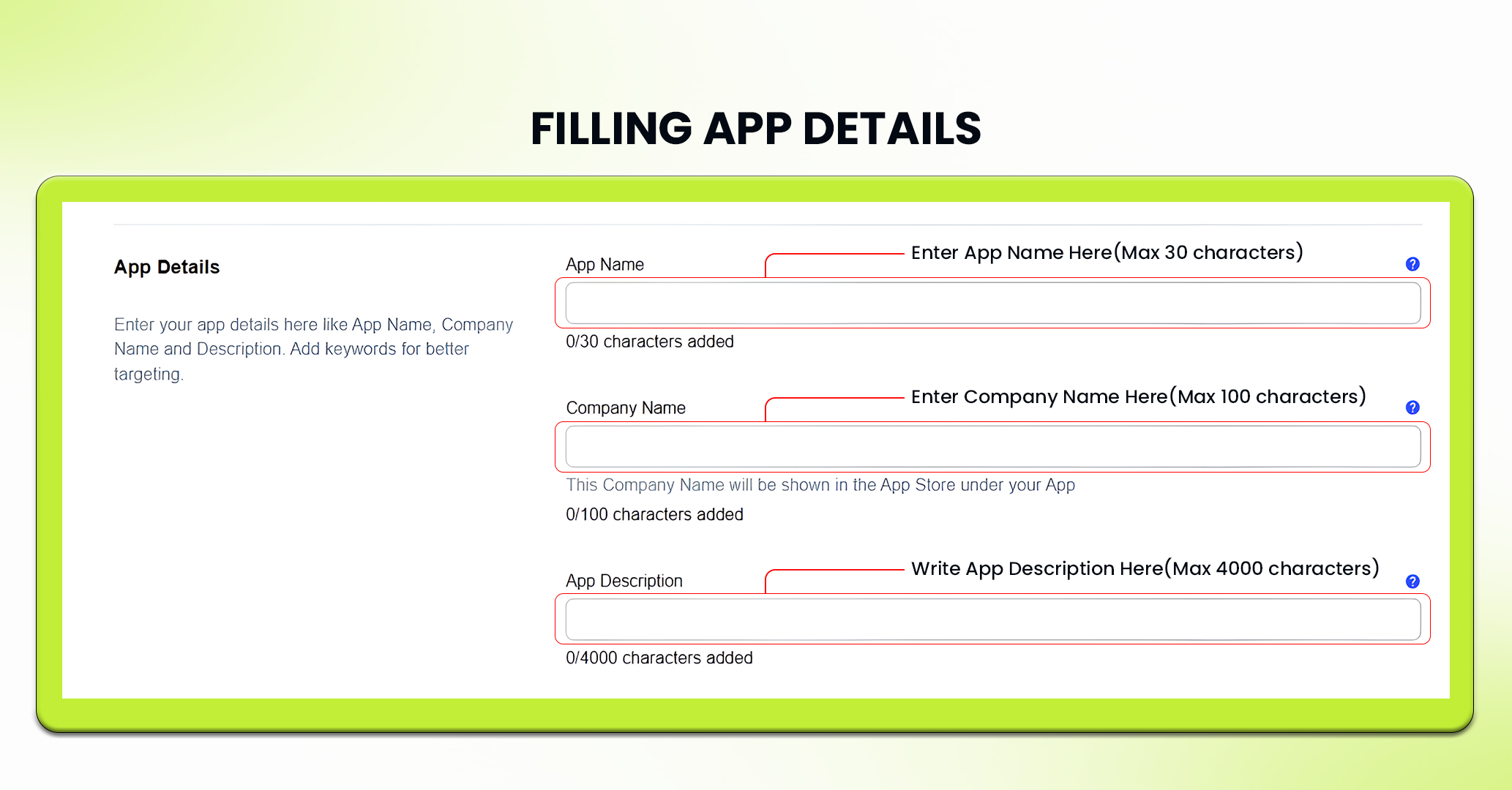
App Name: Enter the name of your app here. Keep it short and catchy – 30 characters max. This title will be displayed to users in the app stores and should be memorable.
Company Name: Enter your Company name here. This is how your company will be identified by the end-users. Use fewer than 100 characters to give your brand name.
App Description: Write a compelling description of your app, focusing on its features and benefits. You can use up to 4000 characters.
2. Personal Details
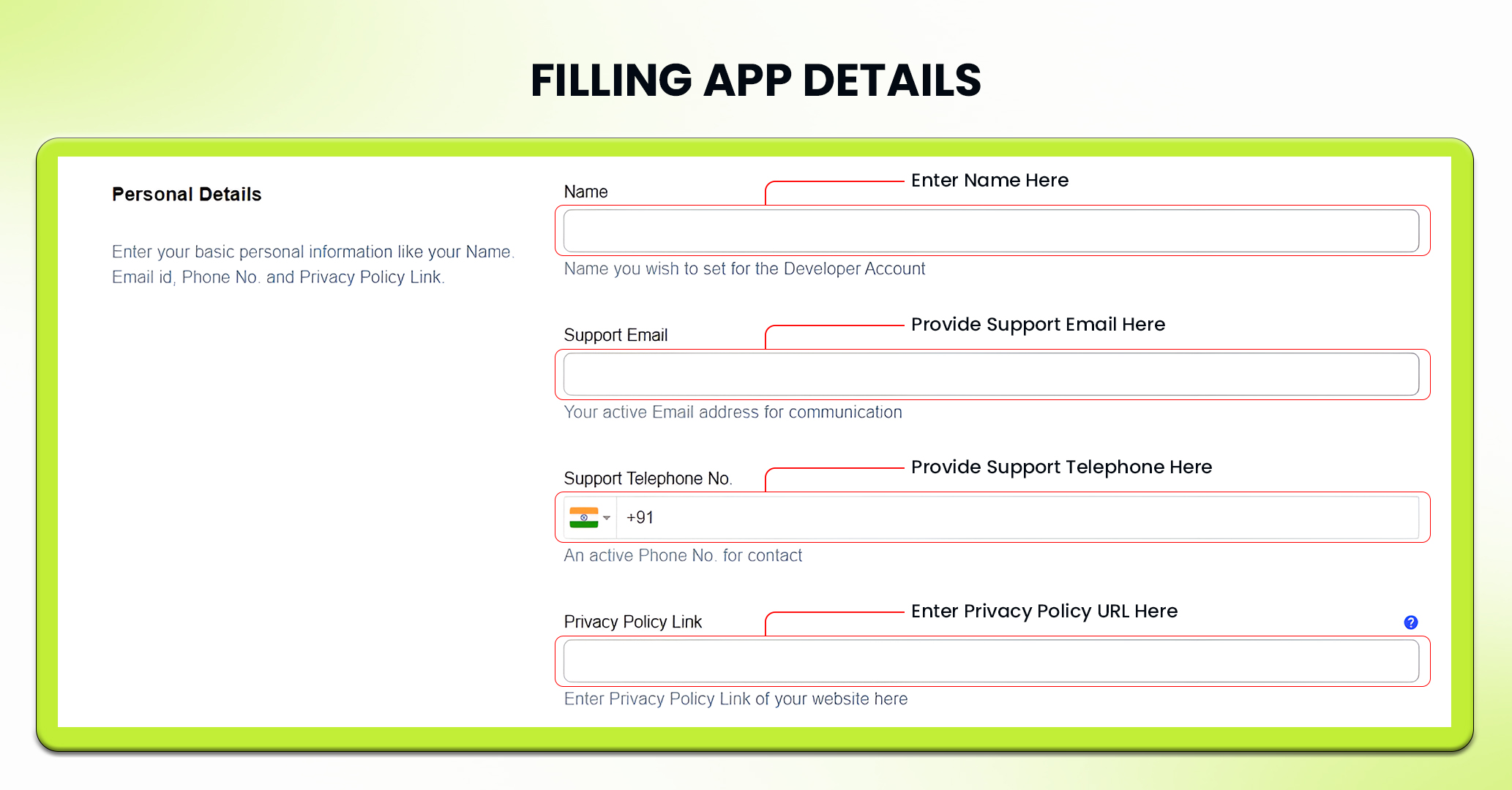
Name: Here, write the name that you want to associate with your developer account. This way, they can know who is behind the app.
Support Email: Provide an email address where users can reach you for support.
Support Telephone: Provide a phone number for users contacting customer support.
Privacy Policy URL: Provide a URL link to your website privacy policy. Your privacy policy is critical for compliance and user concern about their privacy.
3. App Images
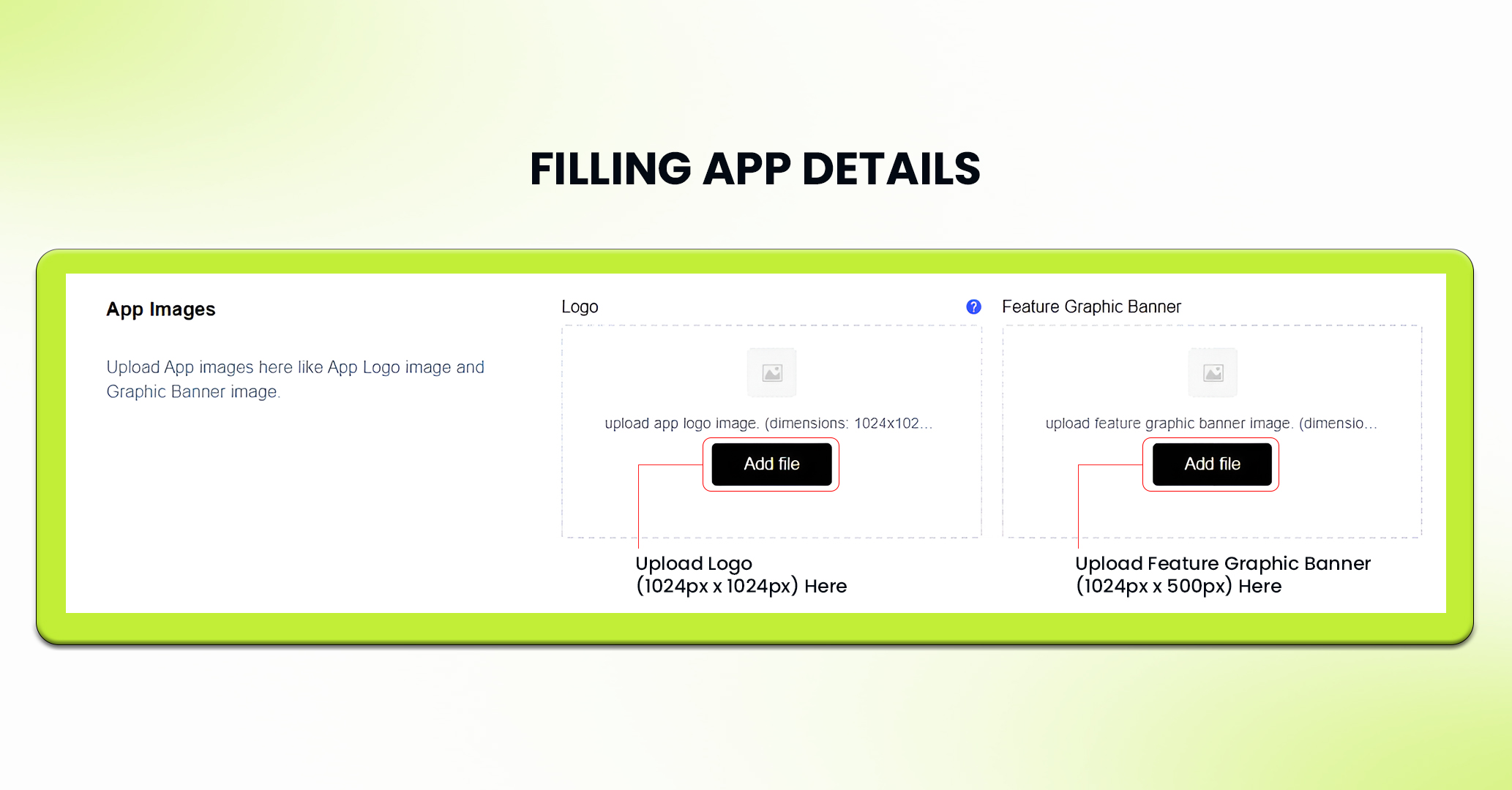
Logo: Upload your app logo here. Ensure its clear and visually represent your brand. Recommended size: 1024 px x 1024 px.
Feature Graphic Banner: Upload your feature graphic banner image here. Your feature graphic banner should be appealing to users visually. Recommended size is: 1024 px x 500 px.
4. Keywords
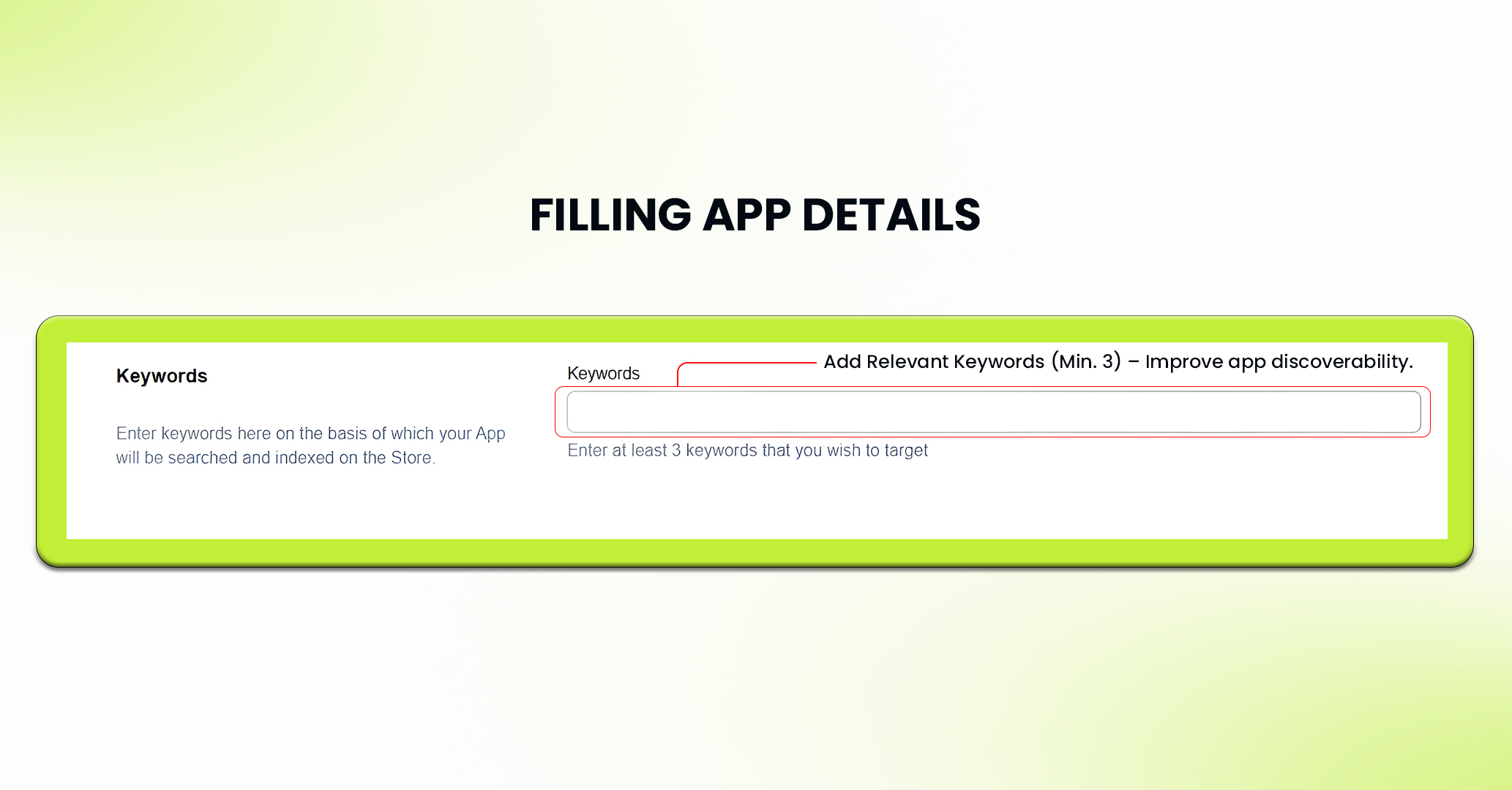
Here, list at least three keywords here that are relevant to your app. These are words and phrases that the user may use while searching for an app like yours. A good keyword is what makes your app more discoverable.
5. Account Details
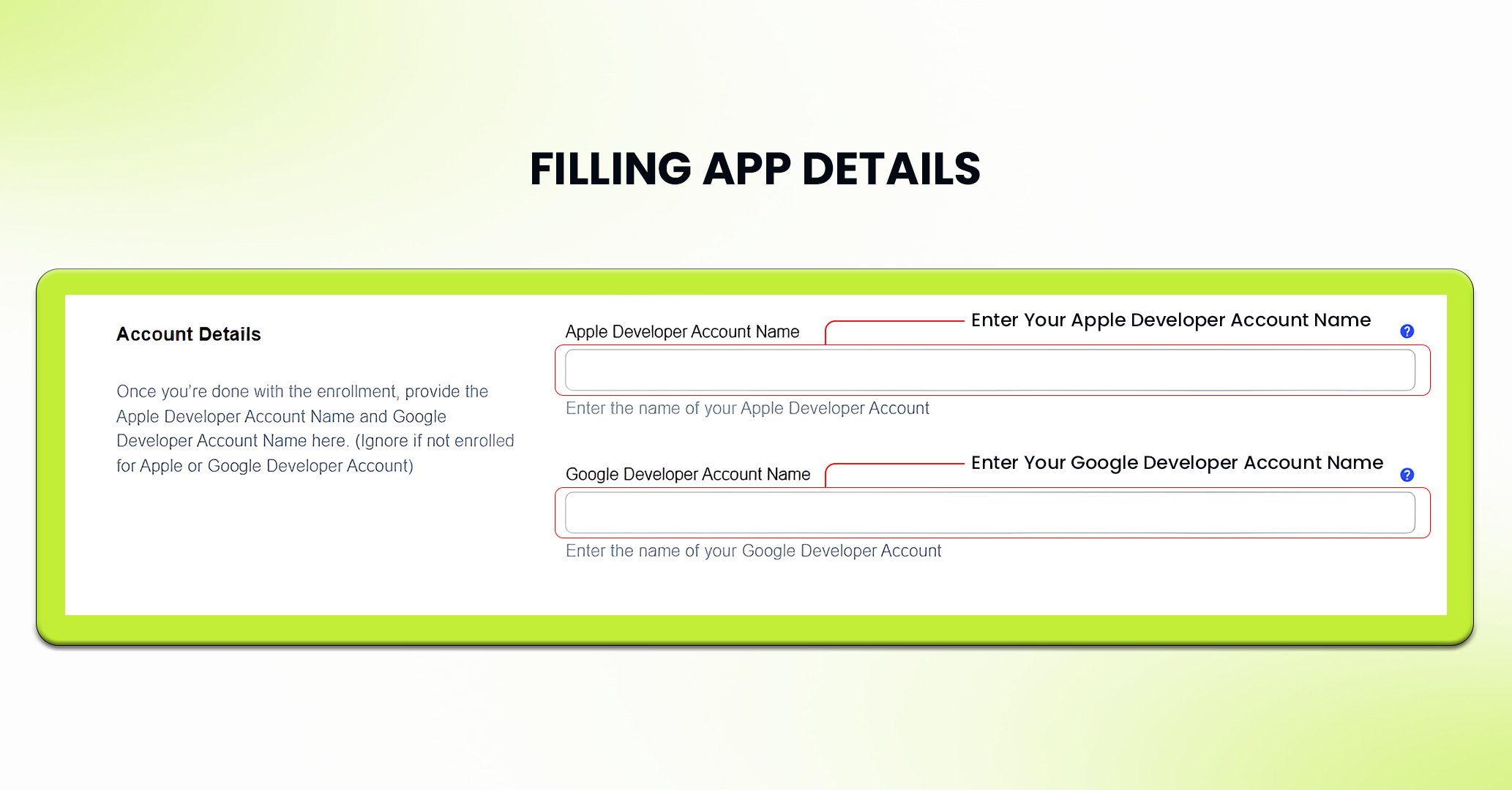
Apple Developer Account Name: Fill in the name attached to your Apple developer account here. This is the name you used to enroll in the Apple developer program. If not enrolled already, please check this Guide.
Google Developer Account Name: Fill in the name attached to your Google developer account here. This is the name you used to enroll in the Google developer program. If not enrolled already, please check this Guide.
6. Promotional Video
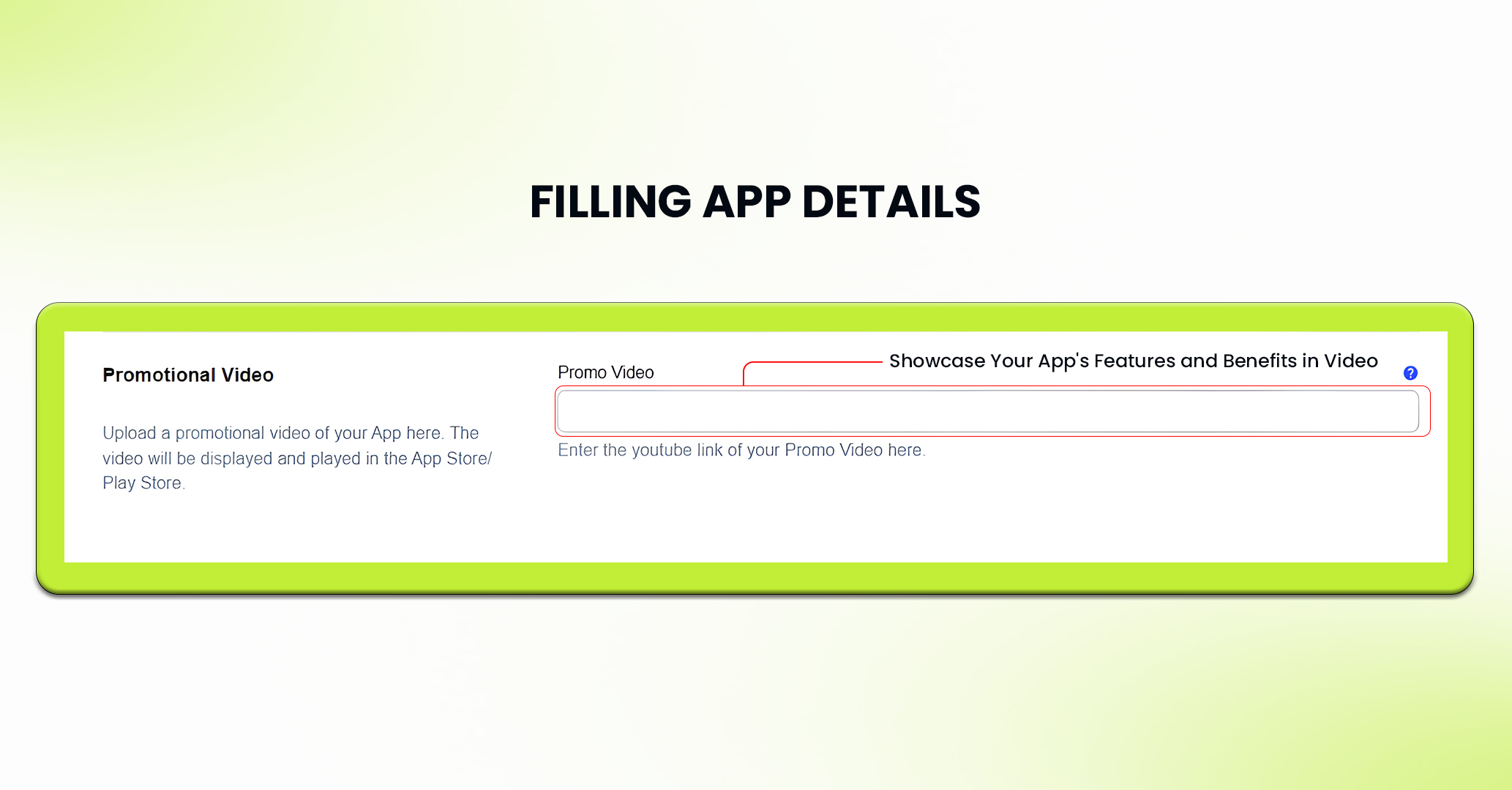
Here you can upload a promotional video that showcases features and benefits of your mobile app. This video will be available in the app store and can significantly impact user interest.
Congratulations! If you have followed the above steps one by one, you have successfully filled out your app details form effectively.
Feel free to reach out to our support team if you have questions or need support. We are here to help and address any issues you may have!


