How to Design Your App with MageNative’s App Studio?
MageNative’s App Studio lets you easily design your app with a simple drag-and-drop interface. Here’s a quick guide to get started with MageNative:
- Click on ‘Let’s Get Started’ on your MageNative dashboard to enter the Theme Settings page.
- Click on “Pick Your Theme” to choose a built in theme or start with a custom theme.
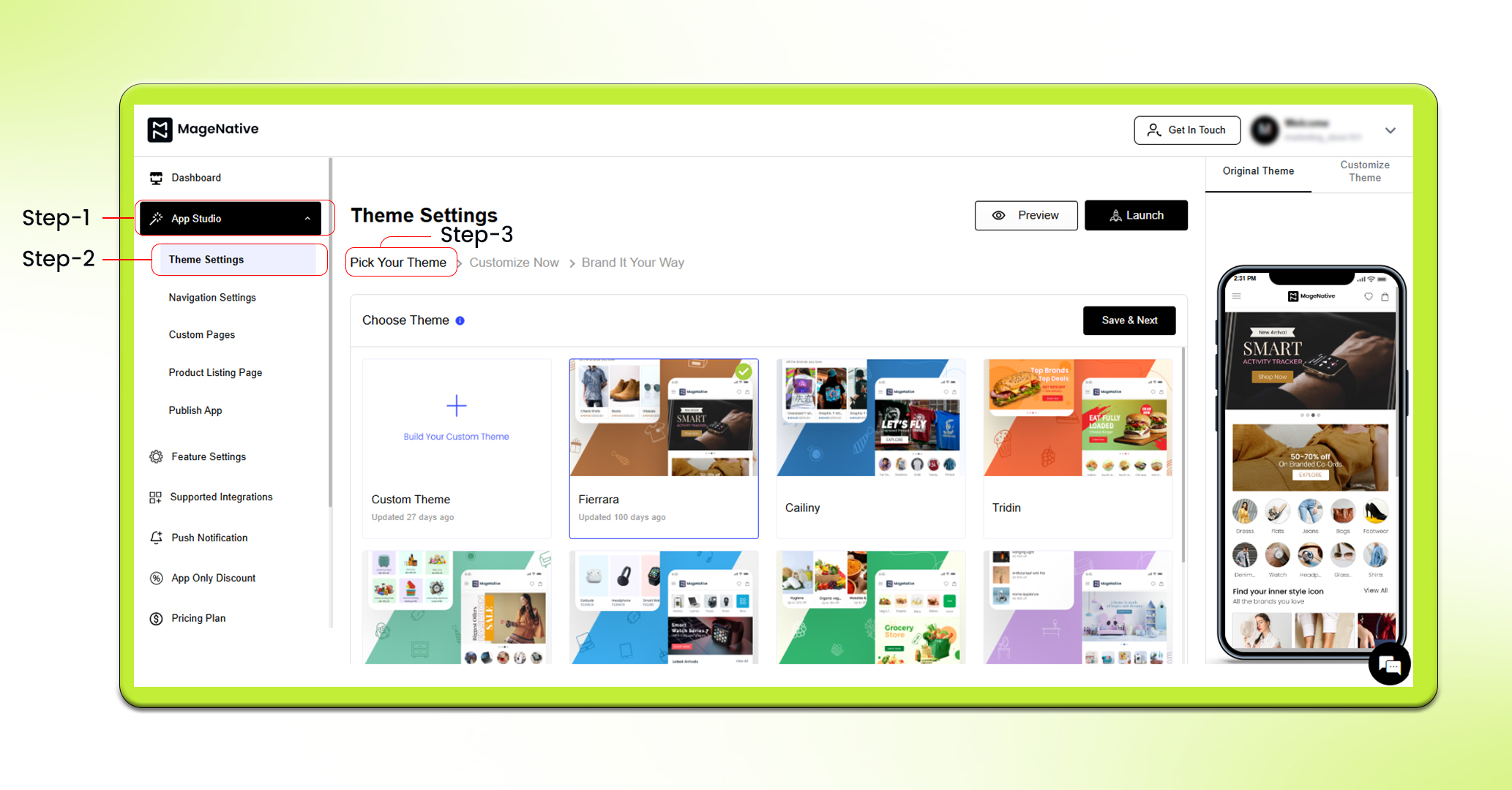

- There are 9 types of built-in themes available to choose from – Feirrara, Cailiny, Tridin, Macabel, Infinitoe, Voltmuse, Enoic, Kidlem, Plium.
- Choose a theme that suits your app’s needs from the available options or start with a custom theme.
- Click on the ‘Save & Next’ button to apply your selected theme.
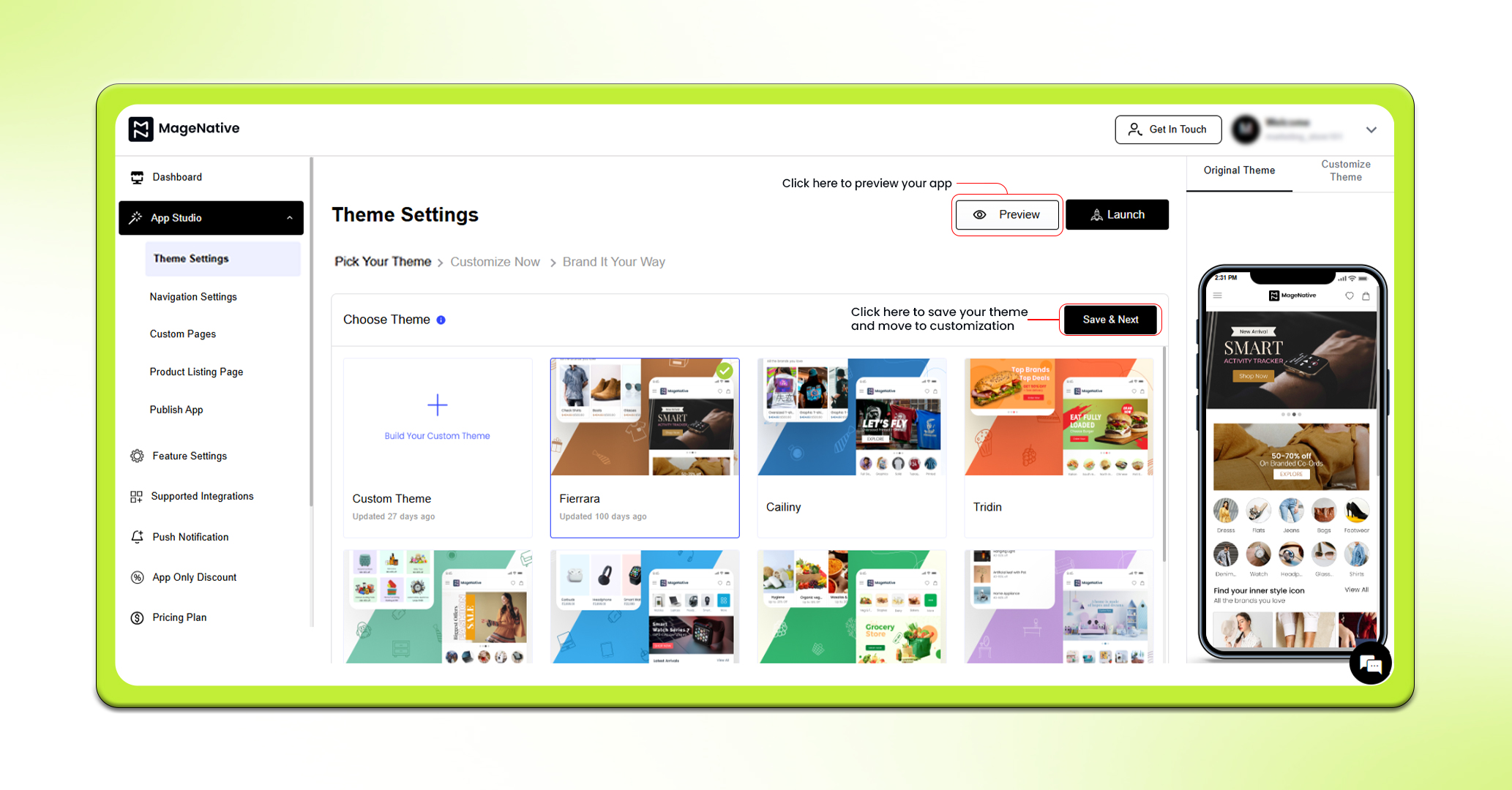
- You can preview your app anytime to check how it will look when it goes live.
- Click on “Customize Now” to customize your mobile app.
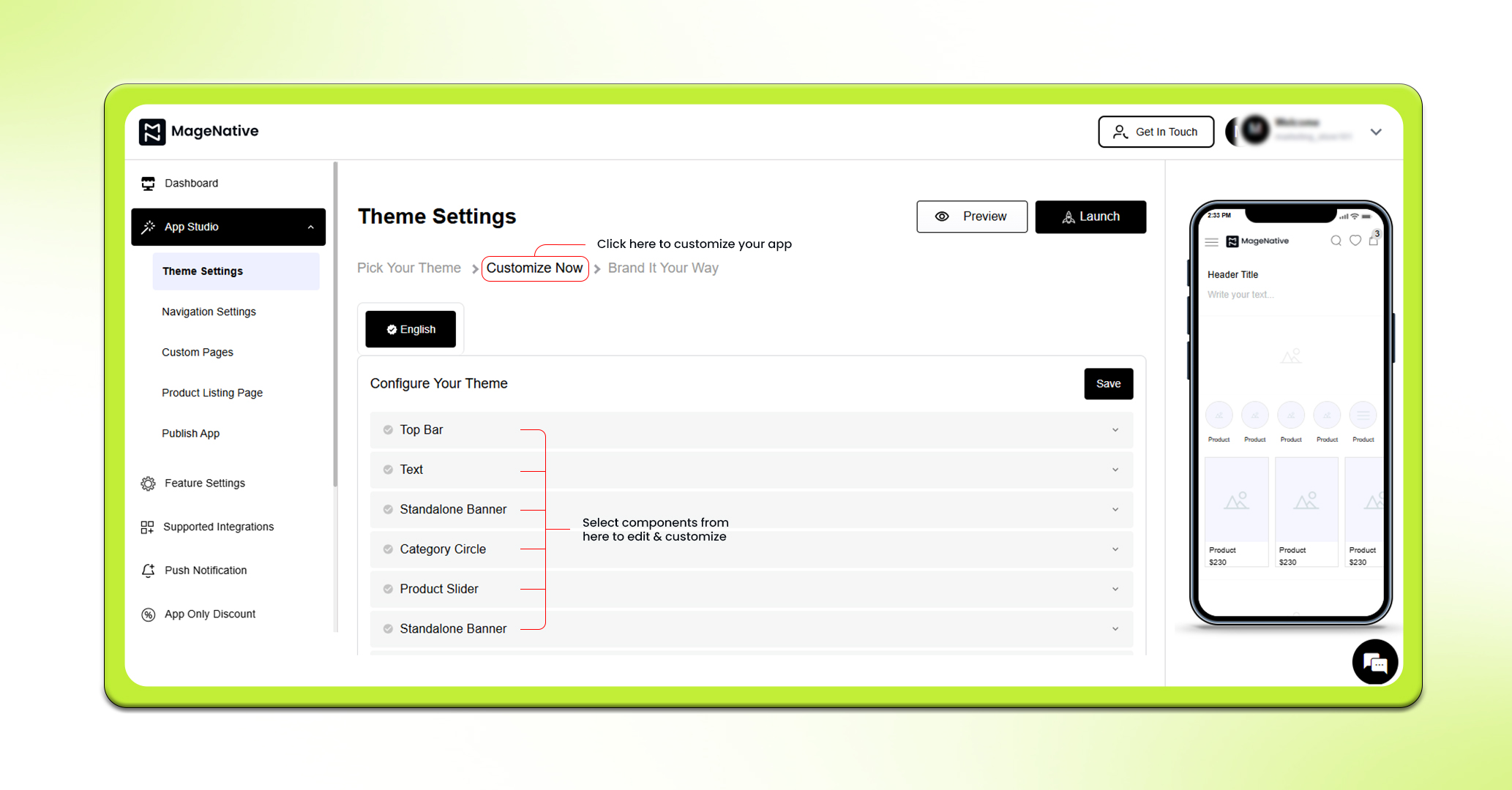
- Drag components from the central menu and drop them onto the mobile screen interface on the right.
- Various components available are: Top Bar, Standalone Banner, Spacer, Announcement Bar, Banner Slider, Category Slider, Product Slider, Collection Slider, Collection Grid Layout, Product Grid Layout, Countdown Timer, Video Component, and Text Box.
For detailed working of each component, read: All Theme Components
- After dropping a component, click on the edit option to further customize. You can customize each component according to your preferences, and see the changes in real-time.
- Follow the above steps for each component, and you will be able to easily design your app.
Feel free to reach out to our support team if you have questions or need support. We are here to help and address any issues you may have!


