How to Create a Facebook App and Add MageNative as Member?
Linking your mobile app with a Facebook provides your customers with a seamless login through their Facebook accounts. Here is a step-by-step guide on how to create a Facebook App and add MageNative as a member.
How to Create a Facebook App:
- Go to Facebook Developers and log in to your Facebook developers account.
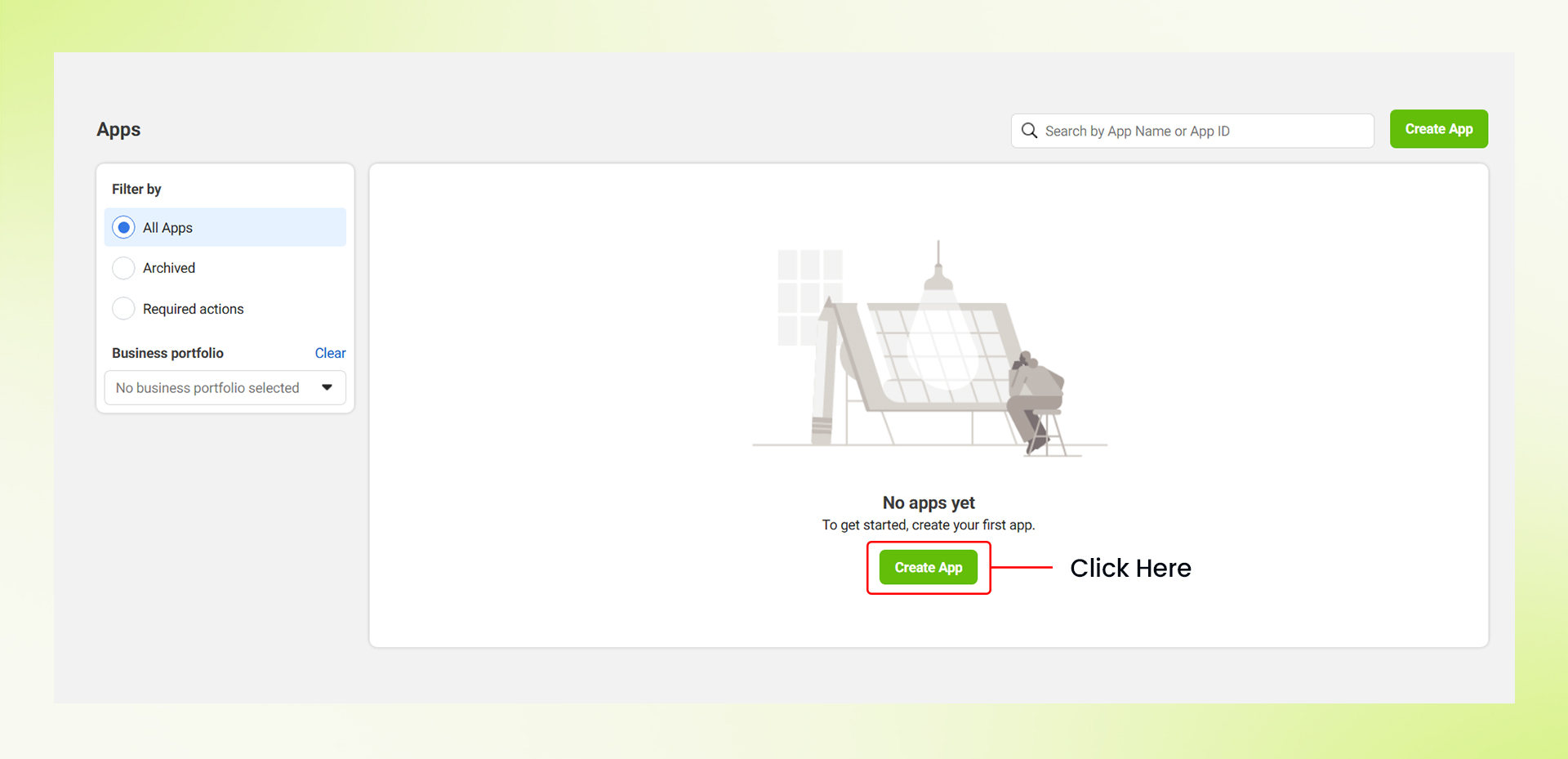
- Click on All Apps, then Create App.

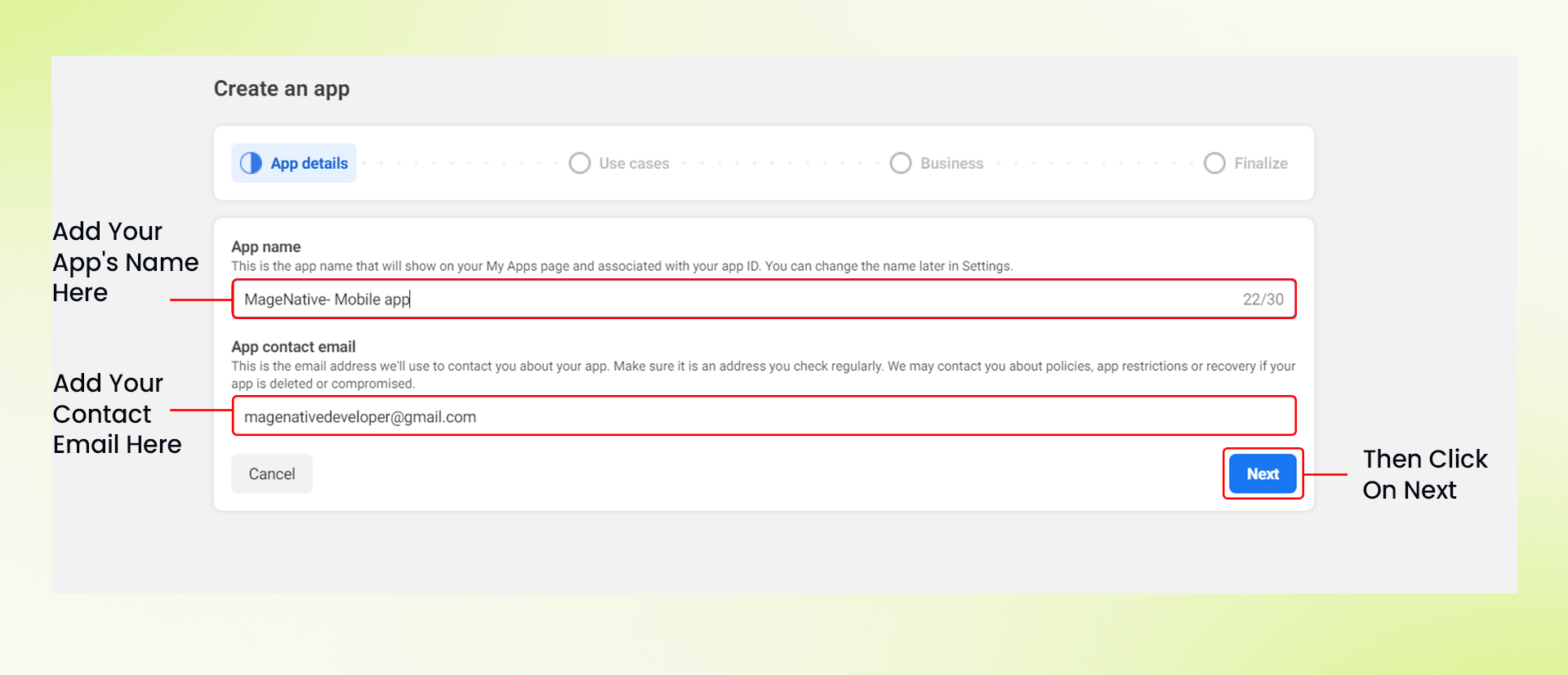
- Next, add your App Name, and email address for App Contact Detail.
- Then Click on “Next” Button.

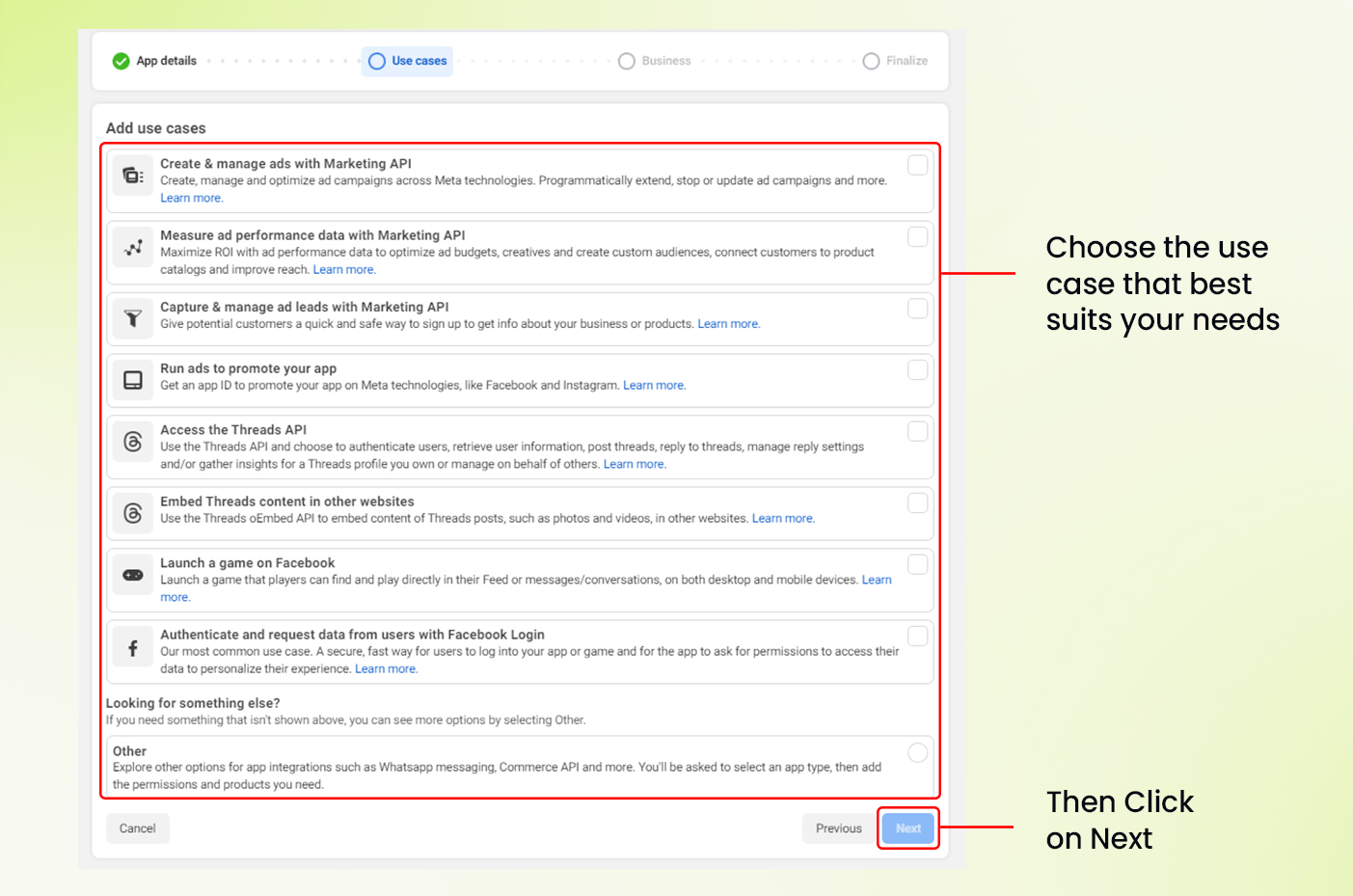
- Select the “Use Case” that best suits your needs.
- Then, Click on “Next” button.

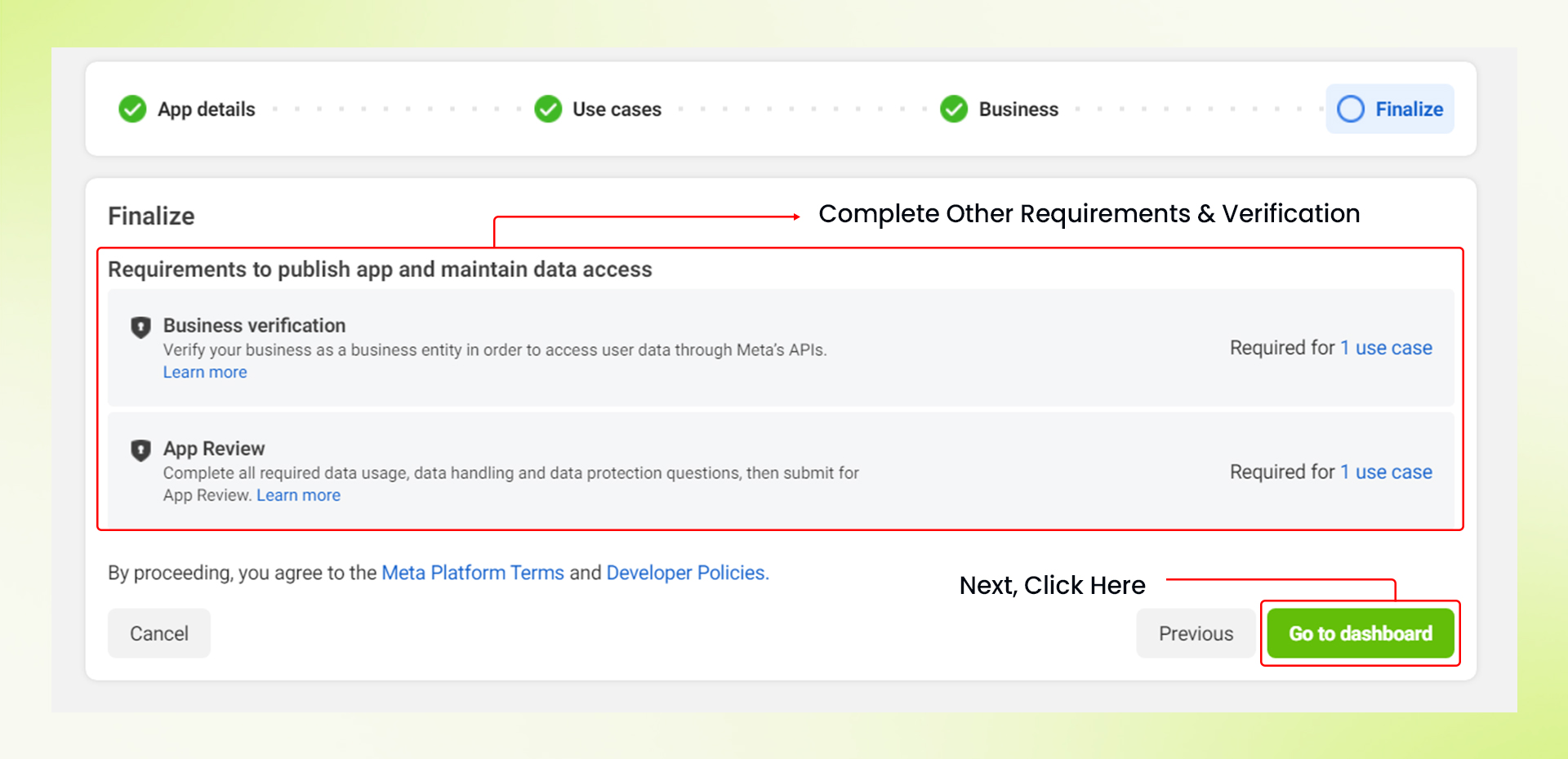
- Now, Complete the other requirements necessary to publish and maintain data access.
- After completing all the requirements, click on “Go to dashboard“.
Congratulations! You’ve successfully created your Facebook app.
How to Add MageNative as a Member:
- From the left menu, click on App Roles.
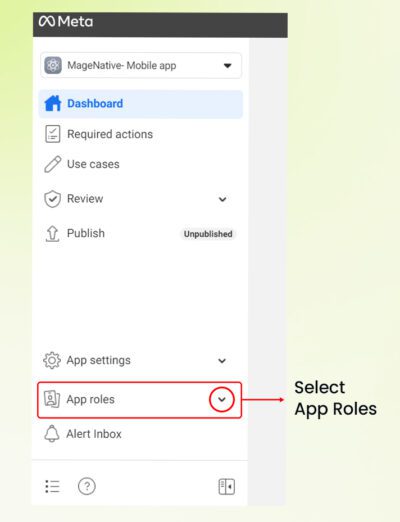

- Inside the Roles section, select Add Administrator.
- A prompt will appear. In this prompt, you have to enter the name, fbid, or username of the person you want to add.
- In the prompt, type “61572204626055” this id.
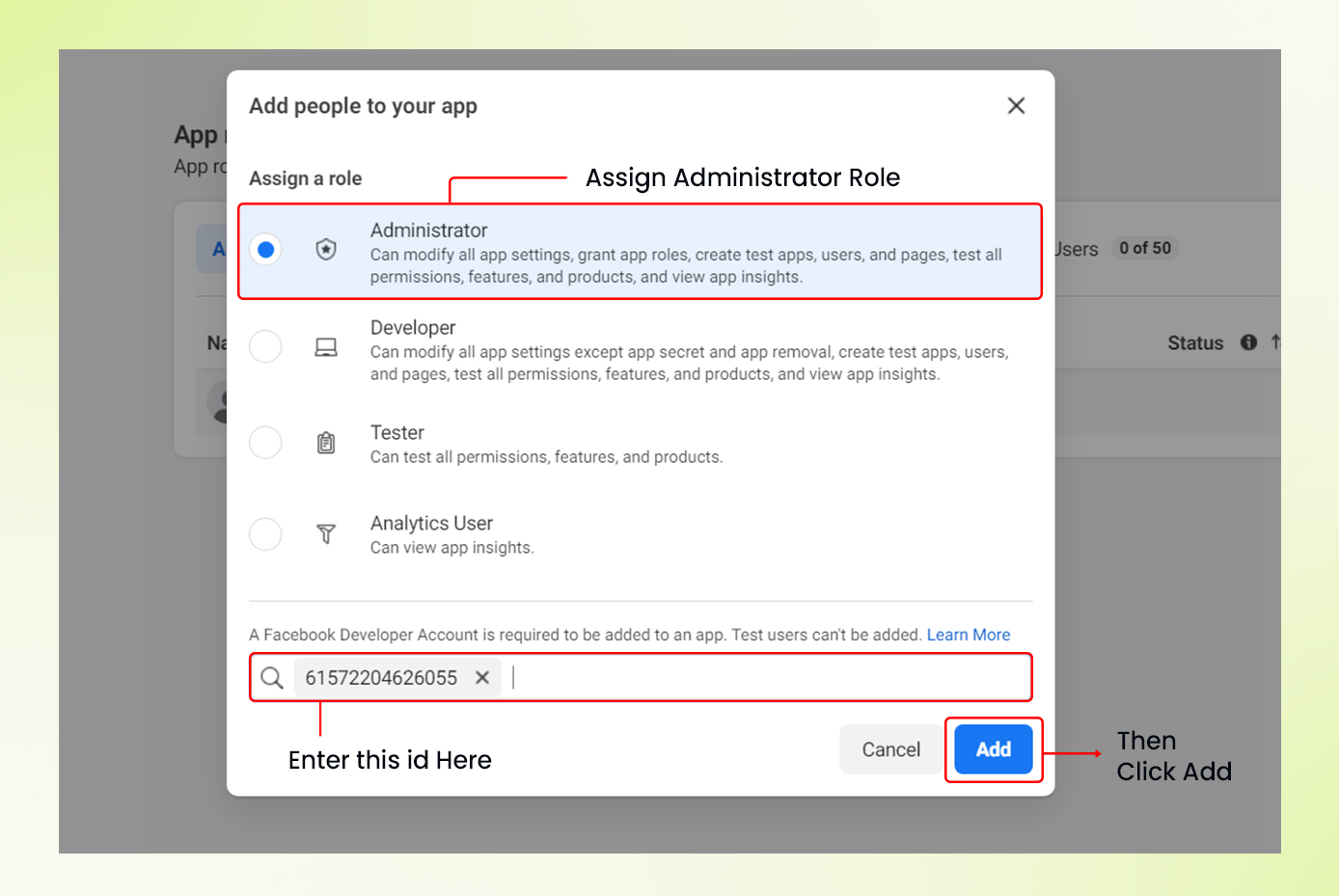

- Next, Click the Submit button.
Congratulations! You’ve successfully added MageNative to your app.


