How to configure and optimize product listing pages in your mobile app?
PLP or Product Listing Page is one of the most pivotal components of your app designed by MageNative to simplify the shopping experience by making it easier to browse and discover products.
With MageNative’s Product Listing Pages, you can not only showcase your products in a well structured manner but also enhance engagement and help in driving more sales.
What Is a Product Listing Page?
The Product Listing Page (PLP) is that page which lists all the products within a category or collection. It gives basic information such as product titles and images, descriptions, price, star ratings and review counts to help the user in his shopping journey. A well structured and designed PLP provides smoother product discovery and improves user engagement.
How to Create Product Listing Pages in MageNative
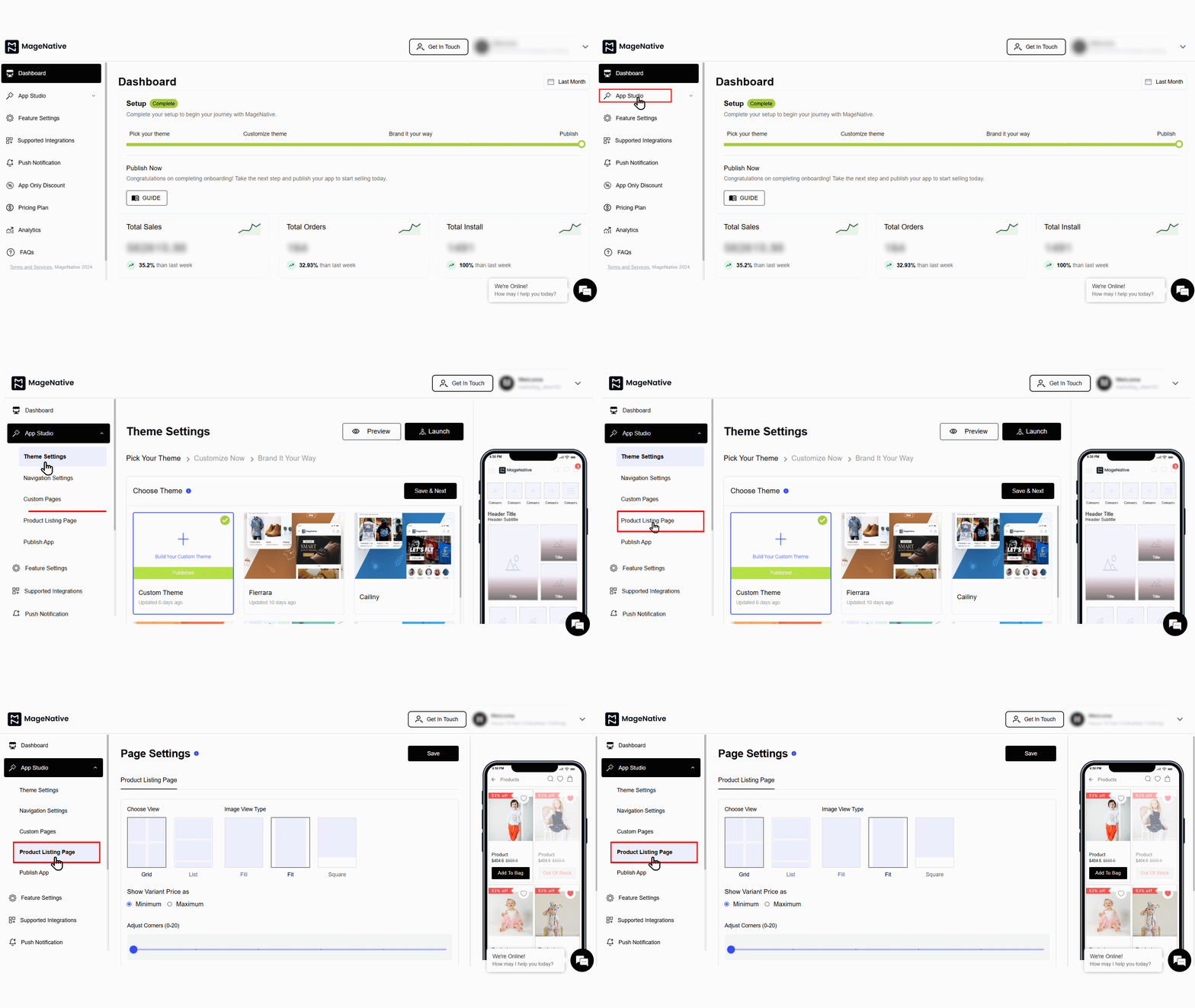
- Open the admin panel, and navigate to the left-hand side to the App Studio.
- Click on Product Listing Pages to begin creating your product pages. A dashboard like this will appear on your screen:

- Choose how you want your products to be displayed i.e – in grid view or list view.
Note: In grid view, items are displayed in rows and columns whereas grid view shows products one by one.
- Next, select image view type from the following options – fill, fit and square.
- Fill: The images are cropped to fit in the frame.
- Fit: Maintain image aspect and fit into the frame.
- Square: Display images with equal width and height.
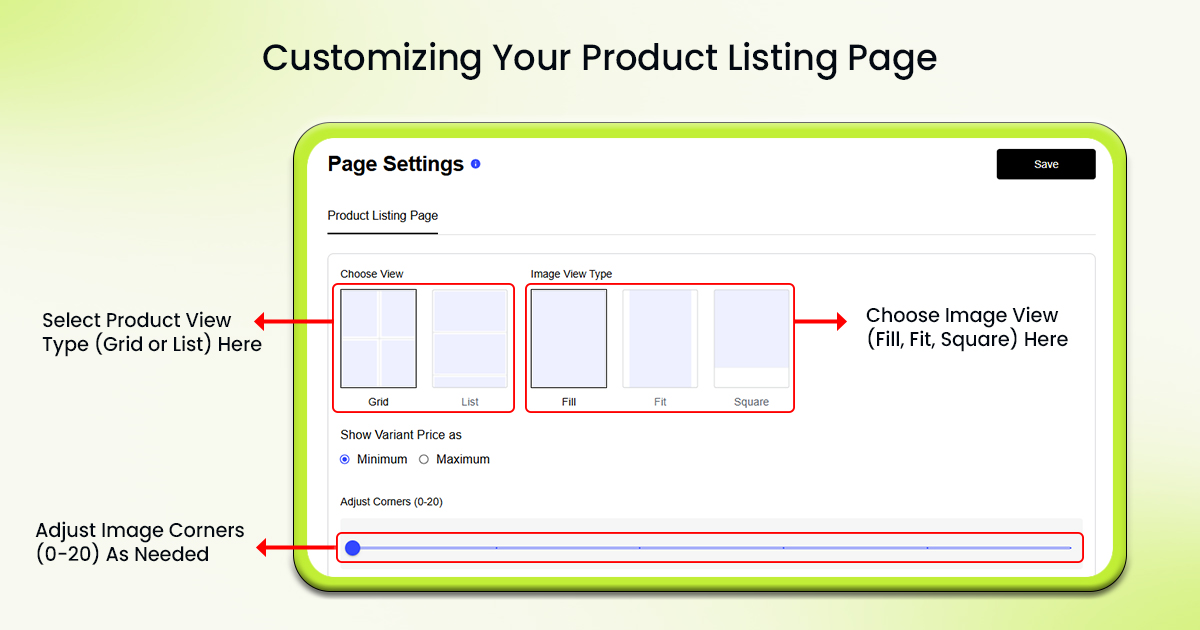

- Next, Adjust corners of the images from the range of 0-20.
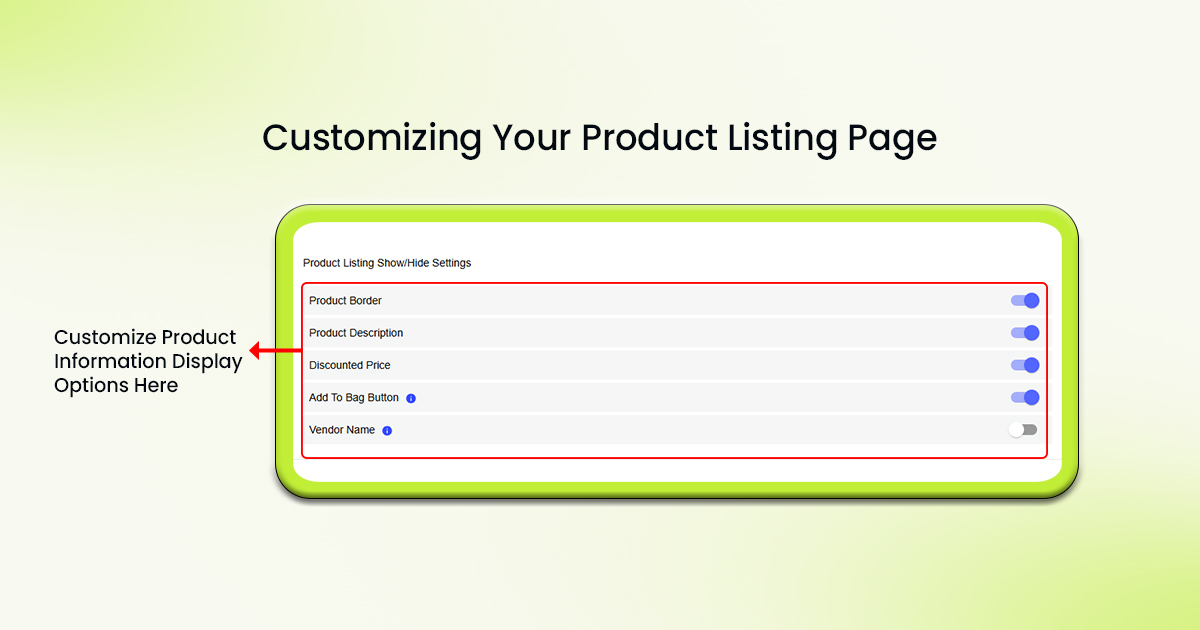
- At last, show or hide which detailed product information you want to get displayed on your app.
- Enable or disable the following button accordingly:
- Product Border: Enable or disable borders for the product as needed.
- Product Description: Enable if you want to display detailed product descriptions.
- Discounted Price: Enable if you want to show the difference between the original price and the discounted price.
- Add to Bag Button: Enable if you include an “Add to Bag” button.
- Vendor Name: Show or Hide seller’s name as needed.
- Click the Save button in the top right corner to save your work.
PRO TIP: Optimize your product title and description for better search visibility and improved SEO.
Feel free to reach out to our support team if you have questions or need support. We are here to help and address any issues you may have!


