How to Apply the Barcode Scanner Feature in Your Mobile App with MageNative
Enabling the Barcode Scanner feature on your mobile app is really a game changer for your business, especially if you want to improve your offline shopping experience.
Apart from simplifying the user’s offline shopping experience, it also enhances your mobile app’s engagement and sale by letting people to scan and purchase products through the app.
Note: This feature is available only in Premium plan and above.
Why Should You Enable the Barcode Scanner?
Imagine a customer walking in your physical store and finding a product they like, but need more information before making the purchase.Instead of asking a salesperson or hassling in a queue for hours, they can scan the barcode available. In this way, they can easily and immediately access detailed product specifications including product details, pricings, offer and store reviews. This will not only make the customer’s decision more informed but also speeds up the entire purchase process too.
Note: You shouldn’t activate the Barcode Scanner option on your mobile app if you don’t currently use barcodes for your products.
How to Enable the Barcode/QR Scanner Feature
Before you can enable this feature, know that all your products should already have barcodes assigned. If they do not, you will have to assign those first. You can use Shopify’s barcode setup to get that sorted for your store.
- Log into your MageNative dashboard and click on Feature Settings in the left panel.
- Go to the Marketing Section under the categories in Feature Settings. You can find the Barcode Scanner feature there.
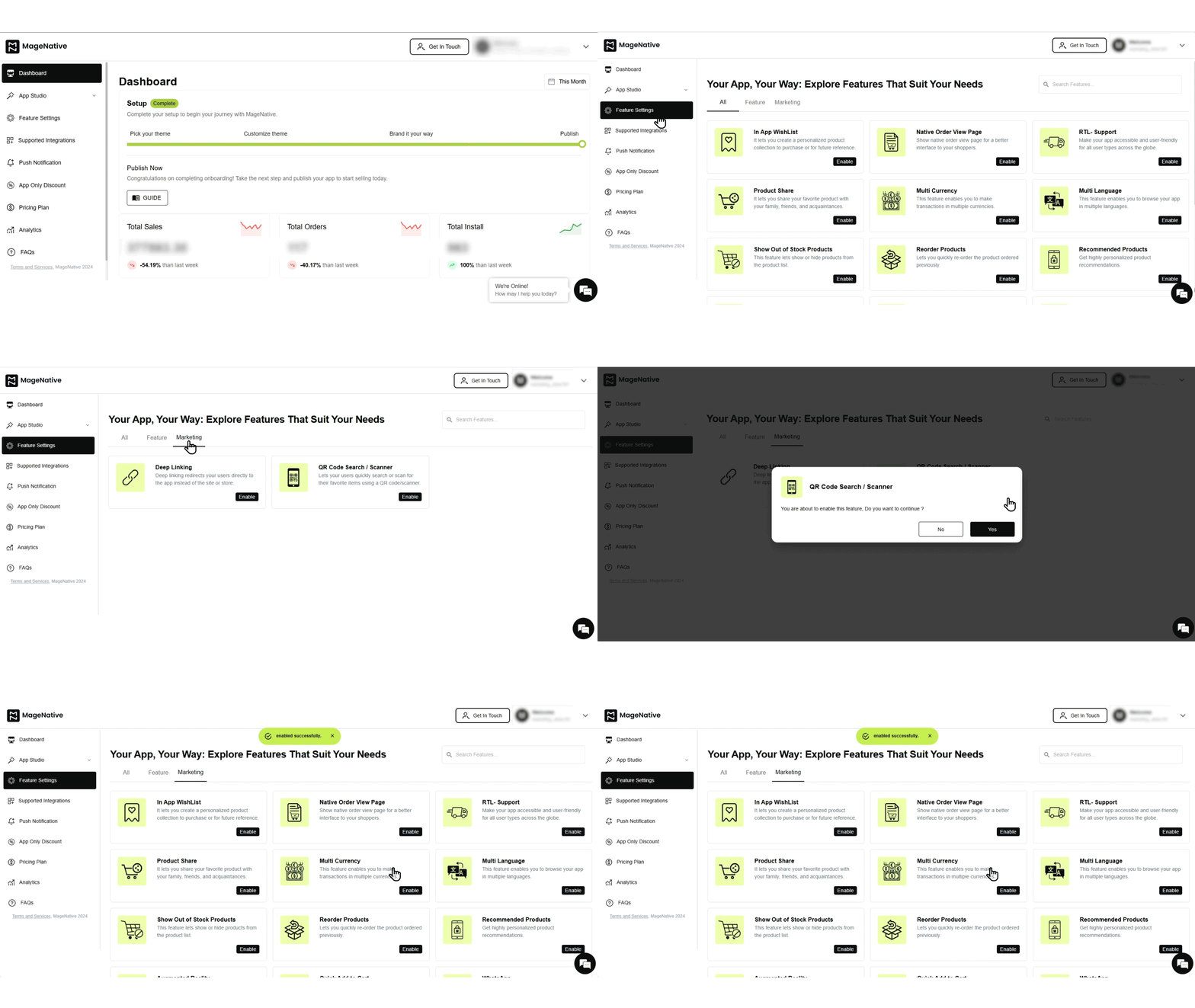

- If you have the premium plan, you can simply toggle the Barcode/QR Scanner to enable it for your mobile app.
- A popup like this will appear on your screen – “You are about to enable this feature, Do you want to continue ?” . Simply select “yes” and continue.
- A message will appear, stating “Scanner enabled successfully!” This confirms that the feature is activated successfully.
How Scanner will Appear in Your Mobile App
After enabling it, you can see the Barcode Scanner feature on your app’s Search Page. When the customer clicks the search icon, the barcode icon will appear next to the search icon. On clicking the barcode icon, the camera opens up, and users can scan the barcode of any product present in your physical store.
We currently support common barcode types including UPC-A, UPC-E and EAN-13. Additionally, we can also provide EAN-8, Code 39, Code 128, and ISBN barcodes if needed. If you require support on any other shopify barcode types, just let us know, and we’d be happy to help!
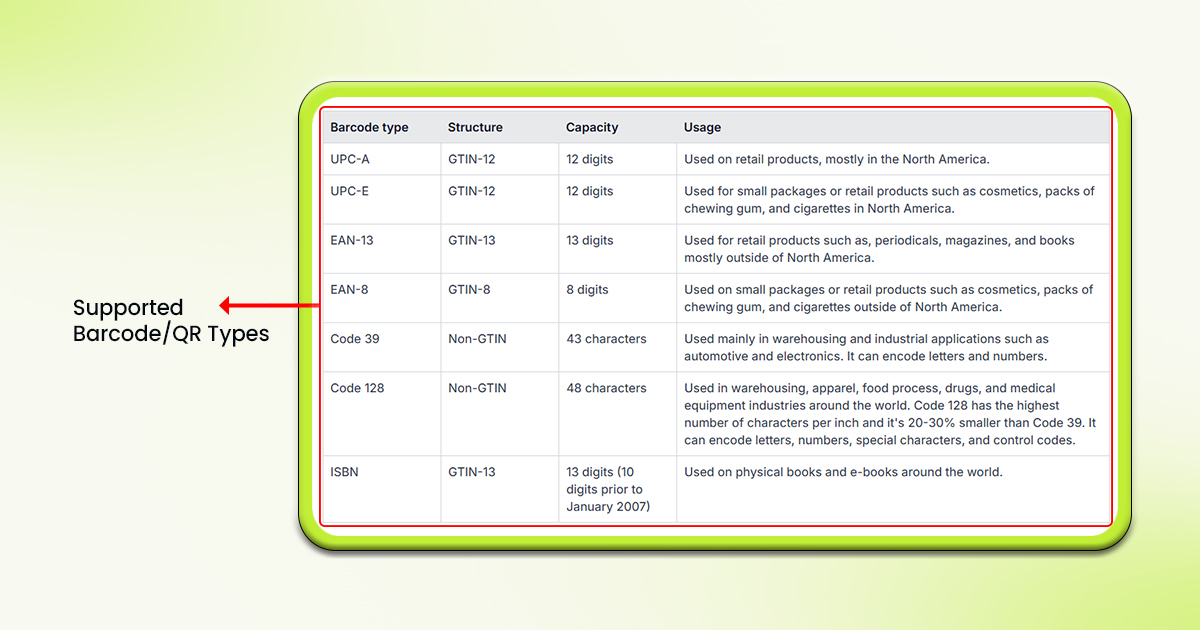
You can get detailed information about supported barcode types from here: Read Here
PRO TIP: You can increase your app installs by providing special discounts on purchases through the Barcode Scanner.
Feel free to reach out to our support team if you have questions or need support. We are here to help and address any issues you may have!


