How do I preview a theme before making it live on my app?
MageNative’s Preview feature allows you to preview and test your app’s design, functionality, and complete user experience before it goes live. It is a powerful feature enabling you with power to verify whether your app’s design meets all of your expectations from the user’s perspective.
Not just that! You can also generate QR code to send to your team to preview the app on their devices and provide feedback accordingly. Ready to see your app in action?
Here’s a step by step guide to preview your mobile app using MageNative:
- To preview your mobile app, first navigate to theme settings in your magenative dashboard and click the “Preview” button.
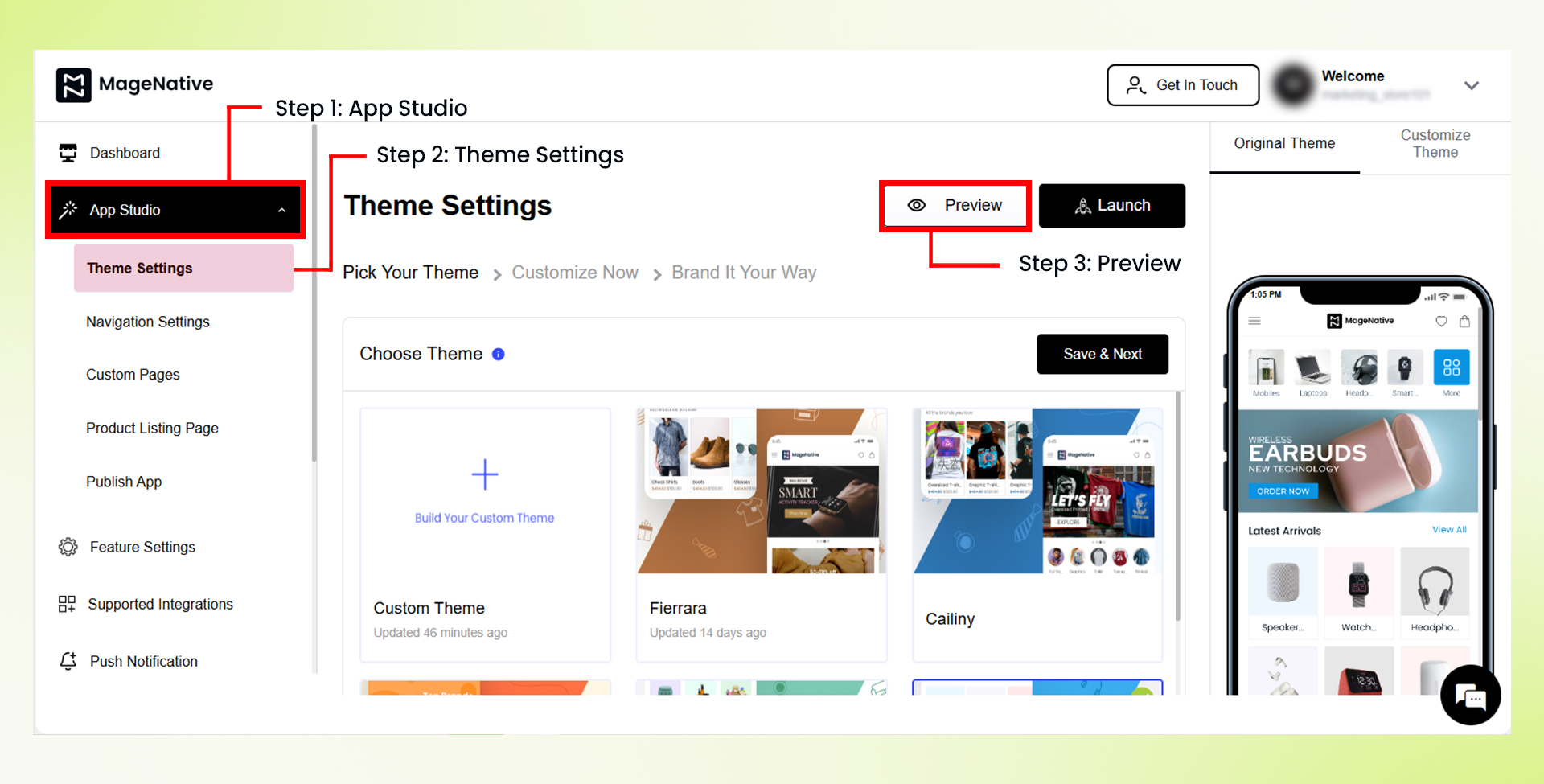

- On clicking the preview button, a window like this will appear on your screen.
- Follow the steps mentioned, one by one. First download the MageNative Demo App from the App Store or Play Store.
- You can do this directly by searching “MageNative” or using the direct link mentioned on the page specific to your device.
- After you have installed the app, go ahead and open the app on your mobile device.
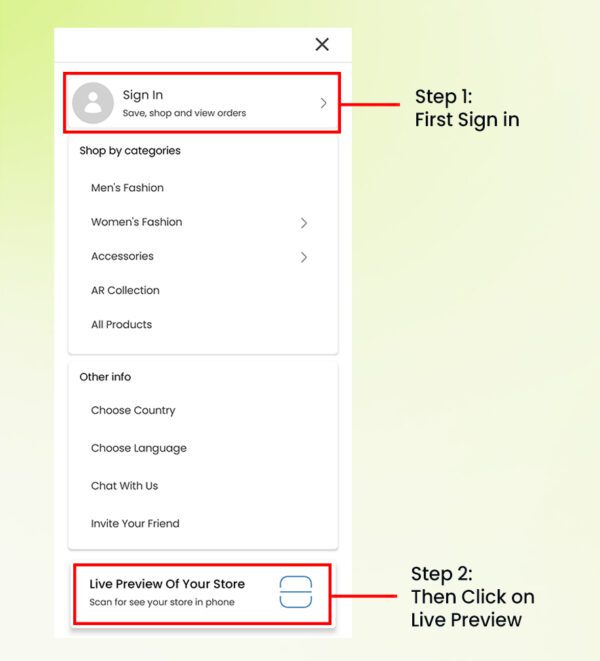

- Sign in and navigate to the sidebar menu and click on “LIVE PREVIEW OF YOUR STORE“.
- On your MageNative’s dashboard, you’ll see a unique QR code on the right side of the screen.
- Scan this QR code using your MageNative’s Demo App.
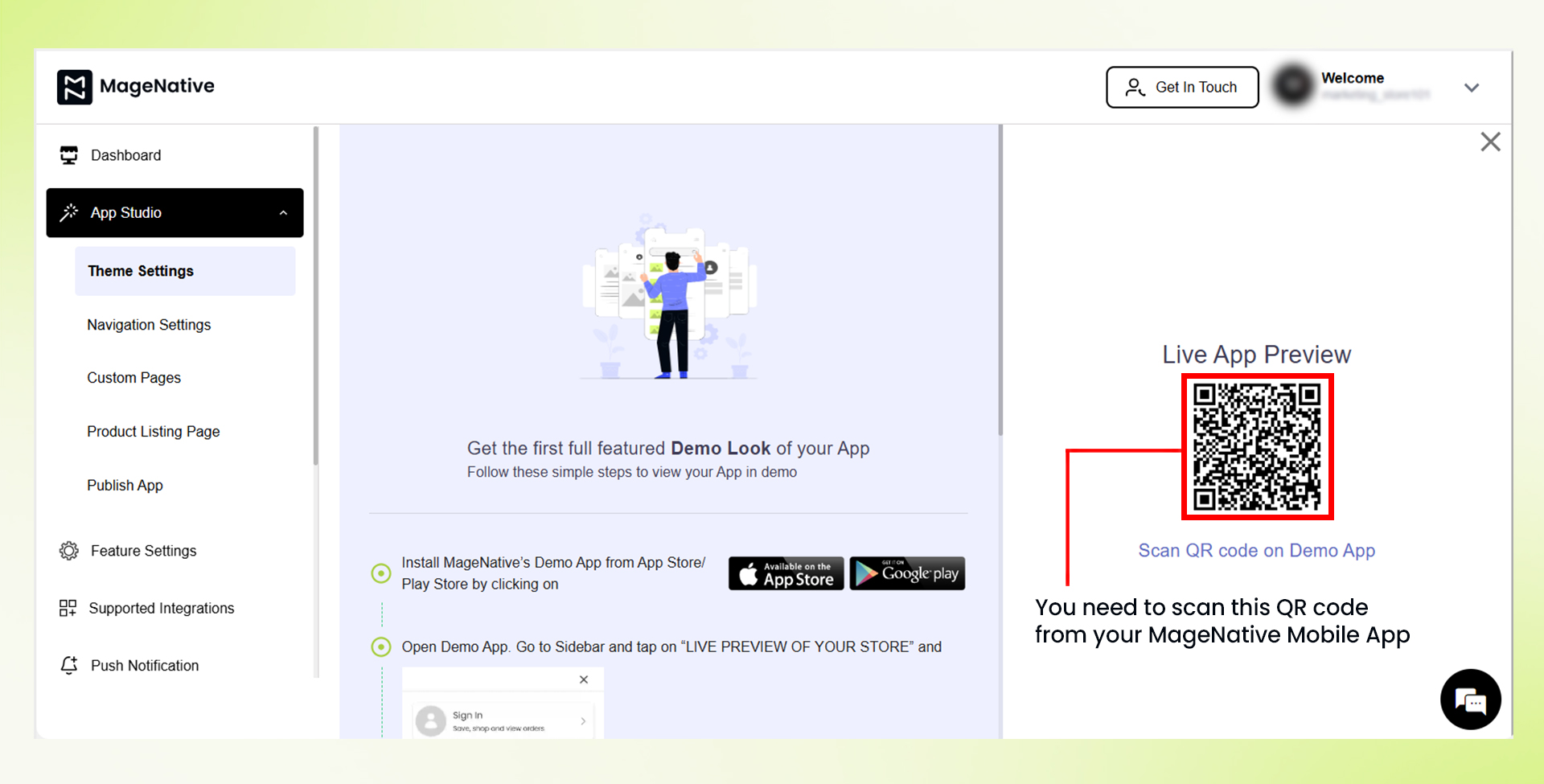
- Once your QR code has been scanned, you will see an instant demo of the app will be generated to preview.
- Now, you can also navigate and click on all the features exactly the way your users would experience.
Feel free to reach out to our support team if you have questions or need support. We are here to help and address any issues you may have!


