How can you showcase your blog posts on your MageNative mobile app?

Featuring your blog posts on your MageNative Mobile App is for sure an excellent way to boost user engagement and retention. It can help users to understand your product better and build customer loyalty.
You can showcase your blog posts on your mobile app using these three magenative’s amazing features. Below is a step by step guide on how to do so:
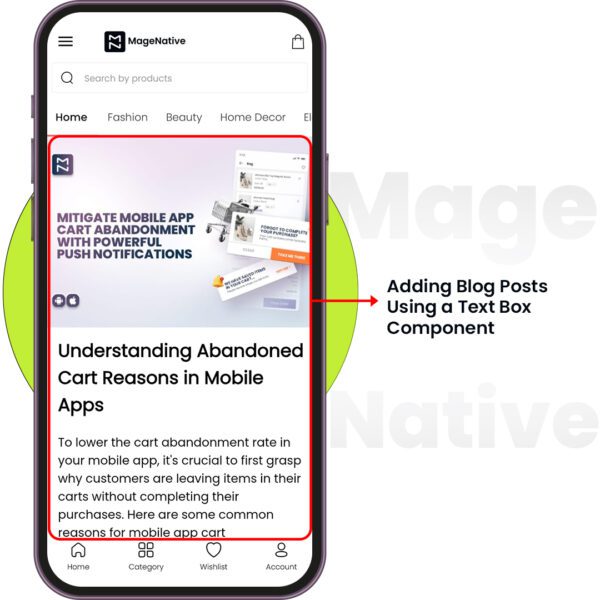
1. Add Blog Posts Using a Text Box Component
- First Log in to your MageNative admin panel using your credentials and access MageNative Dashboard.
Drag and drop the Text Box component where you want to showcase your blog on your app’s screen. - Next, click on the edit icon. It will open a customization window at the center of the dashboard.
- Next, Write the blog Title in the “Title” field.
- In the “Add/Edit Body Section”, you can either write your blog content or paste your existing blog’s HTML code to showcase it in your app.
- While writing, you can customize your blog’s text by adding different heading styles (H1 to H4), Text Formatting, Text Color, Aligning Texts and adding Bullet Points to give it an enhanced look.
- If you want to paste existing HTML code, you can do it by clicking on the “code” icon and pasting the code on the small html editor window that appears.
- Next, select a background color that complements your app’s design and improves text visibility, making your content more engaging.
- After all settings are configured, click on the Save button to apply the changes.
2. Add blog posts using Navigation Settings
- To feature your blog posts with this method, first log into your MageNative admin panel and click on App Studio in the left panel.
- Select Navigation Settings on the menu to start your configuration. A navigation setting dashboard like this will appear on the screen:
- You can feature your blog posts both using side navigation & bottom navigation.
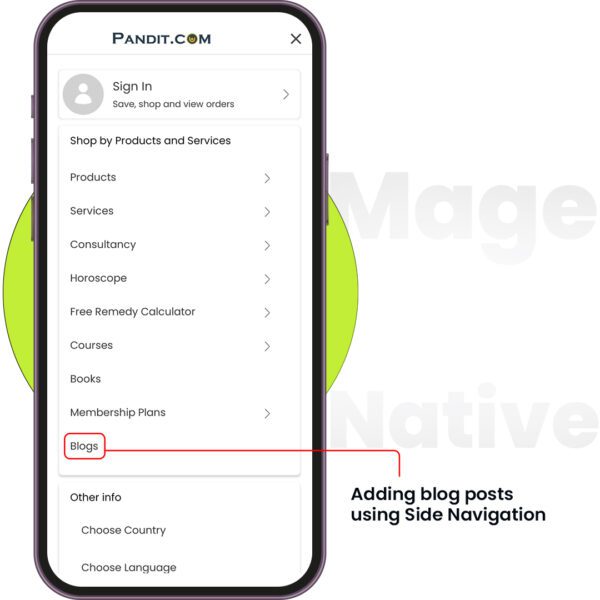
- For side navigation, Select the Side Navigation Tab in the Navigation Settings.
- In the configuration option of side navigation,’ click on ‘Add a Menu‘ and create a new one.
- Rename the title of this menu to something more relevant, like “Blog” or “Blog Posts,” so that your users know what it is.
- Select to link a web URL in the link settings. Paste the URL of your Shopify store’s blog page here.
- Next, upload a custom icon relevant to blogs for this menu item. The recommended size to upload the custom icon is 120 x 120 px.
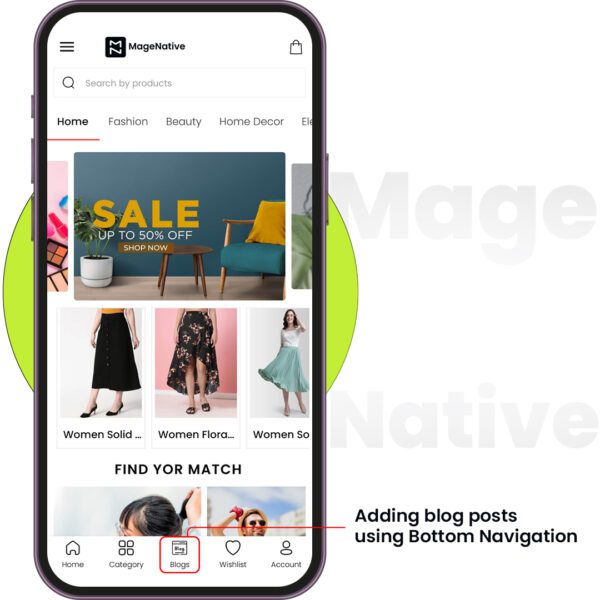
- Similarly, If you want to add your blog posts in bottom navigation, you can select “Bottom Navigation” in navigation settings. Then, add a new menu item, title it as “Blog” or something else but relevant, and link it with your blog’s web URL. This will redirect your mobile app to the blog page of your store whenever that menu item is clicked in the app.
- Click on the Save button to apply all the changes.
Here’s how blog posts will look when added in:
Bottom Navigation:
Side Navigation:
Feel free to reach out to our support team if you have questions or need support. We are here to help and address any issues you may have!


