All About Navigation Settings of MageNative Mobile App?
Navigation settings are very crucial for providing a smooth and intuitive user experience in your mobile app. A properly structured navigation system ensures that users can easily locate what they are looking for-be it a particular category, a product, or any custom page. MageNative allows you to customize the navigation settings of your app for your user’s requirements as needed. for
What Types of Navigation Does MageNative Offer?
MageNative offers three types of navigation settings to help users easily navigate and utilize the app.
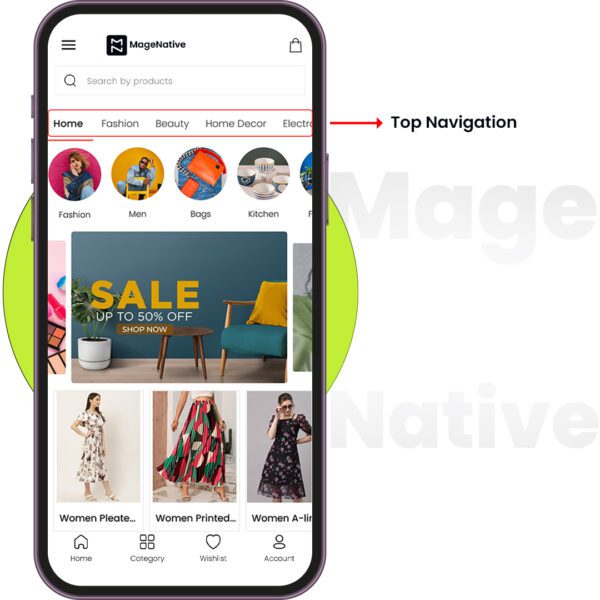
Top Navigation
A top navigation in a mobile app offers a top bar that displays important links that users can access quickly and immediately. You can set up to 10 tabs for your top navigation setting.
How to configure Top Navigation in your MageNative Mobile App: Read here
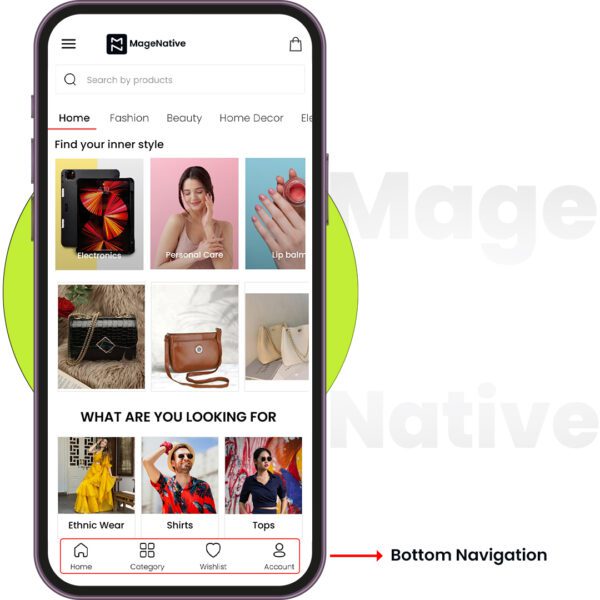
Bottom Navigation
This is one of the most usable navigation styles. It directs users to key features of the app directly from the bottom of the screen. You can create up to 5 menus here that are linked to different sections or pages.
How to configure Bottom Navigation in your MageNative Mobile App: Read here
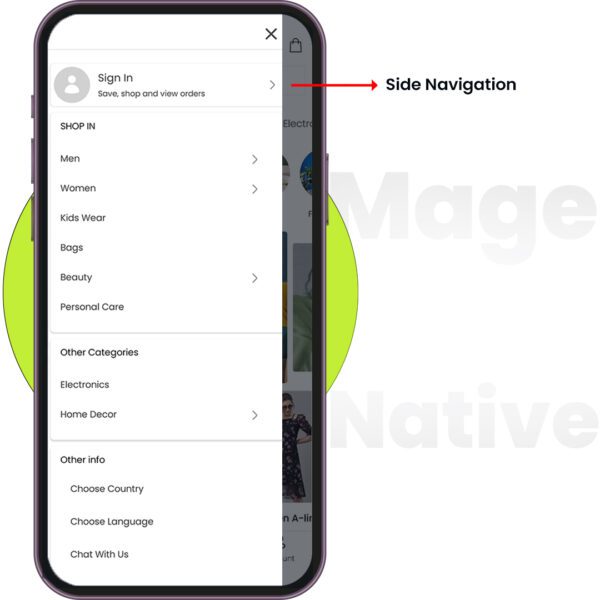
Side Navigation
A side navigation setting, also known as a navigation drawer or hamburger menu, allows users to access different categories to manage their accounts, view categories, select languages and more, all in a single menu. It is also referred to as multilevel navigation.
How to configure Side Navigation in your MageNative Mobile App: Read here
What are the different navigation menu items available in MageNative?
MageNative has a list of menu items that can be used to satisfy the different needs of users. Some of them are mentioned below:
Home
Home menu item is meant to take users to the main page of the app and provide an area to begin navigation. This makes it easy for users to begin their shopping journey or explore new offerings directly from the home screen.
Wishlist
This menu option provides the customer with the facility for saving products that interest them for later reference. Users can tap the heart icon to add any item to their wishlist making it easier for them to return and complete their purchase later on. It ensures increased customer engagement and retention of your mobile app.
Search
The search menu item allows users to search for specific products or categories by typing in keywords. It improves user experience by quickly getting them to the items that they are looking to locate, by minimizing the amount of time they would need to browse the app.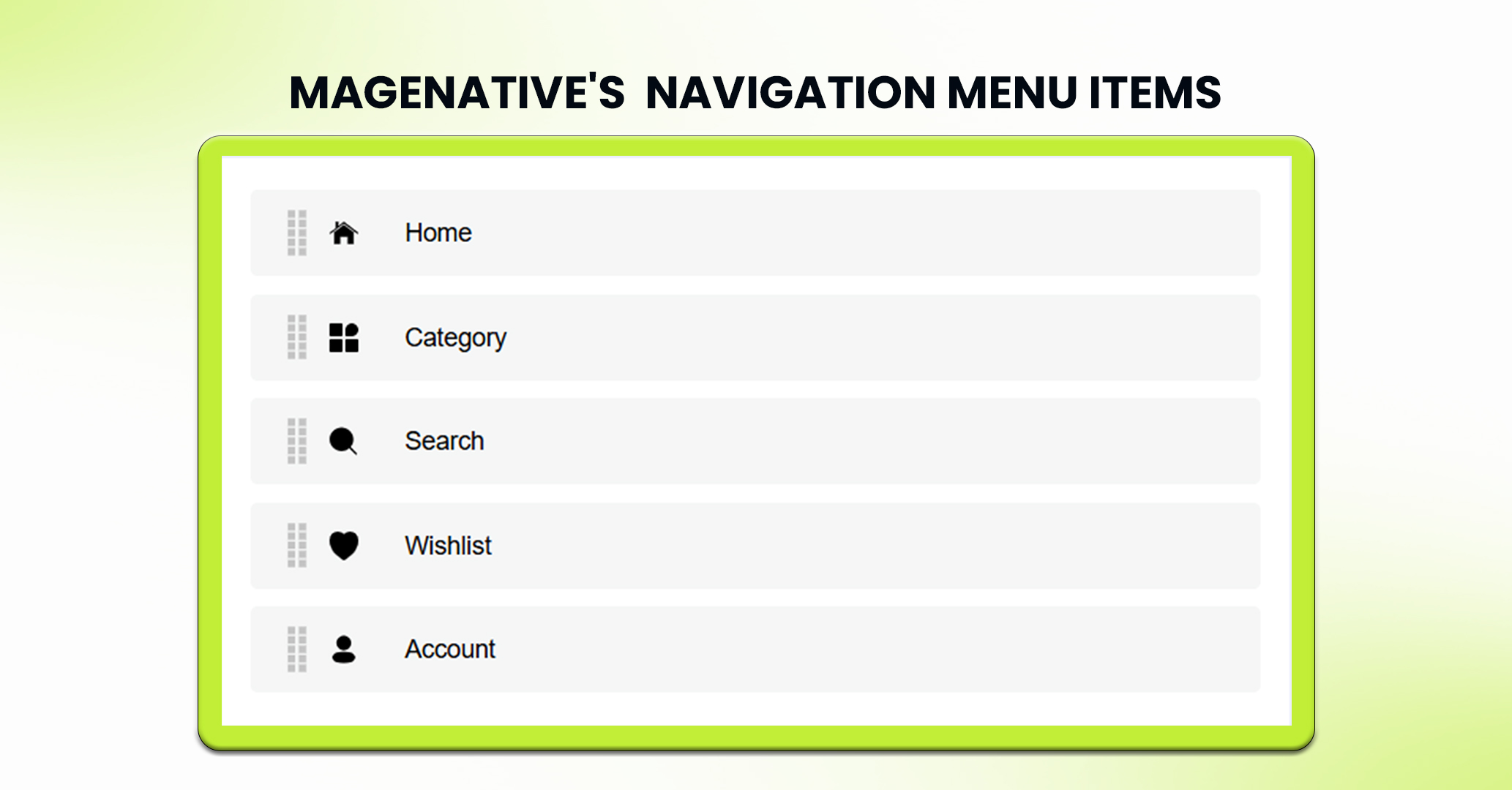
Category
The Category menu item helps to filter the stock in the store into appropriate sections, such as Men, Women, Electronics, and Home Decor. It provides enhanced customer’s shopping experience by providing a clear direction to easily navigate and find products they are looking for in certain categories.
Account
The account menu item enables the customer access to their information for personal ownership and management i.e.. information such as order history, saved addresses, and payment method. It allows users to manage personal profiles and settings including tracking their order, or accessing liked, saved or previously viewed items.
PRO TIPS
- PRO TIP 1: Do not overload your menu with too many items. Just provide the most important ones that users are most likely to need.
- PRO TIP 2: Use Clear Icons and Titles to make sure each menu item clearly represents its function.
Feel free to reach out to our support team if you have questions or need support. We are here to help and address any issues you may have!


