What is a Countdown Timer and How Can It Be Used Effectively?
Creating a sense of urgency is a powerful way to drive sales and engage customers. Using the Countdown Timer component of MageNative, you can display a dynamic countdown in your mobile app that motivates users to act quickly before time runs out.
What Is a Countdown Timer?
The Countdown timer Component is MageNative’s design component that enables you to display special offers, promotions, or flash sales directly within your app. It involves ticking the clock on the screen of your app creates a sense of urgency among users to take action and drives users to make purchases.
How to Set Up the Countdown Timer on Your Mobile App?
1. Drag and drop the Countdown Timer component to your desired location on the app screen. This will give you a preview of how it will look in your app.
2. Open the settings by clicking on the edit icon. This will open the customization options in the center of the dashboard.
3. Different Configuration settings available are:
- Countdown Style: Choose a style that’s compliant with the app design. This will ensure the countdown timer fits in seamlessly.
- Deal Message: Write a short, inspiring message to show the value of your offer and the scarcity of your deal.
- Time Zone: The time zone will set the time – the offers will be made available at the user’s local time. Set the time zone that is relevant to your campaign.

- Start Time: Choose the date and time for the offer or promotion to be active.
- End Time: Choose the date and time for the offer or promotion to expire.
- Text Background Color: Select a color to be included in the text background of your deal message.
- Text Color: This will be the color of the texts used in the deal message.

PRO TIP: Use color in your text that corresponds with your brand color palette, ensuring readability.
Note – The text background color and text color option are disabled for the countdown style in the center.
4. Click on the Save button to save the setting.
Use Cases of Countdown Timer
Using Countdown Timer for Targeted Promotions with Banner Slider
You can make your promotions more engaging by putting a Countdown Timer above or below a Banner Slider. This grabs people’s attention and tells them when promotion starts and ends as well as what it’s about.
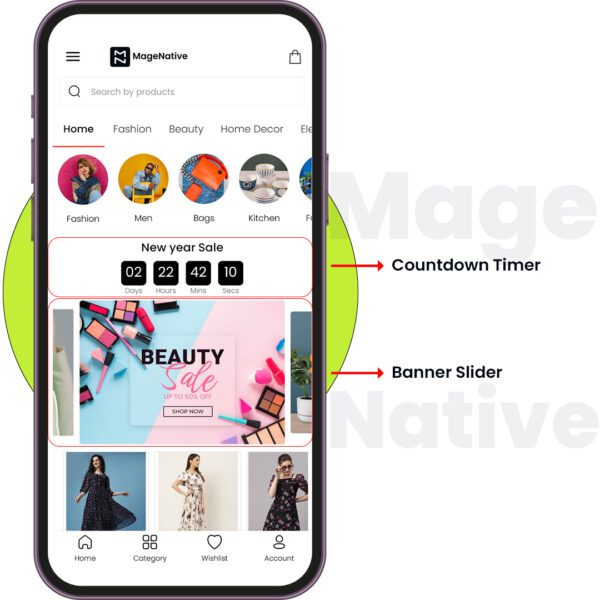
Scenario: Run an interval promotion for a new collection.
How to Use: Use the Countdown Timer to indicate how much time is left on the promotion. Below this timer, place a Banner Slider to rotate through images of new products or what’s being promoted.
Example:
Countdown Timer: Includes a promotional message with a countdown to the end of the special offer.
Banner Slider: Dynamic images of the new products or promotions that will coordinate back with the timer.
PRO TIP: Banner Slider images should be of high resolution and clearly display what’s on offer to really grab users’ attention
2. Using Countdown Timer for Storewide Sales with Announcement Bar
The Countdown Timer tied with an Announcement Bar is the perfect setup for any kind of storewide sale announcement. The setup works magic in keeping the notion of urgency intact among users.
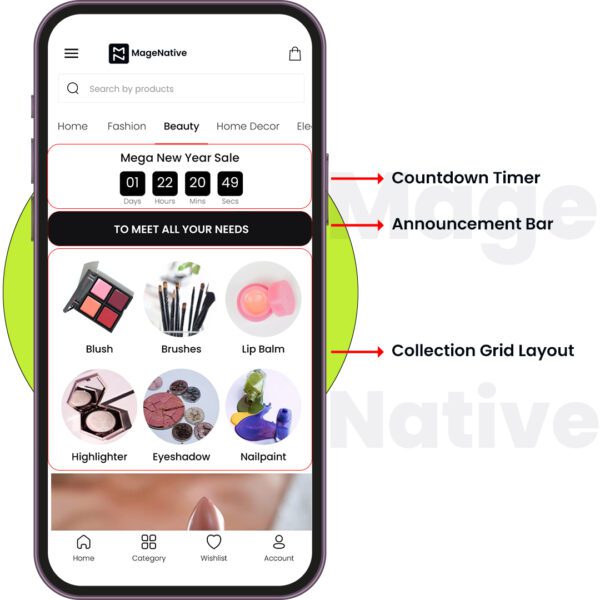
Scenario: Discount storewide with a countdown to create urgency.
How to Use: Place the Countdown Timer right at the top of the home page or on a dedicated sale page. Below the Countdown Timer, all the details about the discount code and other details about the sale are passed on by the Announcement Bar.
Example:
Countdown Timer: Top of the page—showing the time left until the sale ends. Which puts the urgency of the promotion right in your visitor’s face.
Announcement Bar: Under the Countdown Timer, indicate lucidly the store-wide discount and the discount code. Style the announcement bar differently from the other elements: add bold text and contrasting colors so that it’s very easily noticeable.
PRO TIP 1: Use the same colors for the Countdown Timer and the Announcement Bar to make them look unified and stand out more.
PRO TIP 2: Remind your customers how to not miss out on this sale with a call-to-action on your Announcement Bar; for example: “Shop Now” or “Use Code [XYZ] at Checkout.
Feel free to reach out to our support team if you have questions or need support. We are here to help and address any issues you may have!


