How To Link Custom Pages To Your Mobile App Across Various Sections?
With MageNative, you can effortlessly link custom landing pages of your mobile app across a variety of sections of your mobile app.
You can link your custom page with any of these components.
- Banner Slider
- Announcement Bar
- Standalone Banner
- Collection Slider
- Three Collection Layout
- Category Slider
- Collection Grid Layout
Let’s see how to seamlessly link custom page with any component or section of your mobile app:
Steps to Link Custom Pages
- Navigate to App Studio in MageNative app’s dashboard and click on App Studio then Theme Settings.
- Go to the “Customize Now” Section.
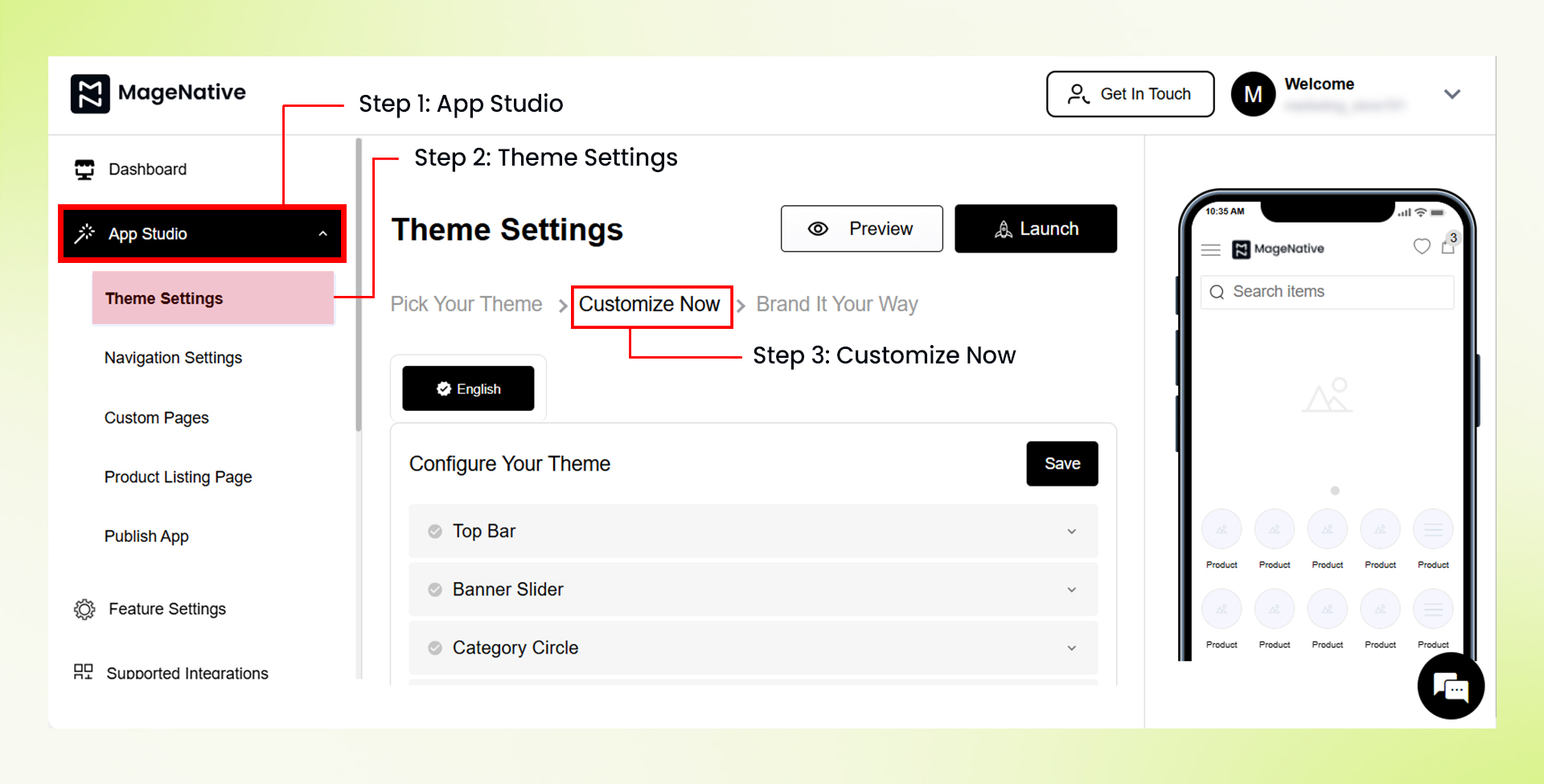

- Locate the desired component (e.g., Banner Slider, Announcement Bar, etc.) and drag it onto the mobile screen on the right side.
- Click on the edit icon present in the selected component section.
- Fill in the fields for the component as required.
- Under the Link With field, choose the Custom Pages option.
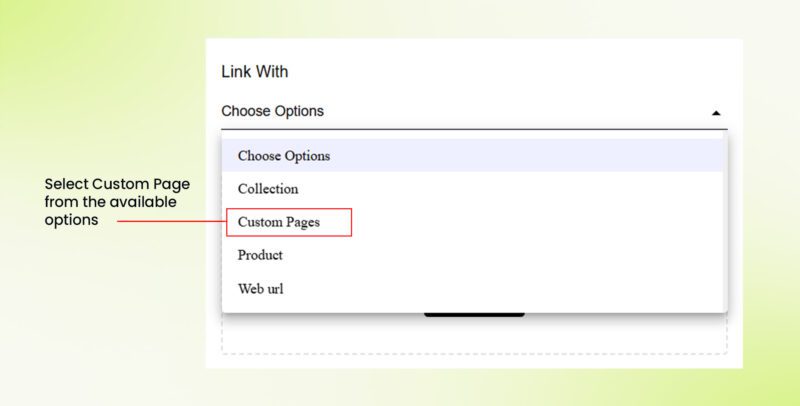

- Select the custom page you’d like users to be redirected to when they click on the component.
- Finally, click the Save button in the top right corner.
Congratulations! You have successfully linked your custom pages to the desired section of your MageNative Mobile App.
Feel free to reach out to our support team if you have questions or need support. We are here to help and address any issues you may have!


