What Is the Banner Slider Component and How Can You Use It Effectively?
Are you looking to grab your users’ attention? We have just the right feature for you! Turn your app into a dynamic display with eye-catching visuals and interactive elements using MageNative’s Banner Slider.
What Is The Banner Slider?
MageNative’s Banner Slider is an effective design component that helps to display multiple eye-catching banners within your mobile app. Be it special offers, new arrivals, or even seasonal campaigns, all can be well displayed in a visually appealing and interactive way using our banner slider.
How to Set Up the Banner Slider on Your Mobile App?
1. Drag and drop the Banner Slider component to your desired location on the app screen.
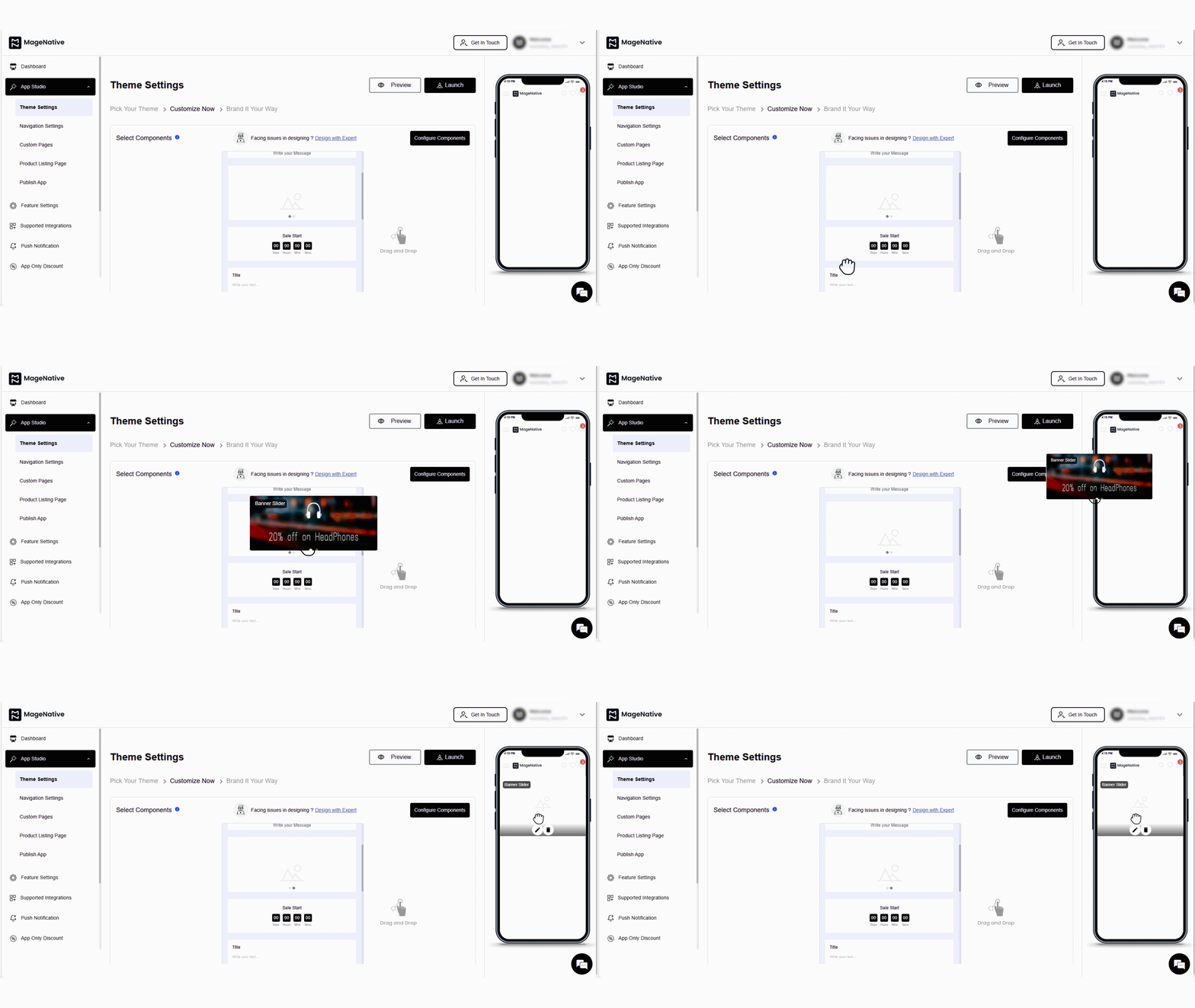
2. Click the Edit component to open the configuration menu at the center of your dashboard.
3. For customization- In the layout section, you can adjust the banner size from these dimensions available – 700×234 px, 700×394 px, 700×700 px, 700×500 px, and 700×900 px.
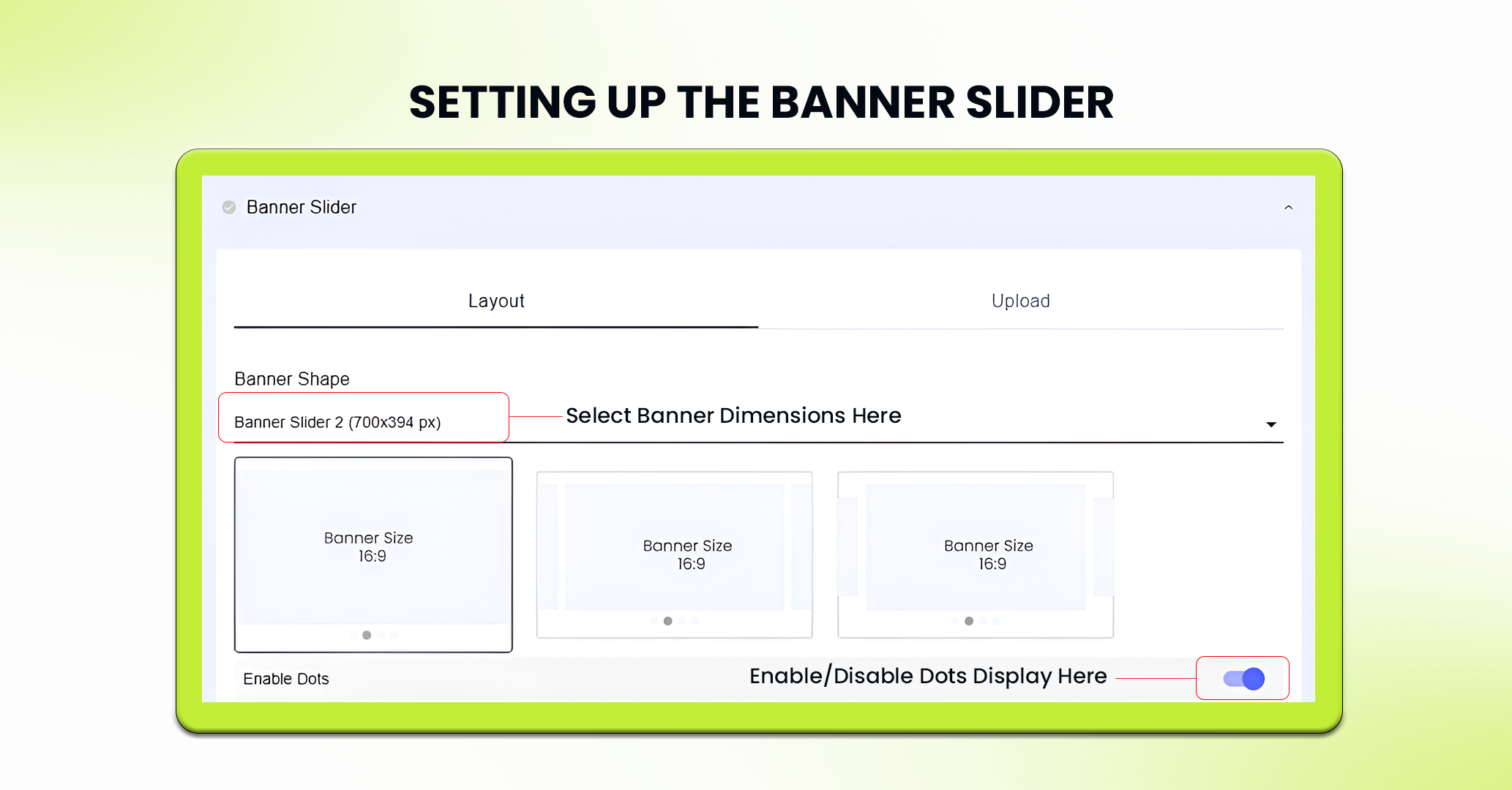
4. Further, enable or disable the navigation dots at the bottom of the banners as you want it to display.
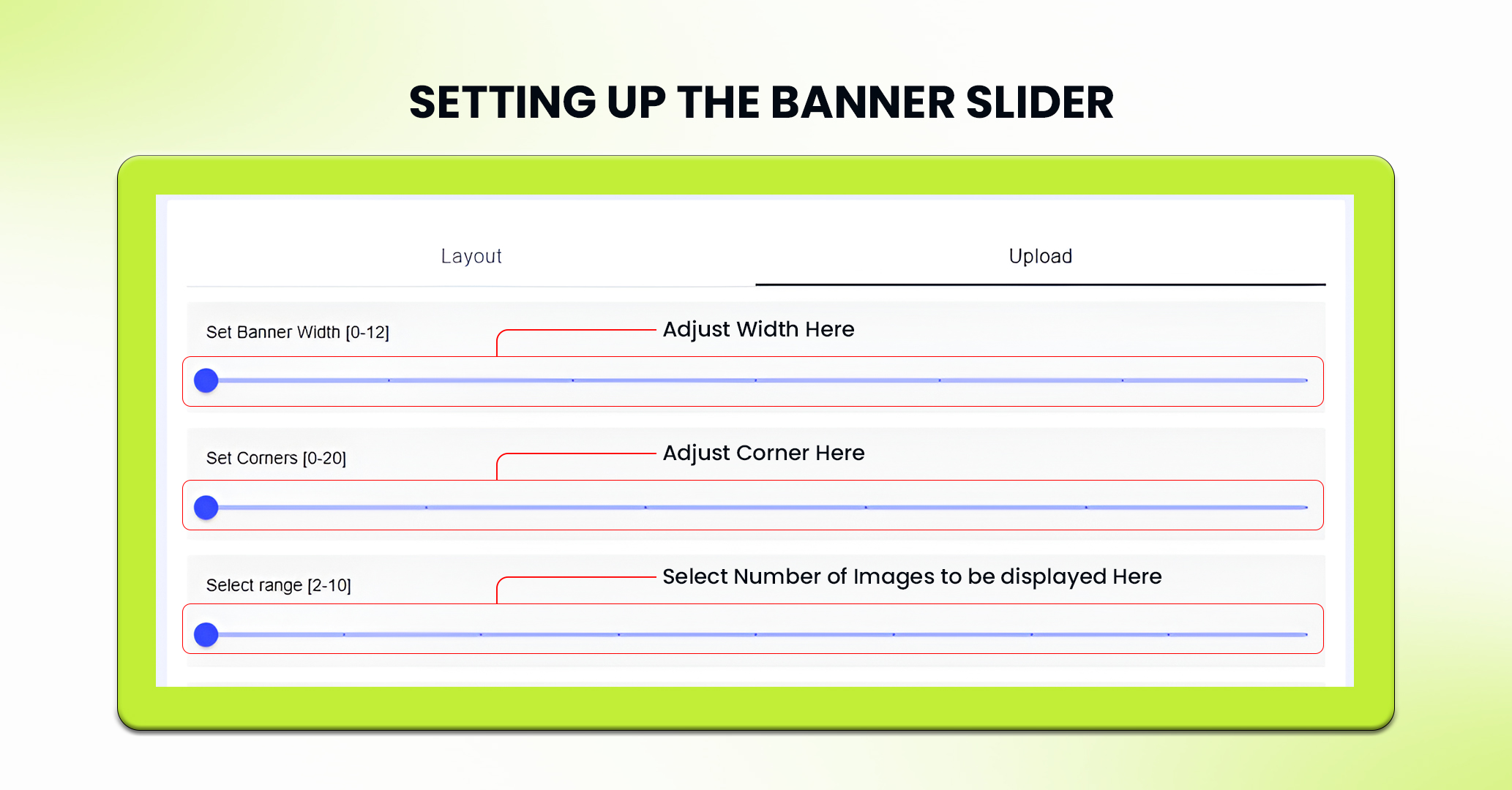
5. In the upload section, set the banner width, corner radius and no. of banner images to display in the slider in the range of 0-12.
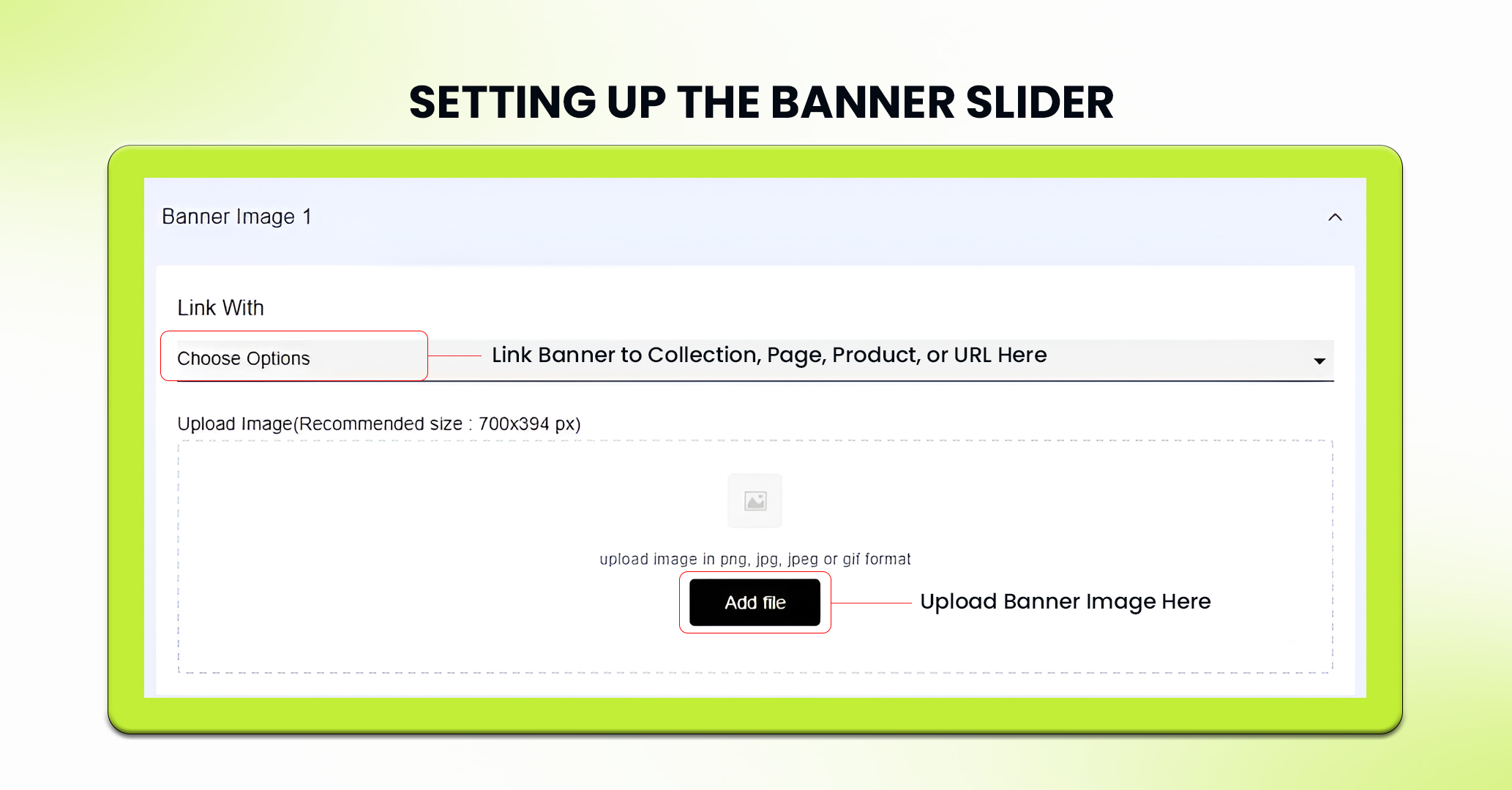
6. Now, upload the banner image in the png, jpg, jpeg or gif format. The recommended sizes to upload banner images for different aspect ratios are – 700x234px, 700×394 px, 700 x 500 px, 700 x 700 px and 700 x 900 px.
7. Also, Link each banner image with the corresponding collection, custom pages, product or web url.
8. Click on the Save button to save the setting.
9. If needed, you can delete the slider by clicking Delete Component or press Reset to undo any changes made to the slider.
Note: The Delete option is available only in Custom themes.
Best Use Cases of Banner Slider
Highlight Seasonal Deals with the Banner Slider
Use the Banner Slider to highlight seasonal promotions or limited-time offers. Sliding banners featuring different offers or collections of products catch users’ attention and help them navigate through the best offers of that season.
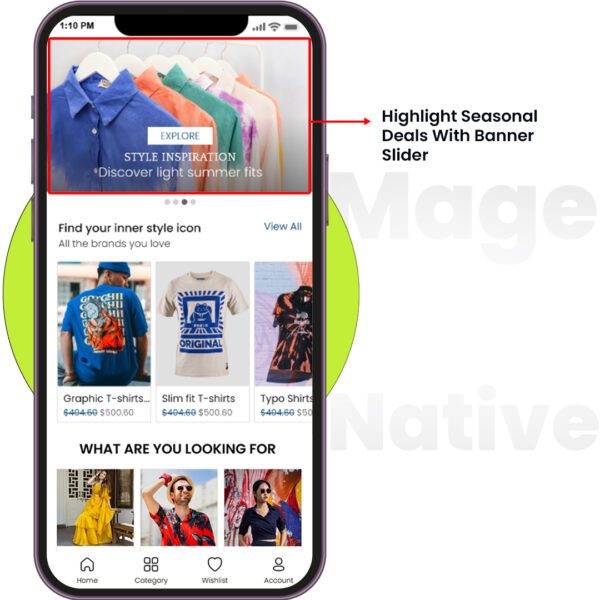
Example: Banner slider showcasing pictures of summer sales, holiday specials, clearance events, and much more. For every banner, a call-to-action button can be added that redirects users to a specific product page or collections.
PRO TIP: Use the Banner Slider along with the Announcement Bar to ensure users see both the time-sensitive offers and key promotions at once.
Feel free to reach out to our support team if you have questions or need support. We are here to help and address any issues you may have!


