What is Collection Grid Layout & How Can It Be Utilized Effectively?
Today users want a seamless and interactive experience. For this, browsing should be easy and intuitive. A well-designed Collections Grid Layout is key to achieving this.
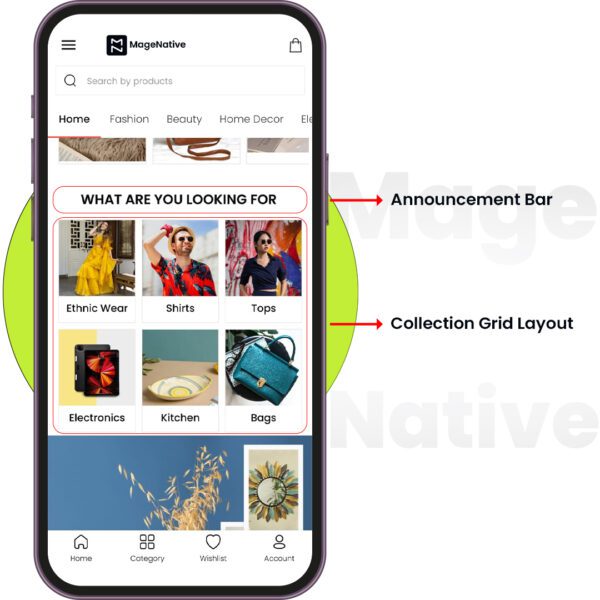
Collections Grid Layout is MageNative’s design component that helps you to showcase your product collections in a structured grid format. It provides a visually appealing way to display multiple products or categories, thus providing an enhanced user experience.
How to Set Up the Collections Grid Layout on Your Mobile App?
1. Drag and drop the Collections Grid Layout component into the desired location on your app’s screen.
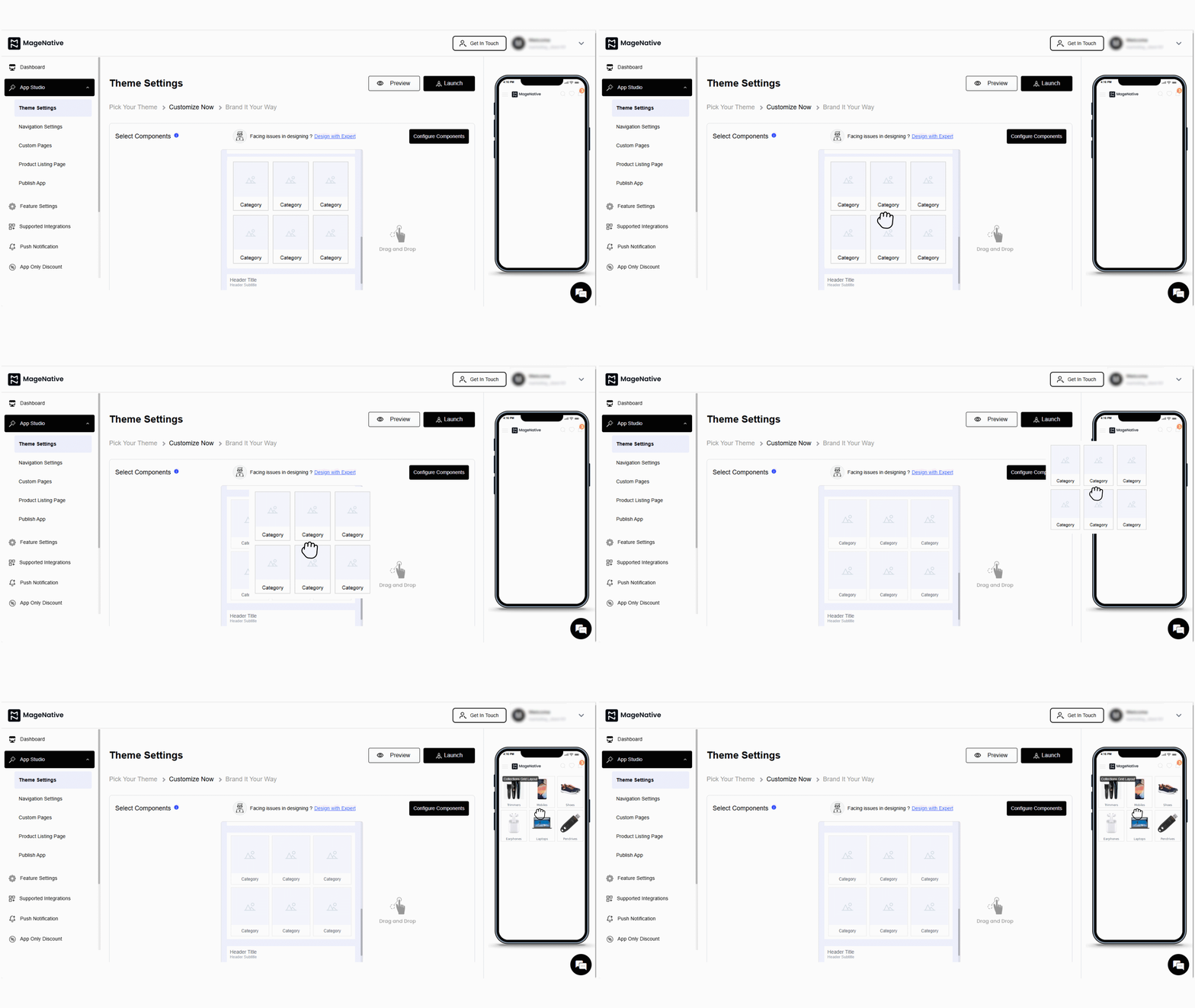
2. Next, click on the edit icon. It will open a customization window at the center of the dashboard.
3. In the Layout section, adjust various display options such as the number of rows (1-3).
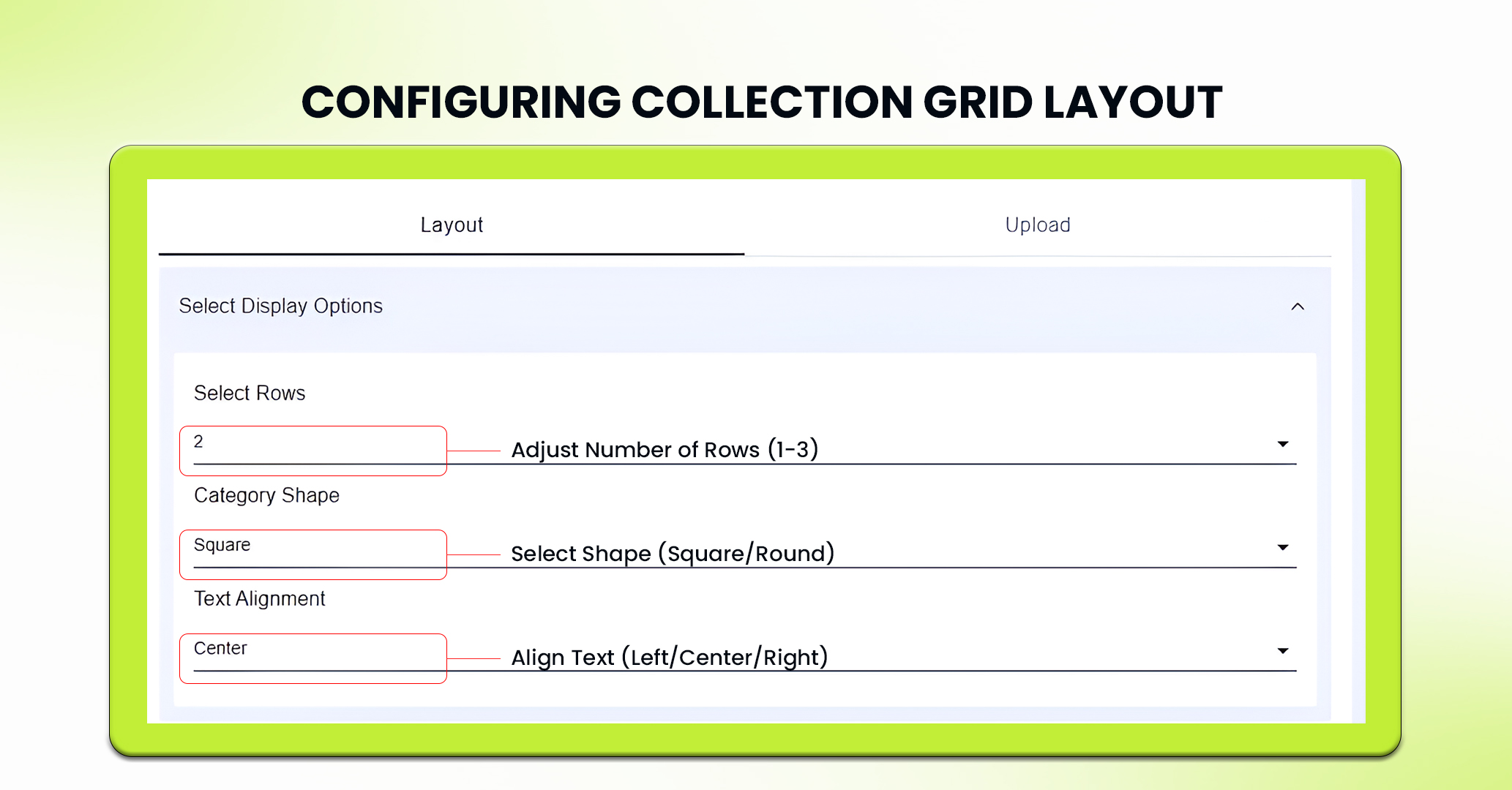
4. Next, adjust the shape of each category (square, round).
5. Now, adjust text alignment i.e – left, center or right.
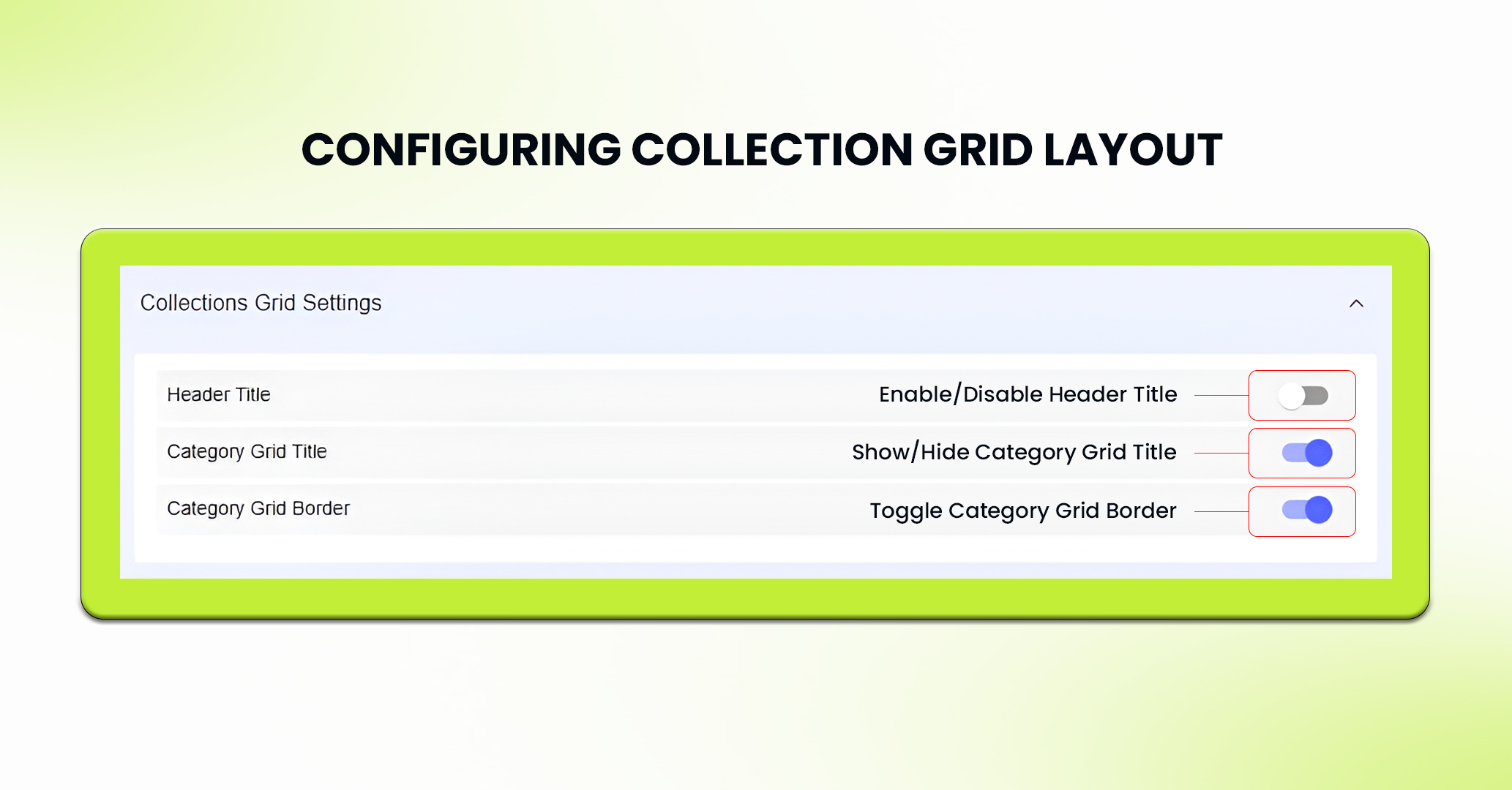
6. Moreover, you can enable or disable various collections grid settings like – Header Title, Category Grid Title, Category Grid Border as needed.
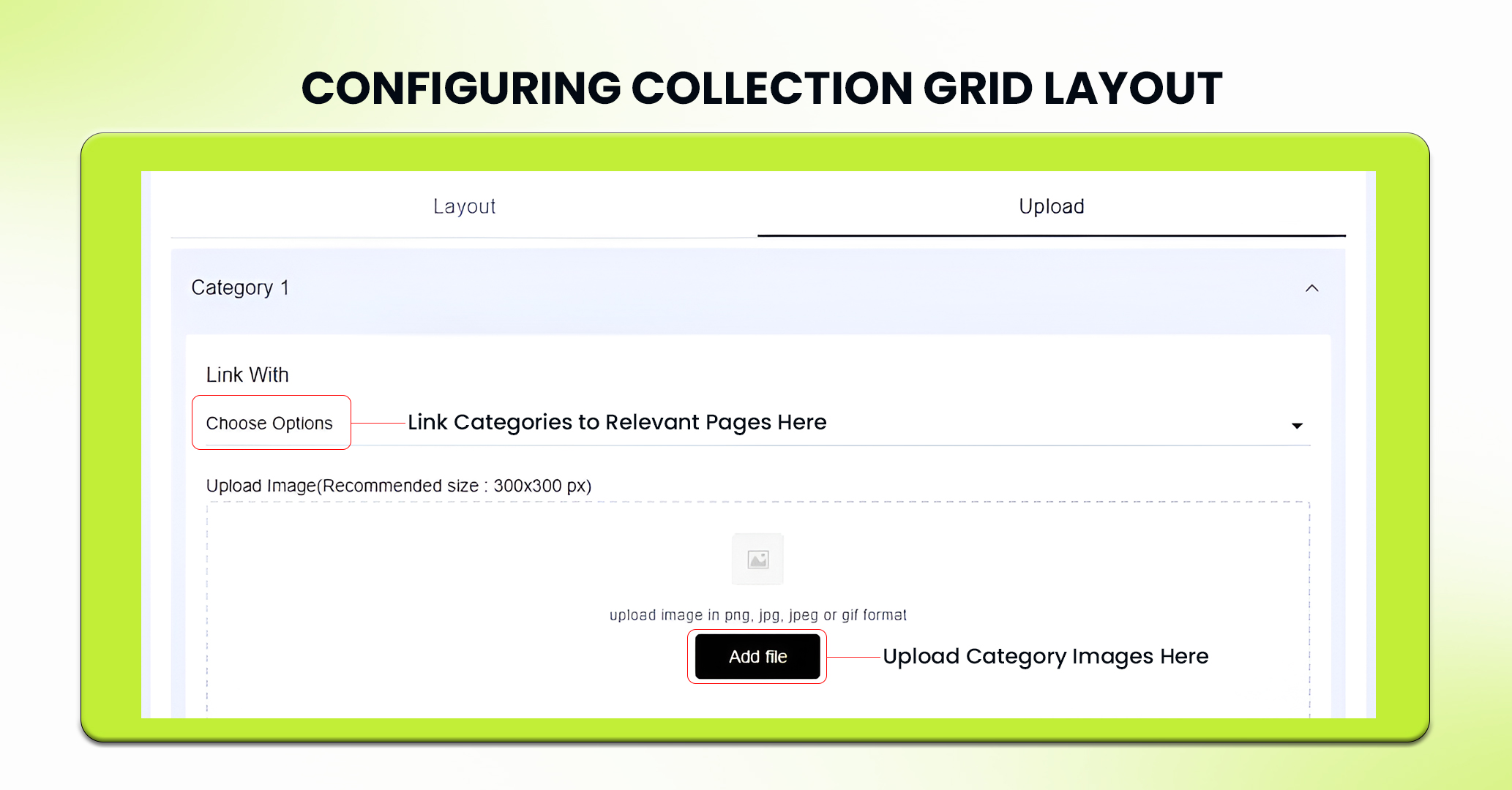
7. In the Upload section, you can add images for each category in png, jpg, jpeg, gif format. Recommended size of these images are: 300×300 px.
8. Furthermore, you can link each category with relevant pages within your mobile app.
9. After all settings are configured, click on the Save button to apply the changes.
10. If needed, you can delete the component by clicking Delete Component or press Reset to undo any changes made to it.
Note: Delete Component Button is only available for Custom themes and not for pre-built themes.
Best Practices for Using the Collections Grid Layout
Combine with Other Elements for a Dynamic User Experience
Add a countdown timer next to your Collections Grid to highlight limited-time offers or flash sales. This creates urgency and encourages users to act immediately. In addition, using a countdown timer with collections in the grid can lead users toward the specific categories and/or products included in the sale, thus improving your engagement and conversion rates.
Feel free to reach out to our support team if you have questions or need support. We are here to help and address any issues you may have!


